


Overview
Paygira allows schools to collect and record payments in person, in addition to online payments made directly by parents and guardians. This is useful for schools where cash or offline payments are common. To collect payments, an employee must have the Paygira permission enabled — this activates Paygira in every class the employee is assigned to.
Note: Manual collection is only needed when a parent or student does not pay online. Online payments through the Parent Portal are recorded automatically.
Step 1: Activate Collection for an Employee
Before an employee can collect payments, two things must be in place:
- Go to Management Tools > Employees.
- Confirm the employee has the Paygira permission enabled.
- When creating a bill in Paygira, assign that employee as the payment collector.
Once assigned, the employee will see the bill under their classes and can start collecting.
Step 2: Collect a Payment
- Open the class and select My Paygira. All bills assigned to you will appear here.
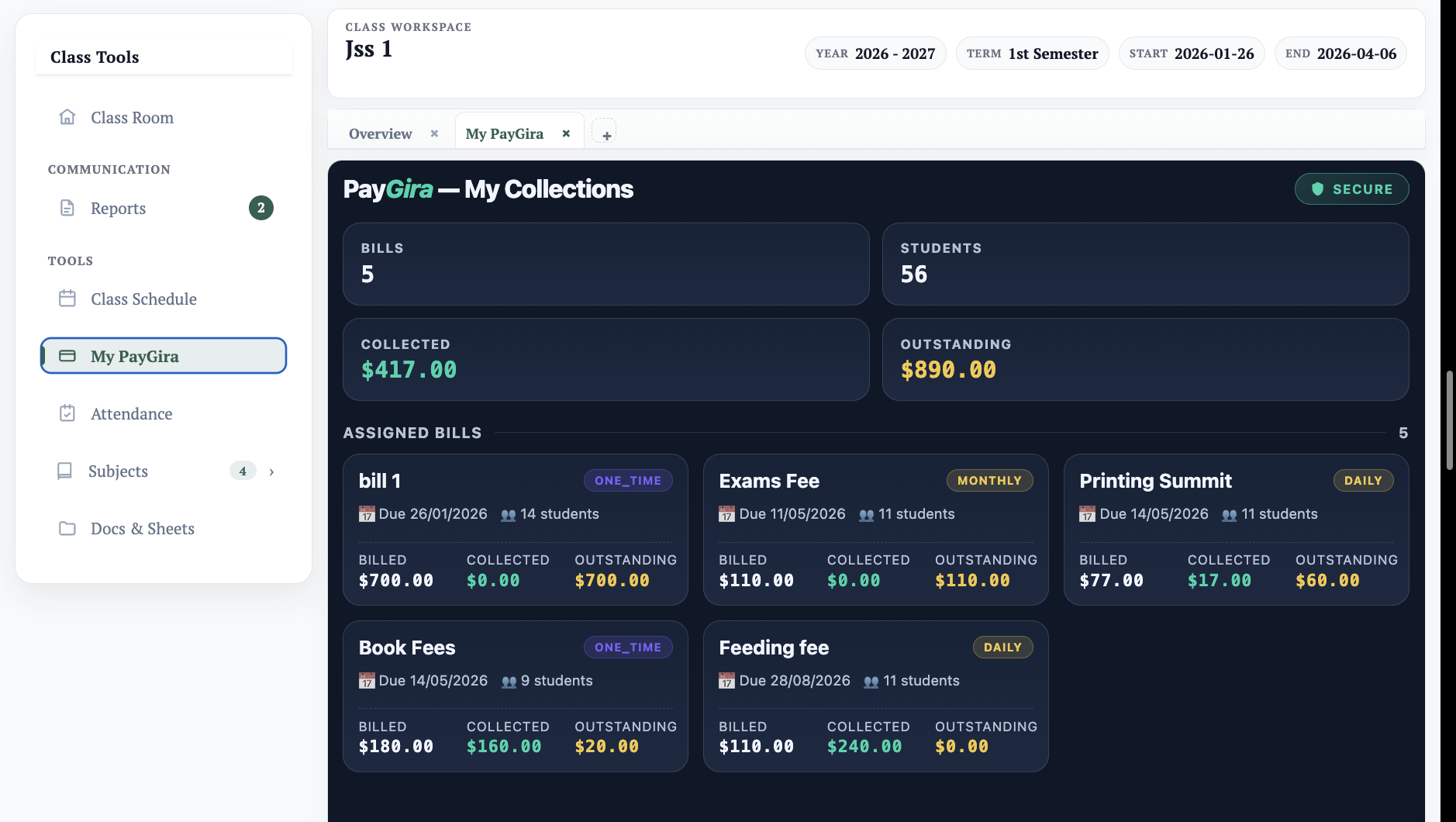
- Click the bill you want to collect. Use the Past, All, or Future filters to find the right one.
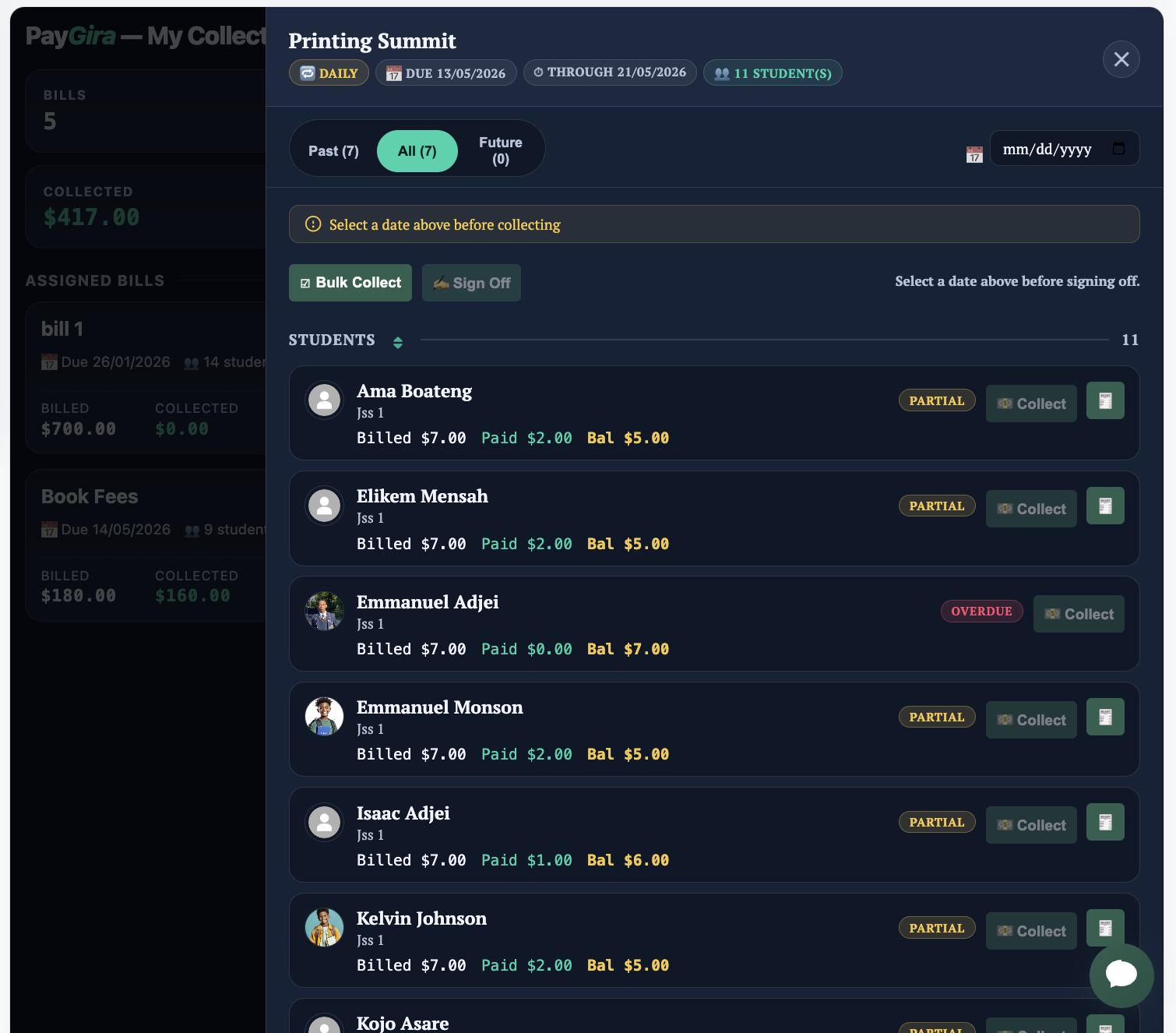
- For recurring bills, the payment will show for all students — select the date you want the payment attached to.
- Click Collect beside the student's name and enter the amount collected.
- Fill out the form and click Record Payment.
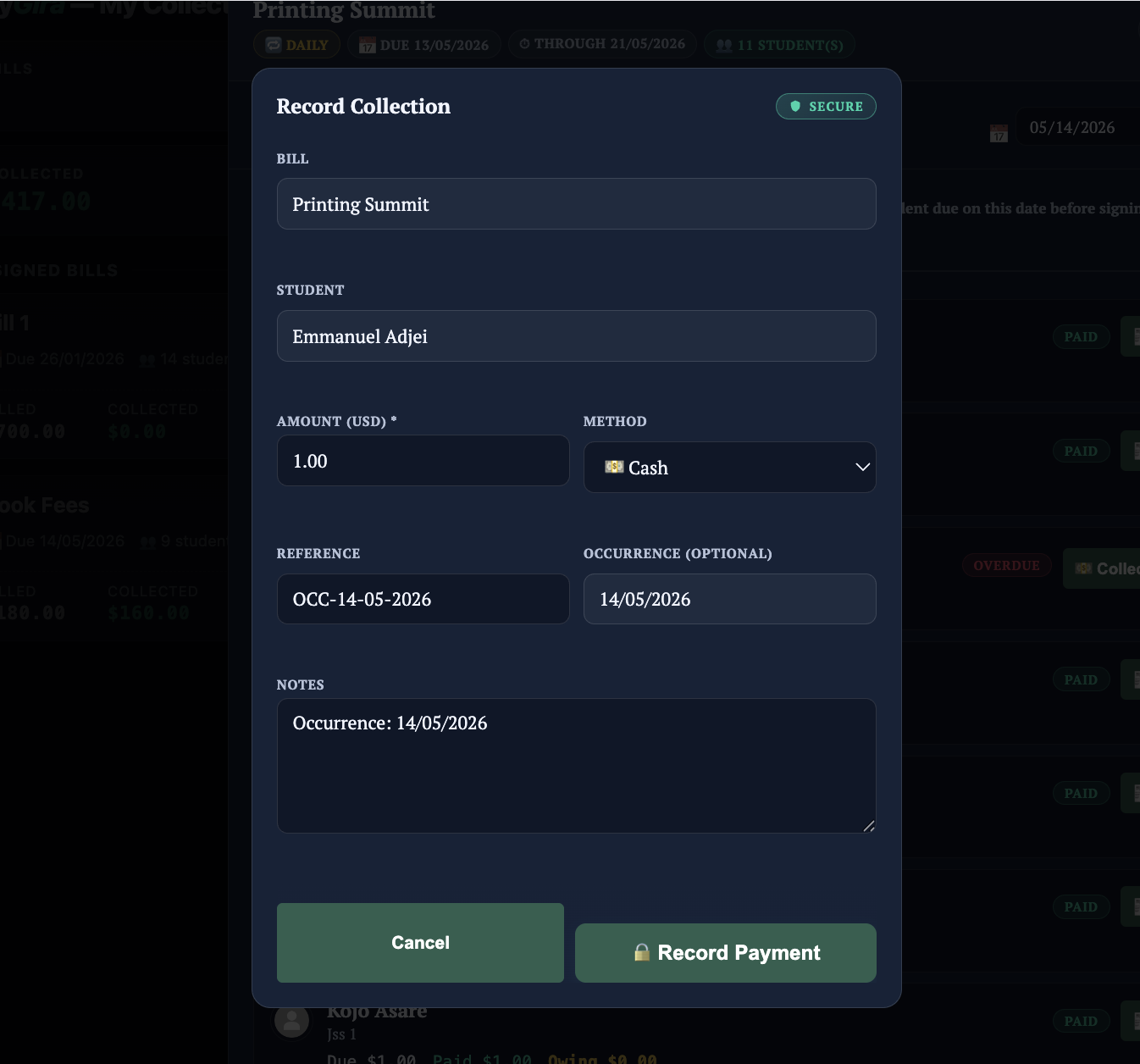
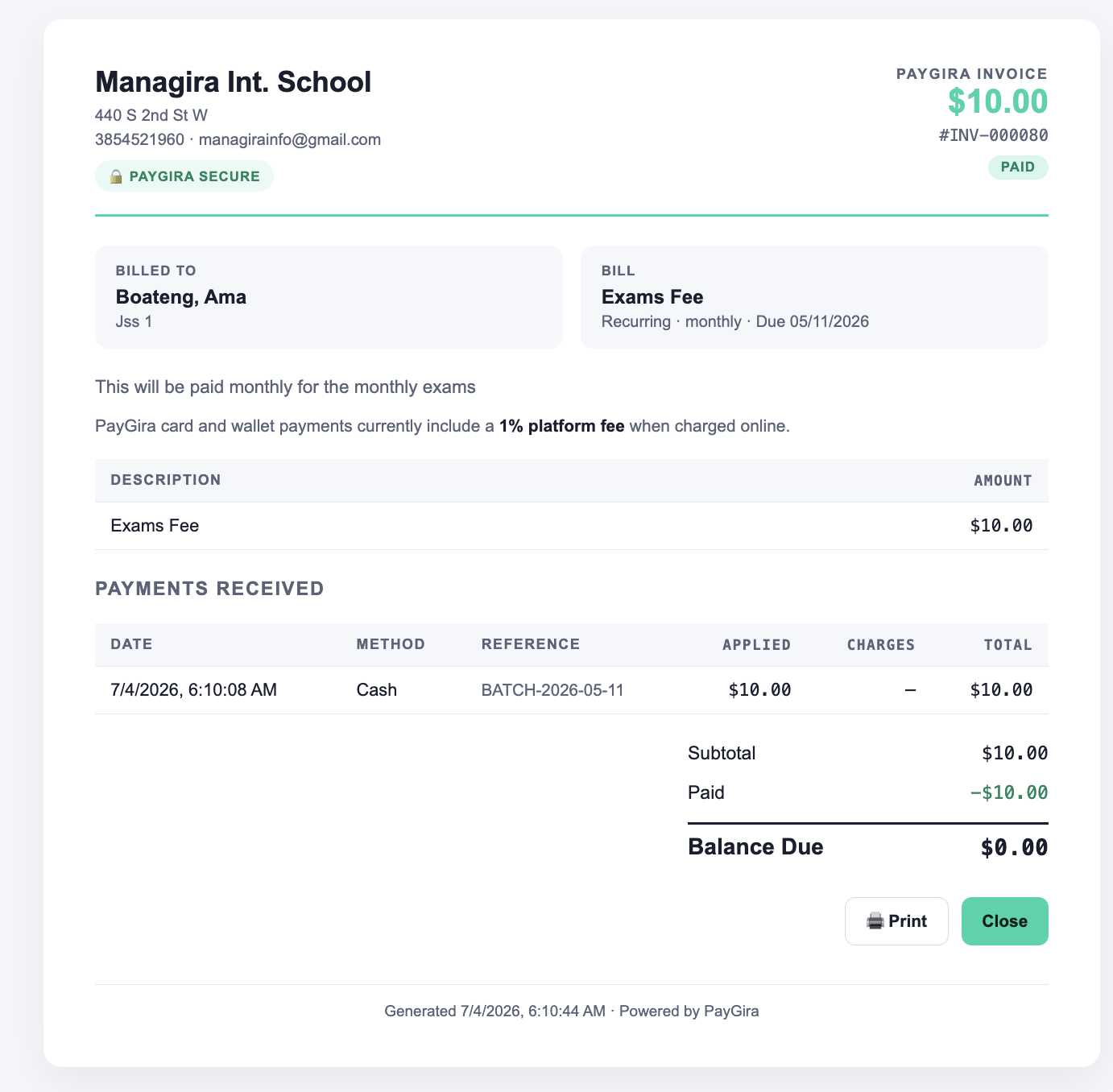
The payment is now saved, and a receipt is generated automatically.
Step 3: Bulk Collection (Optional)
Bulk Collection saves time when collecting from several students at once — for example, on a fee deadline day.
- On the bill page, click Bulk Collection at the top.
- Select the payment date and the number of students you are collecting from.
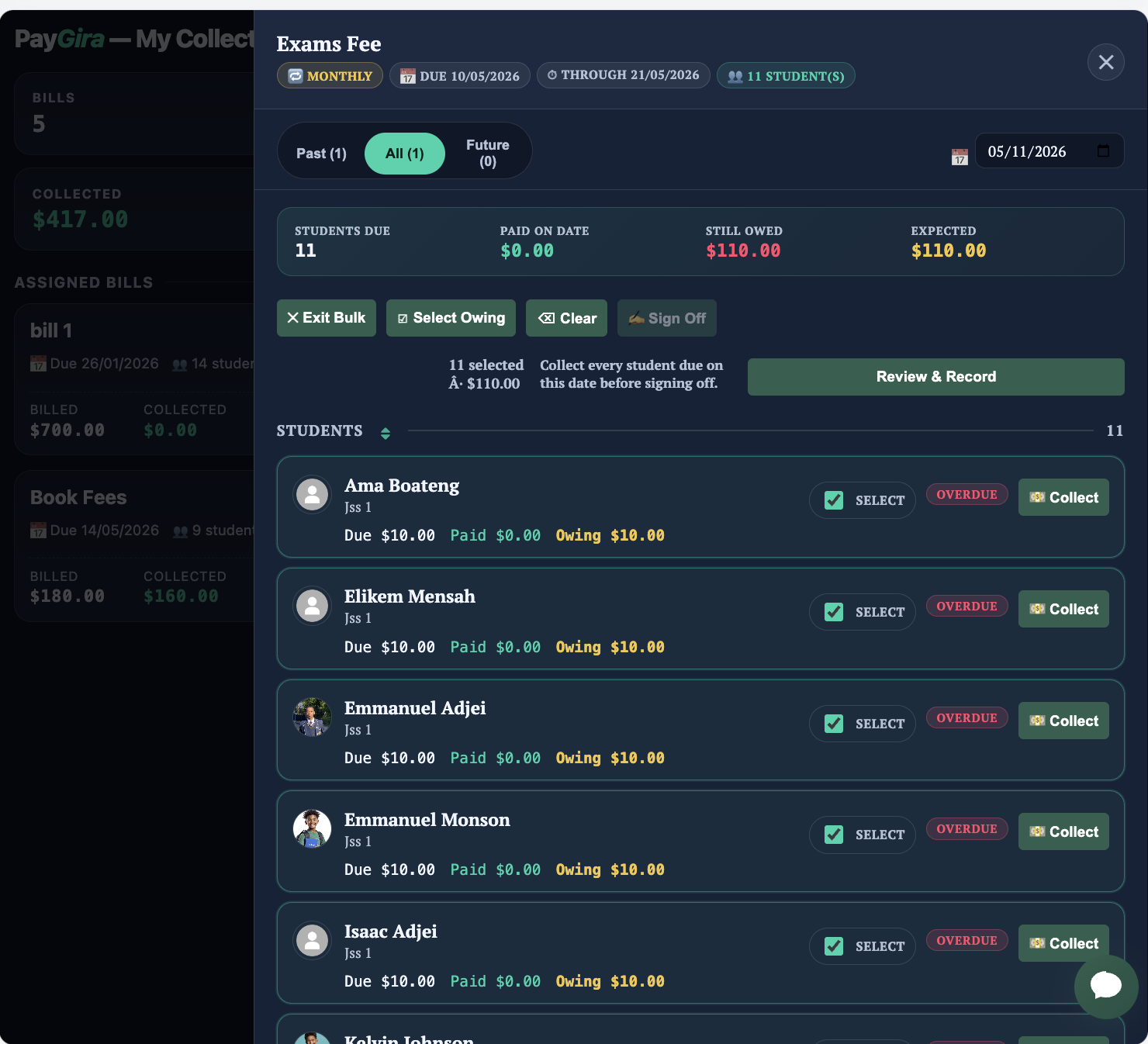
- Click Review and Record when done.
- On the review screen, check each entry carefully and edit anything that needs correcting.
- Save to record all payments at once.
Each payment is saved with its receipt beside it. Receipts are also sent to parents by email and appear on their Parent Portal.
Step 4: Sign Off
Once every bill is collected and no student is owing, the employee closes out the bill by signing off.
- Open the bill and click Sign Off.
- Fill out the sign-off form and submit.
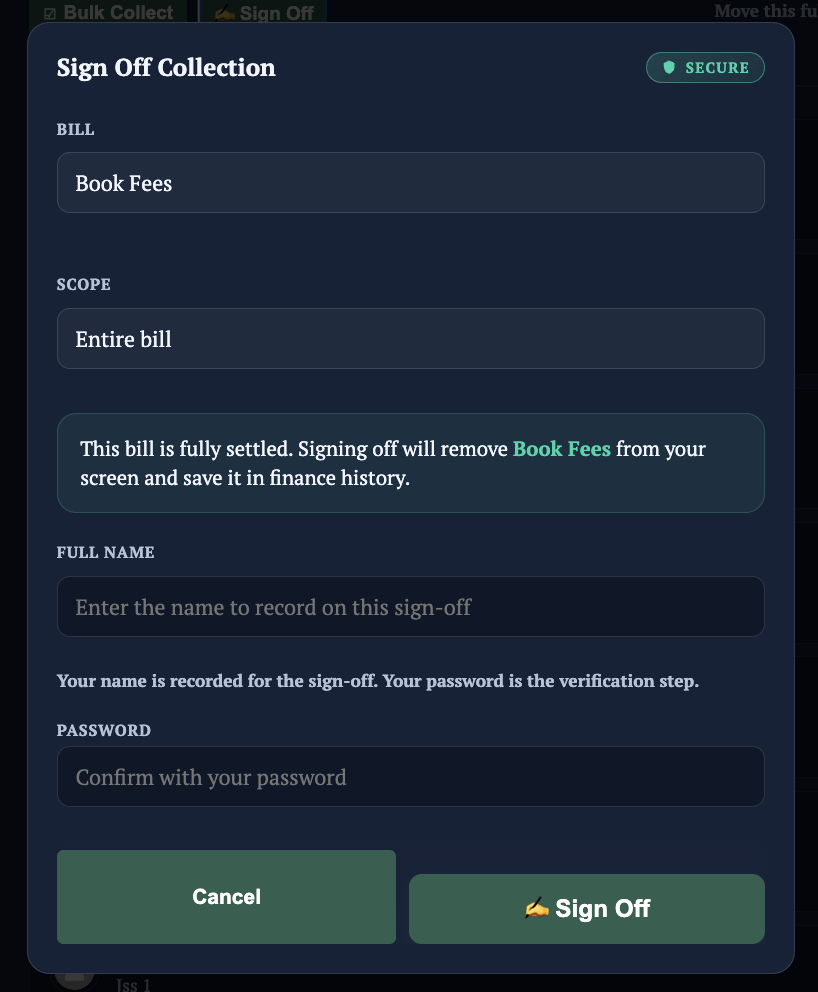
After sign off, the bill disappears from your Paygira. It moves to managers and school leads for review:
- Approved — the bill is closed.
- Refused — the sign off is returned to you to redo, or it may be reassigned to another employee.