



Overview
Managira is designed to help schools manage their daily operations from one secure and easy-to-use platform. While Managira runs through a web browser, it can also be installed on mobile phones, tablets, laptops, and desktop computers to provide an app-like experience — allowing users to launch it directly from their device without opening a browser each time.
💡 Tip: Log in to Managira before installing it to your home screen or desktop. This way, you won't need to re-authenticate every time you open the app.
How to Add Managira as a mobile app
- Open any browser on your iPhone (Safari recommended for best results)
- Visit www.managira.com and log in if prompted
- Tap the Share button — the square icon with an upward arrow, found at the bottom of the screen
- Scroll down through the list of options
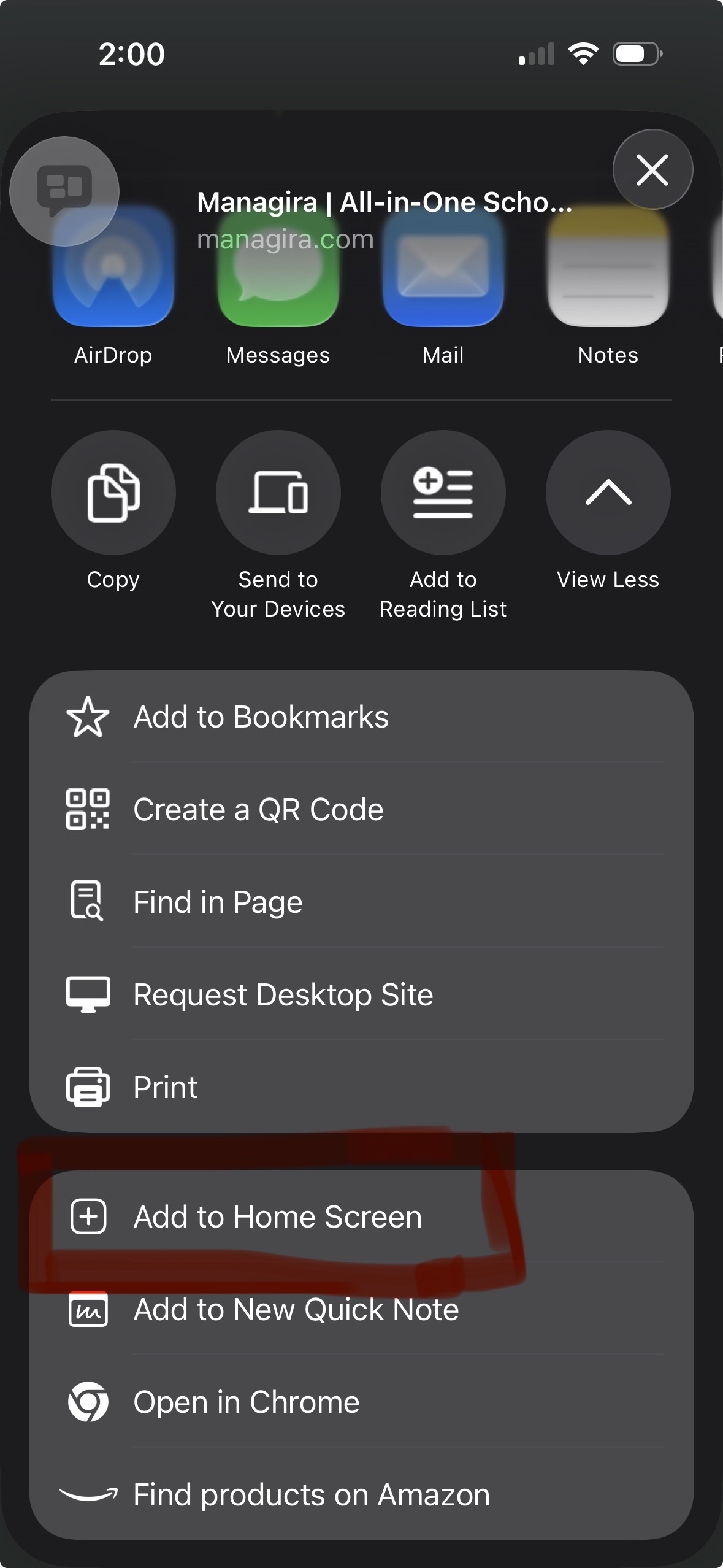
- Tap Add to Home Screen
- Review the name — it should read "Managira"
- Tap Add in the top-right corner
The Managira icon or your school logo will now appear on your Home Screen and can be launched just like a regular mobile app.
💡 Tip: If you don't see the Share button, make sure you are using Safari. Some third-party browsers on iPhone may not support the Add to Home Screen option.
Add Managira to Your Laptop or Desktop
Google Chrome
- Open www.managira.com in Chrome
- Look for the Install icon (a monitor with a down arrow) in the address bar and click it
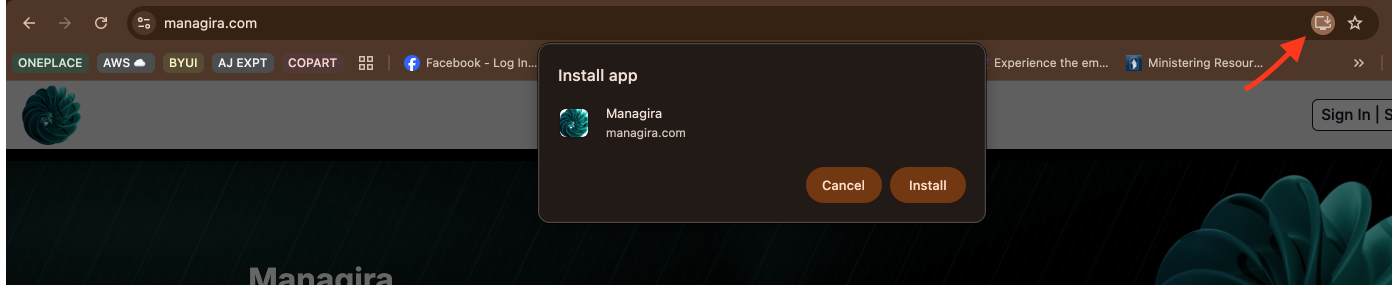
- If you don't see it, click the three-dot menu (⋮) in the top-right corner and select Install Managira or Create Shortcut
- Click Install
Microsoft Edge
- Open www.managira.com in Edge
- Click the three-dot menu (···) in the top-right corner
- Select Apps → Install this site as an app
- Click Install
Safari on Mac
- Open www.managira.com in Safari
- Click File in the menu bar
- Select Add to Dock and confirm
Once installed, Managira will appear on your desktop, taskbar, dock, or applications folder depending on your device.