




Overview
Every school on Managira gets a free school website, based on the plan chosen when joining. The website gives your school visibility to the general public — it helps you advertise, showcase your school, and stay on top of schools in your neighborhood.
Managira provides high SEO that prioritizes your school for as long as you're on Managira. When people search for schools in your local community, your school is found faster than others — and people from anywhere can discover you too.
The website also works as a tool for your school: accept admissions online, publish articles and newsletters, and share activities happening in your school so parents and the public stay informed.
Accessing Your Website
Your website URL is added automatically to the footer of most files and PDFs generated in Managira. You can also share the link personally — it's a secure and trusted link, safe to send to parents, applicants, and the public.
Your URL format: schoolnickname.managira.com — the nickname is the short school name shown on a small mobile screen when logged in to Managira.
Note: The website is dynamic, clean, and user-friendly. No hard work or deep IT knowledge needed to set it up.
Setting It Up
Steps:
- Go to ☰ Menu → Management Tools → School Website.
- Select Website Settings.
- On the Manage Website Content page, complete the sections below.
- Save when done — your changes go live on your website.
🎨 Website Layout
Choose one of Managira's layouts to make your site stand out. All layouts are clean and simple, giving good visibility to everything you display.
📷 Gallery Images
Showcase life at your school with images and text descriptions. There are two types:
Slideshow images — The first images visitors see, moving across the screen one at a time with your descriptions. Select Slideshow when uploading.
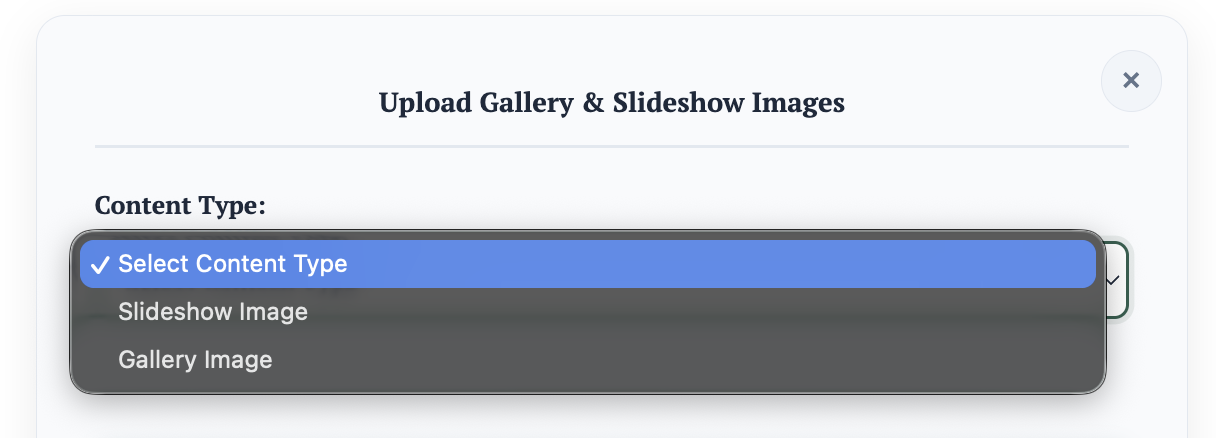
Tip: Keep slideshows to a few images — they display one at a time, and too many takes a while to go through.
Gallery images — Displayed under the Gallery section. Add as many as you want; visitors can click any image to view it large and read the caption underneath.
📝 Articles
Publish student articles, newsletters, and school news here. Content must be in text — enter your topic (title) first, then your paragraphs.
📖 About Our School
Your school's information — address, motto, contact number, and more. This is the first impression people get on Google when they search your school, so make sure it truly reflects your school and its values.
⚙️ Self Enrollment Settings
Self enrollment lets students or parents apply to your school online, for your school to review and decide.
Steps:
- Activate Self Enrollment in Website Settings.
- Set a start and end date for the application window.
- Select the currency and enter the registration fee — set it to 0 if there's no fee.
- Set up a payout account if you don't have one, so application fees reach you.
- Save — self enrollment is now live on your website.

📢 Events and Announcements
School events and announcements can appear on the website when marked for the general public. Click here to learn how to configure them.