




Overview
When classes are created, they need to be enrolled into a school year and a term. The only exception is when classes already exist and are being rolled over to a different term using Promotion — in that case, classes and students are auto-added to those terms and school years.
For students, if classes and school years are already created, enrollment happens automatically during student creation.
In most cases you won't need to enroll students manually — this process is mainly required for each new class you create.
Enrolling Steps
- Navigate to Management Tools → Enrollment.
- Select Manage Enrollment, then Add Enrollment.
- Select a school year and a term.
- Click Show/Hide Classes and select all classes you want to enroll. This displays all students in each class if they're already created.
- To move a student to a different class: go to the class the student should be moved into, use the search bar below the class, search for the student, and add them. The student is moved and enrolled in the new class.
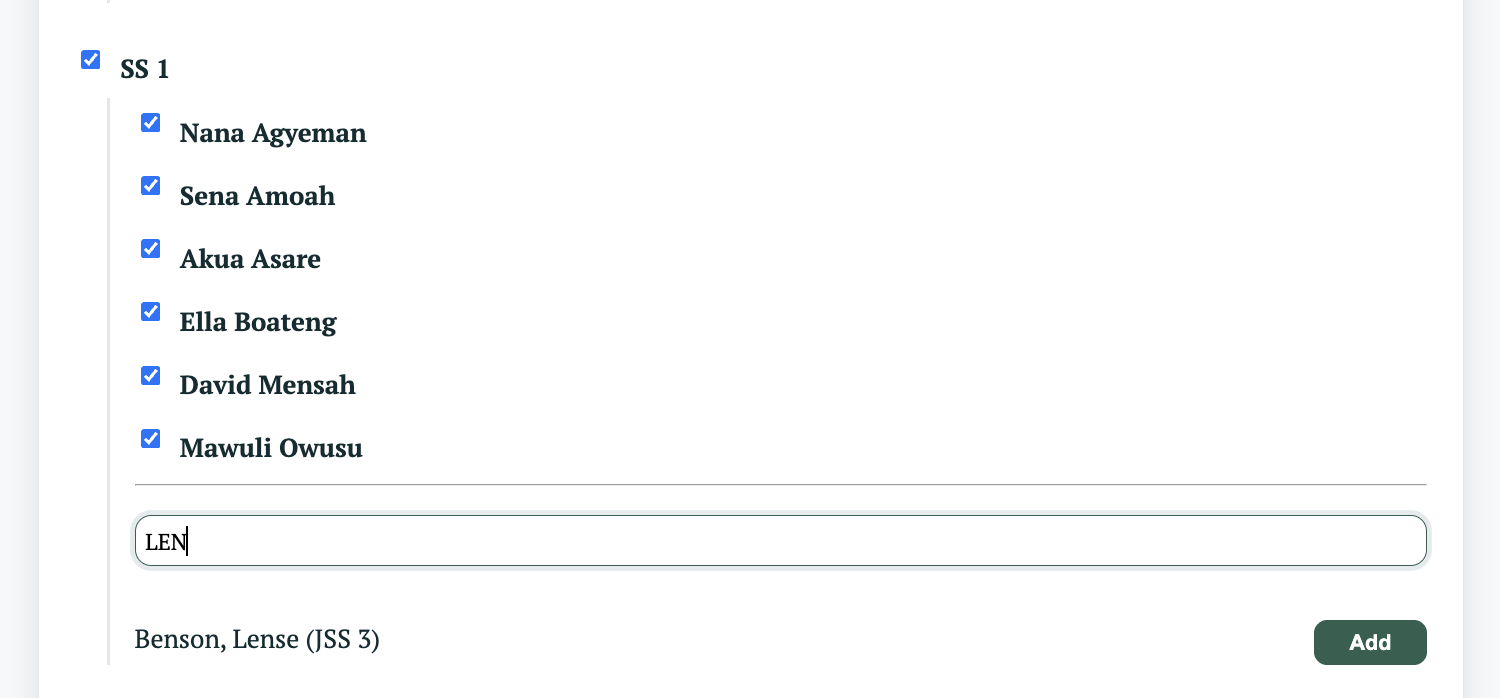
- Save the enrollment settings. The classes will now show on the organization dashboard.
You can manage these enrollments anytime under Manage Enrollments.
Note: If you try to create an enrollment for a school year and term that already exists, the system will not allow it.