




Overview
Classes, subjects, and graduation year groups are vital to how your school's information is organized, students, teachers, and other activities all rely on them to be active. Once created, they can be updated at any time as your school's academic structure evolves.
Note: After creation, classes must be enrolled in a term and a school year before they will show up for that school year. Learn the steps to enroll classes here.
Where to Manage It
Go to ☰ Menu → Management Tools → Class, Subject & Grad Year.
On the Classes, Subjects & Graduation Years workspace, you'll find three sections:
- Manage Classes – Create and organize your school's classes.
- Assign Subjects – Add subjects and assign them to specific classes.
- Graduation Groups – Create graduation year groups to organize student cohorts.
Click Manage Classes, Subjects & Grad Years to open the management page.
Creating Classes, Subjects & Grad Year Groups
- Click Add New Item.
- Create classes first. Enter the class names — use the circled + button to add more than one at a time.
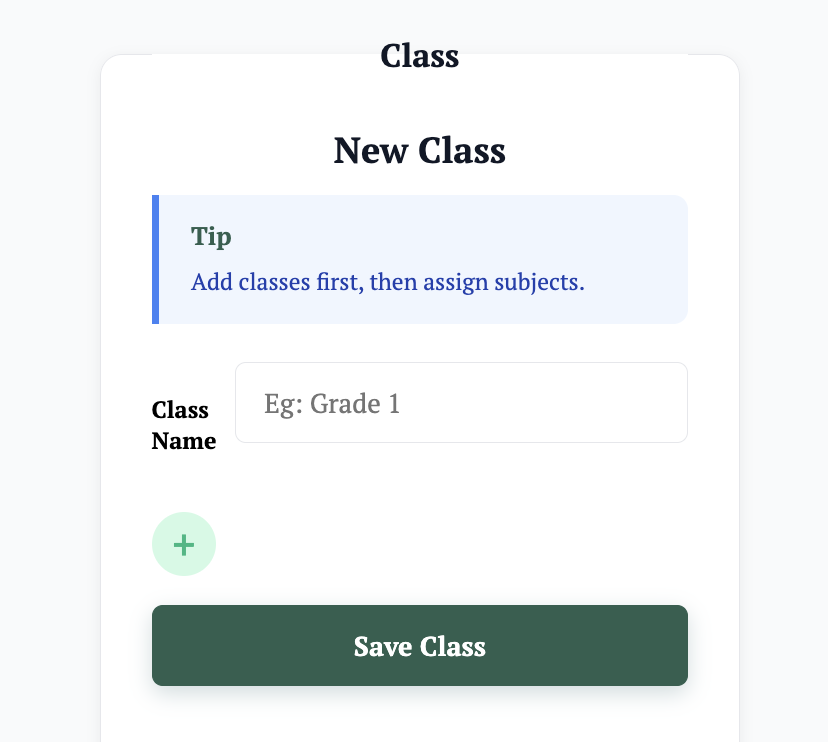
- Save them. Once done, they will show under the Subjects section.
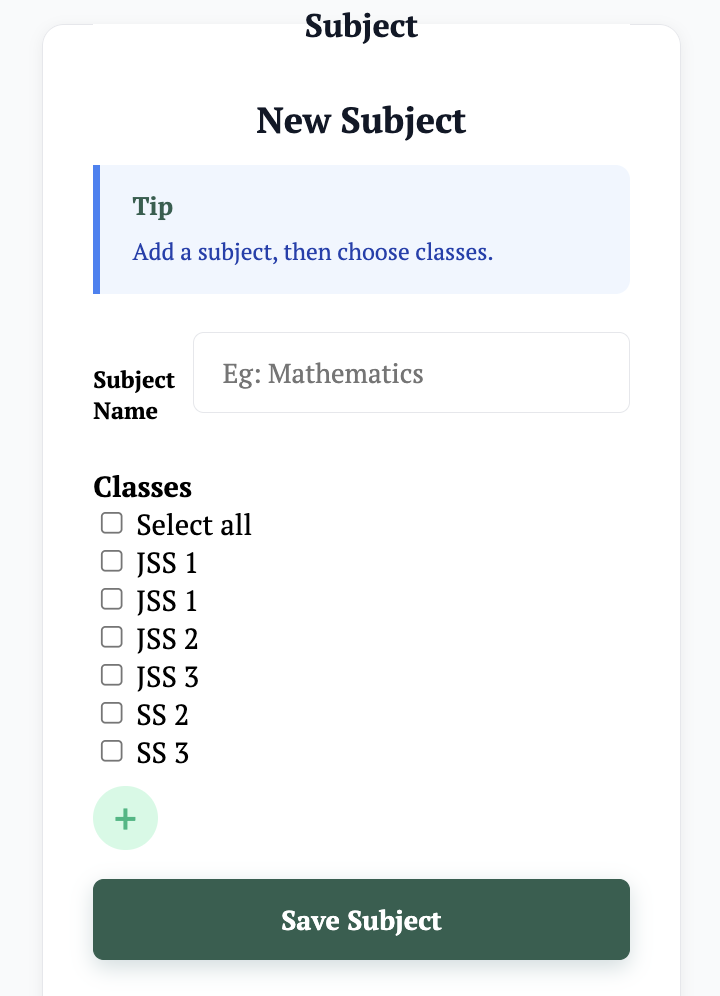
- Add subjects the same way, then assign each subject to all the classes it belongs to. One subject can be assigned to multiple classes — no need to create a subject for each class.
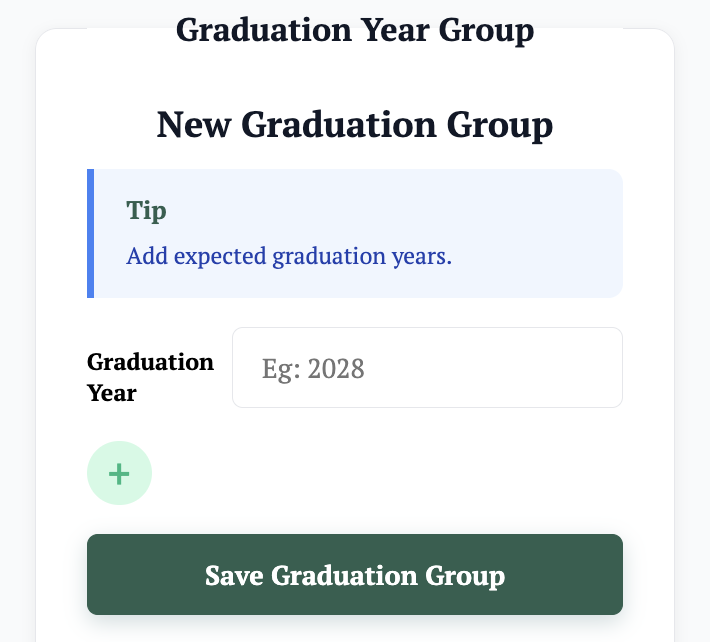
- Create graduation year groups for each class. This keeps students organized in the right cohort and ensures everyone is in the correct class with no spillage.
Managing Existing Records
All created classes, subjects, and graduation year groups are saved and shown on the Manage Classes & Subjects page. You can edit, delete, and make changes as needed — anytime you need to come back and adjust, you can do it here.
Best Practice
Set these up and enroll them in a term before enrolling students. That way, students are auto-enrolled into those terms when created — cutting out a long, stressful process and making things much easier.