




Overview
Once assessments are created and active, teachers and permitted staff can open the classroom subject to record student scores. Grades and remarks are automatically calculated based on the grading and remark rules configured in report settings. Saved scores are immediately available for report generation and visible to guardians on their dashboard.
What You Can Configure
This could be configured on the report settings
- Grade boundaries and labels (e.g., 80–100 = A)
- Remark messages linked to score ranges (e.g., 80–100 = Excellent)
- Default mappings applied across assessment and report workflows
Recommended Setup Order
- Open report settings before entering large batches of assessments.
- Define boundary ranges and assign grade labels and remarks.
⚠️ Warning: Changing grade boundaries after scores have already been entered will update grade labels and remarks on all previously generated reports. Review carefully before making changes mid-term.
Entering Student Scores
Once an assessment is created and active, it appears inside the assigned classroom under its subject.
To enter scores:
- Open the Classroom from the dashboard.
- Select the relevant Subject from the left-side menu.
- The active assessments for that subject will be displayed in a score sheet.
- Enter each student's score in the corresponding assessment column.
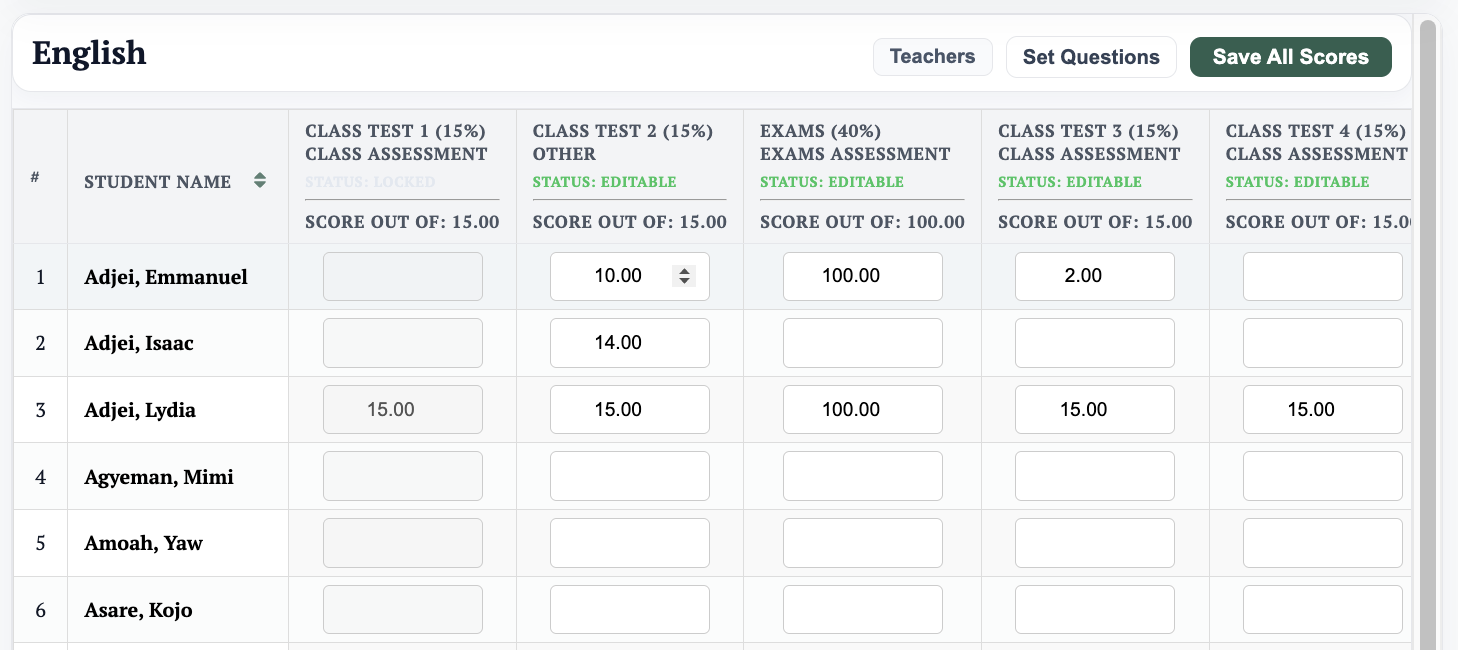
- Click Save All Scores to record the entries.
💡 Tip: Scores are calculated automatically based on the assessment weight, scale base, and grading settings configured. Total subject score, scaled score, total percentage, and grade are all updated in real time as scores are entered.
After Saving Scores
Once scores are saved:
- They become available for report card generation and academic reporting.
- Guardians can view their child's scores and grades on the Guardian Dashboard immediately after saving.
- Scores marked under assessments with Status: Editable can still be updated until the assessment is locked.
- ⚠️ Only teachers and users with the appropriate permissions can enter or edit scores within a classroom subject.
Editing Scores
Scores can only be edited while the assessment status shows Editable. To make changes, simply update the relevant score fields and click Save All Scores.
If the assessment is no longer open, contact a supervisor or administrator to reopen it. Once reopened, edit the scores and save as normal.
⚠️ Ensure all scores are correct before the assessment is locked, as reopening requires elevated permissions.