





Overview
Report Settings is the control center for how terminal reports are structured, displayed, and printed — covering score columns, grades, remarks, signatures, and billing.
Where to manage it:
☰ Menu → Reports → Report Settings
⚠️ At least one class and one term must exist before configuring report settings.
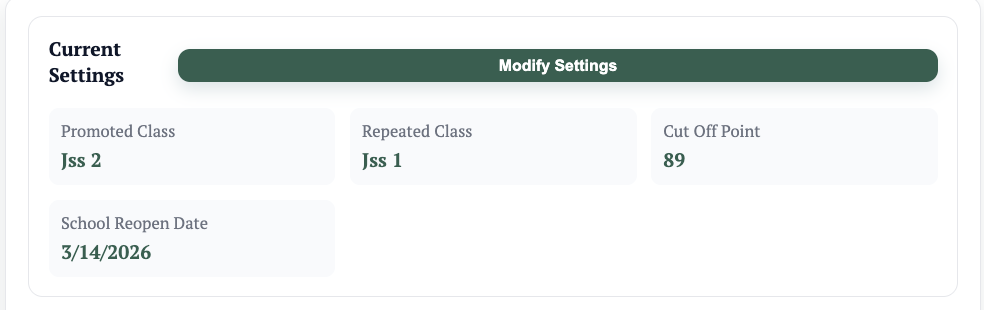
- Set the Promoted Class, Repeated Class, Cut-Off Point, and School Reopen Date. These can be applied to multiple classes at once.
- Open Advanced and configure score columns and report sections.
- Add Grade Mapping (e.g., A = 80–100).
- Add Score Remarks (e.g., Excellent = 80–100).
- Add Global Remarks for teacher, conduct, interest, and attitude.
- Add a Report Signature and transcript signature if applicable.
- Save and preview with one student report before rolling out to all classes.
💡 Tip: Configure one class first, verify the output, then replicate across other classes.
Advanced Display Settings
Controls exactly what appears on the printed report card.
Score Columns
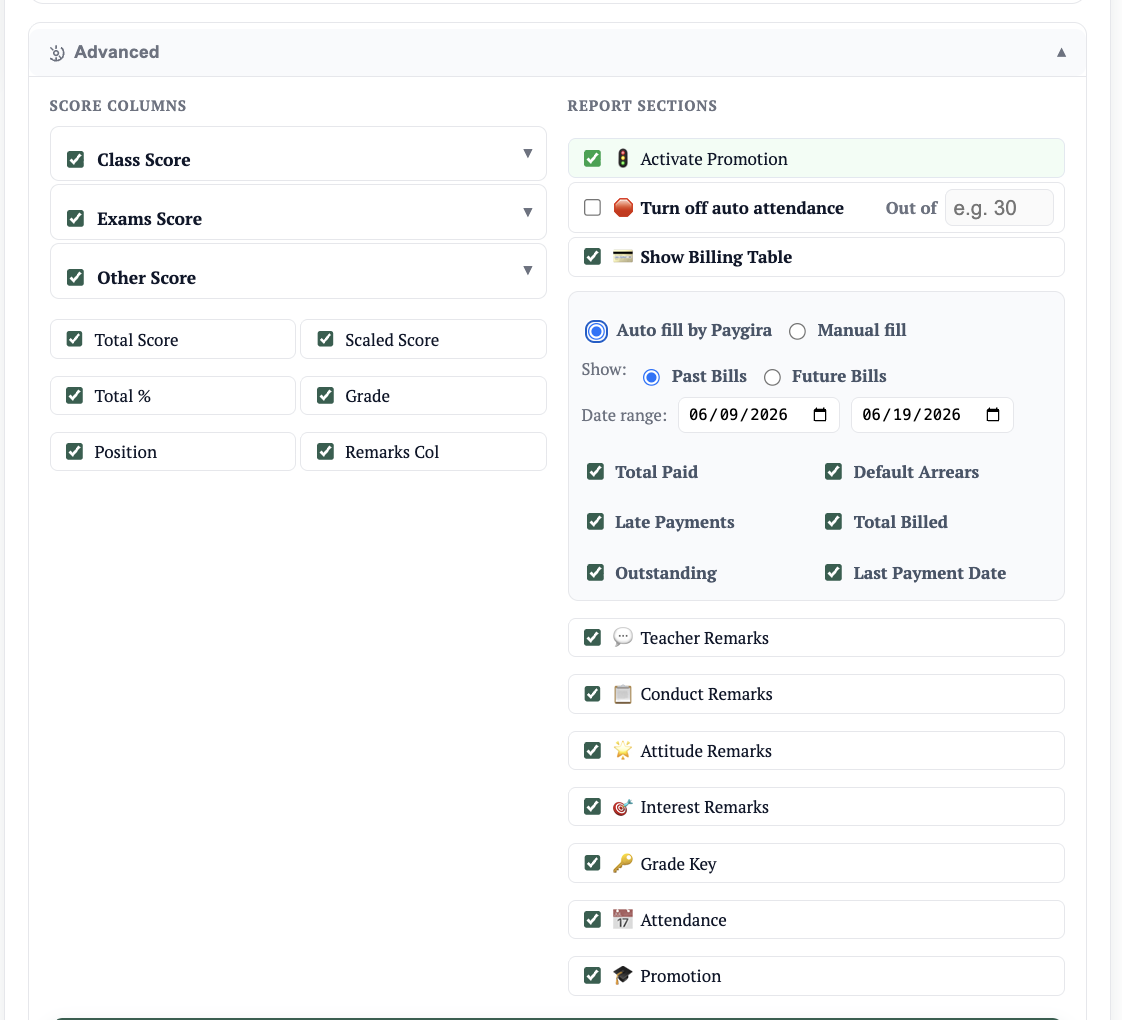
Determines which assessments appear on the report and what is displayed within each column.
- Class Score, Exam Score, Other Score — Each has sub-item toggles for specific assessments. Turning off a main column removes it and all its sub-items from the report.
- Additional columns — Total Score, Scaled Score, Total %, Grade, Position, Remarks.
Report Sections
Show or hide major blocks on the report to match your school's policy:
Teacher Remarks · Conduct Remarks · Attitude Remarks · Interest Remarks · Grade Key · Attendance · Promotion
Activate Promotion
Must be toggled on for promotion outcomes to appear on the report. Covered in detail under Promote student.
Attendance Controls
- Turn Off Auto Attendance — Allows staff to manually enter attendance figures on the report.
- Out Of — Set a manual total for school days (e.g., out of 60).
💡 Use manual attendance when the school calendar had unusual interruptions or auto-calculated figures need correction.
Grade Mapping
Defines how percentage scores translate into grade labels (e.g., 80–100 = A). Overlapping ranges are blocked and mappings can be applied to multiple classes at once.
Score Remarks
Defines the comment displayed for a score range on the report (e.g., 80–100 = Excellent). Overlapping ranges are blocked and can be applied across multiple classes.
Global Remarks
Reusable comment templates saved once and applied across many reports.
Types: Teacher's Remark · Conduct Remark · Interest Remark · Attitude Remark
💡 Keep remarks short, clear, and professional for consistency across classes.
Report Signatures
Draw and save a digital signature to authorize printed reports. Set the Signer Title and Signer Name, then apply to one or multiple classes. Signatures can be added or removed per class or all at once.
Transcript Signatures
Managed separately from report signatures when the transcript feature is enabled. Supports its own signer title and name, applied independently per class.
Paygira Billing Table (Optional)
Displays financial information directly on the report card — only relevant if your school uses Paygira.
- Auto Fill — Pulls billing data automatically (past or future bills, with selectable metrics).
- Manual Fill — Add custom rows with labels and values, with an optional live preview before saving.
Common Mistakes and Fixes
| Issue | Fix |
|---|---|
| Report sections missing | Check Advanced → Report Sections toggles |
| Wrong attendance figures | Verify if Turn Off Auto Attendance is enabled |
| Grade or remark fails to save | Check for overlapping percentage ranges |
| Signature not appearing | Confirm signature is applied to the correct class and term |
| Promotion not showing | Ensure Activate Promotion is on and settings are saved |
Term Checklist
- Correct class and term selected
- Promotion, repeated class, and cut-off point confirmed
- Advanced toggles match current school policy
- Grade mapping and score remarks complete
- Signatures assigned to all required classes
- One sample report reviewed before release