



Overview
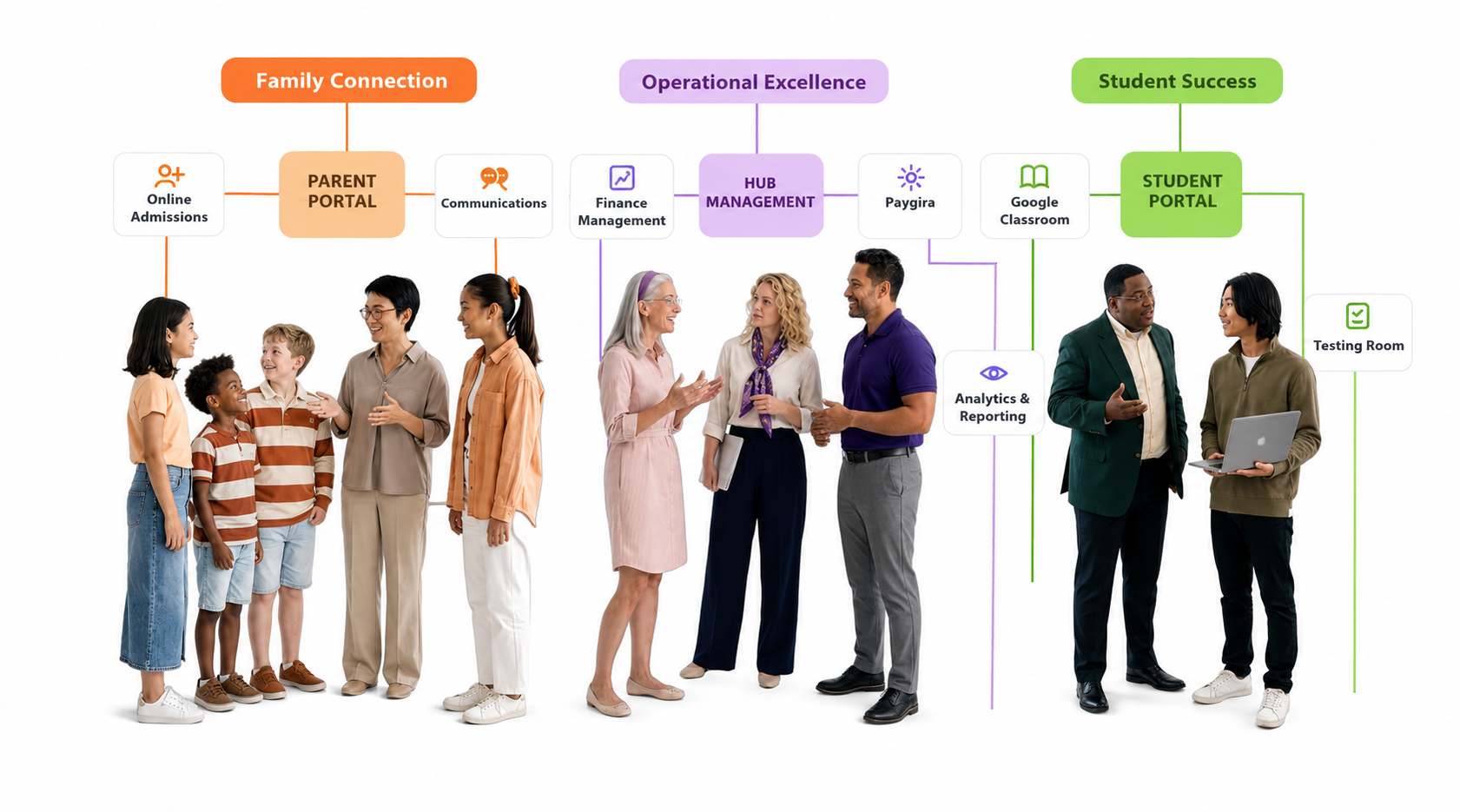
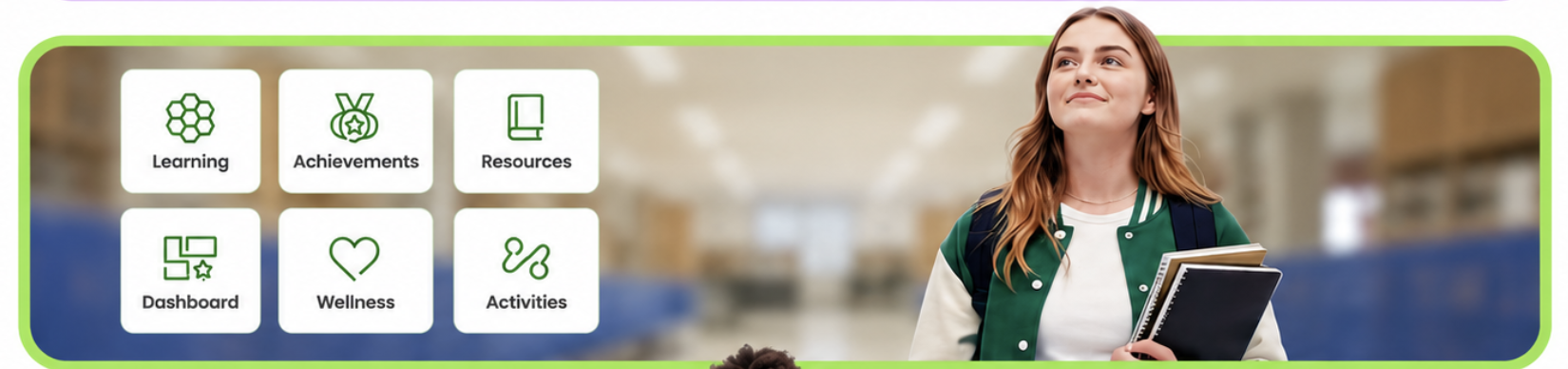
Keeping student records accurate and up to date ensures that attendance, assessments, and communications reflect the correct information throughout the academic year. The Student Portal is the central place to review and edit both student and parent details after a record has been created.
Accessing the Student Portal
You can reach a student's portal in two ways:
- From the Classroom — Navigate to the relevant classroom and click the student's name.
- From the Search Bar — Use the search bar at the top of the screen and search for the student by name.
Editing Student Information
- Open the student's portal using either method above.
- Student details will be pre-filled with the information currently on record.
- Update the relevant fields as needed.
- Click Save to apply the changes.
Editing Parent or Guardian Information
If you have the appropriate permissions, parent and guardian details will be visible below the student's information within the same portal.
- Scroll to the parent or guardian section.
- Update the relevant fields as needed.
- Click Save to apply the changes.
💡 Tip: Always verify both student and parent details at the start of each term to ensure records are current, especially after promotions or class reassignments.
⚠️ Permissions Notice: Access to parent and guardian information is permission-based. If this section is not visible, contact your system administrator to confirm your access level.