





Overview
The Student Records module allows administrators to create, import, view, and manage student information. Students can be added individually, imported in bulk via Excel or CSV files, or updated as enrollment details change. This module serves as the central hub for maintaining accurate student records throughout the academic year.
💡 Tip: Use the bulk import feature when registering large numbers of students to save time and ensure consistent records.
Create a student
☰ Menu → Admissions → Create Student → Add New Student
- Fill in the student's personal information, academic placement, photo, and guardian details.
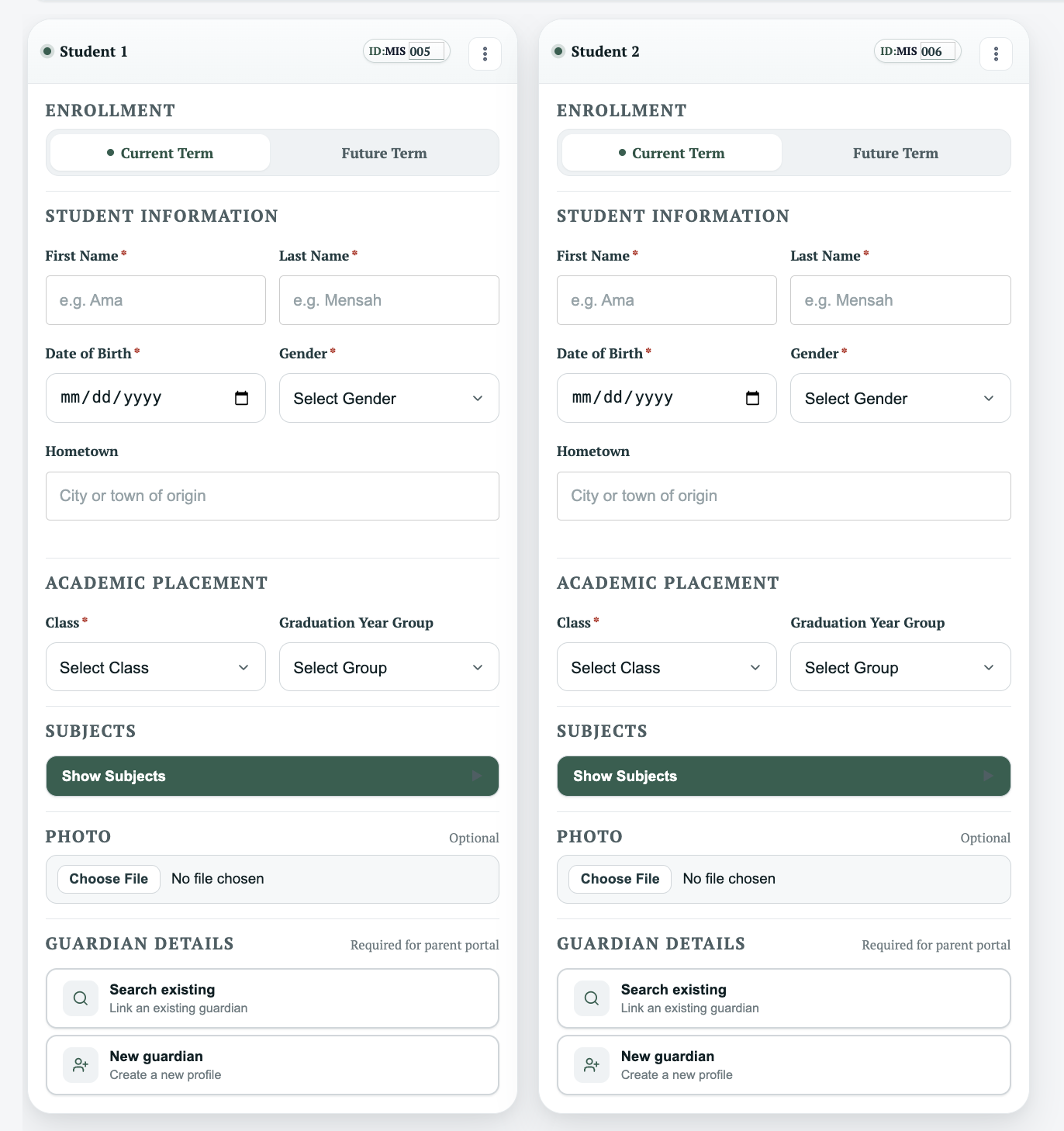
- Fields marked with an asterisk (*) are required.
- Guardian information is recommended but optional and can be added at any time.
- Click Add Form to attach and submit any additional forms as needed.

- Click Save to create the student record.
Bulk Import Students
Use this option when registering a large number of students at once.
- In Admissions, click Import.
- Download the provided template to ensure your file matches Managira's required format.
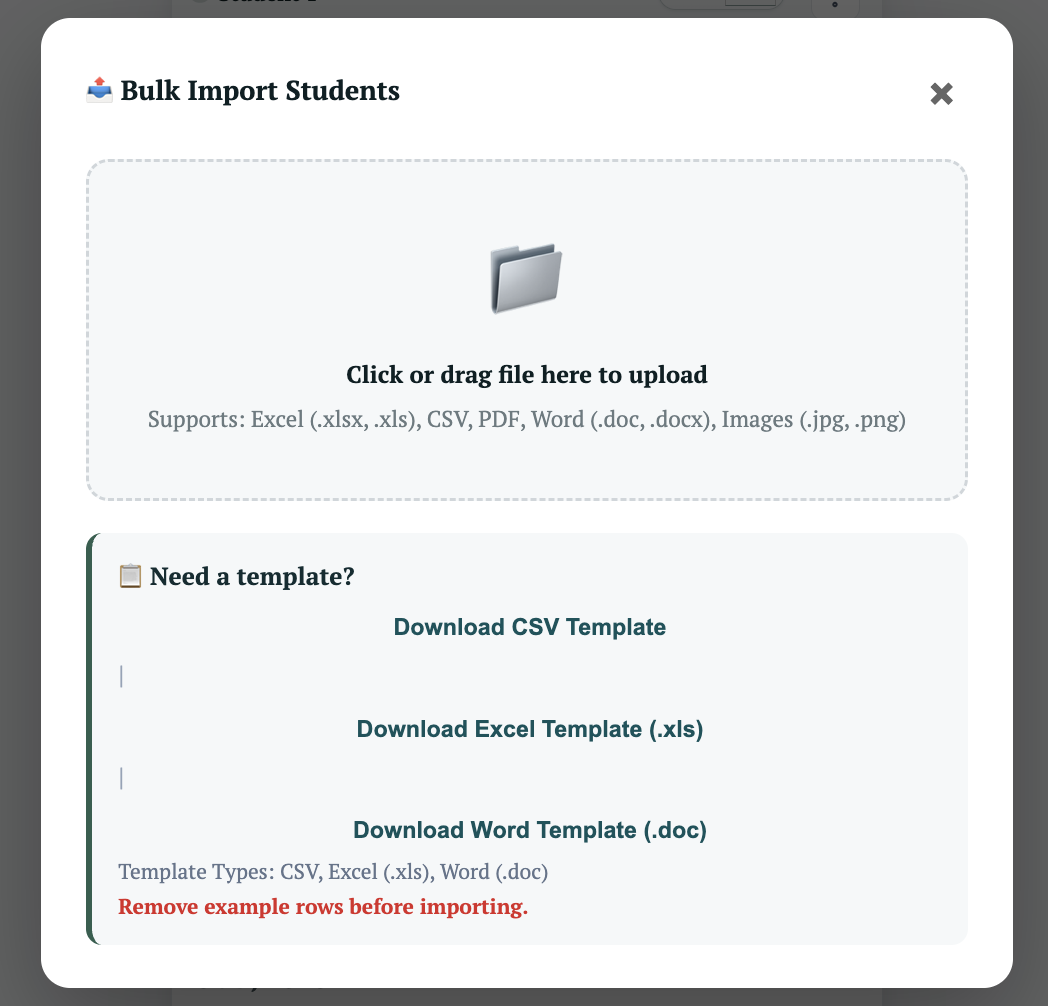
- Populate the template and upload your file — supported formats are Excel (.xlsx, .xls) and CSV.
- Wait a few moments while Managira processes and loads the records.
- Review all imported students carefully before confirming, then save.
⚠️ Uploading a file that does not match the expected format may cause import errors. Always use the provided template.
View All Students
- Open Admissions.
- Select All Students.
- Search and manage all student records from one place.
- Open any student record to review or update basic details such as student ID, class, and graduation year.