





Overview
Use the promotion workflow when moving students into the next class, keeping students back, or graduating final-year students out of active class and school lists.
Setting promotion cut-offs
- This is done in the report settings page. Navigate to Report settings to configure this if not already done.
- Set the minimum score or promotion threshold for the relevant class.
(Student who get score below the cut off will be repeated and those above be promoted. you can also manually edit this for special circumstances on the report page).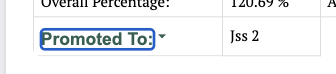
- Save before applying any promotion batch.
Using Apply Now for Promotion
- Select the FROM school year and term and the TO school year and term.
- Click Apply Now to process the visible promotion batch.
- Confirm and make sure the correct classes are selectedand then click on apply now.
These is will promote and repeat students in all classes selected base on the cut off point set in the report settings page
Graduation and archiving
Students Graduating or leaving should be archived so their academic history remains available while they disappear from active lists of they school.
- Navigate to Report - Close Graduation Year group (this shows students under each graduation year group.)
- Find the graduation year in which a student or graduation class belong to.
- select all of them and then select archive students
Reversing Graduated or archiving students
On the same Close graduation year page select the View closed graduation year group and then navigate to the class group or search for that particular student. You will be able to view student info and download transcript and edit student info .