


Overview
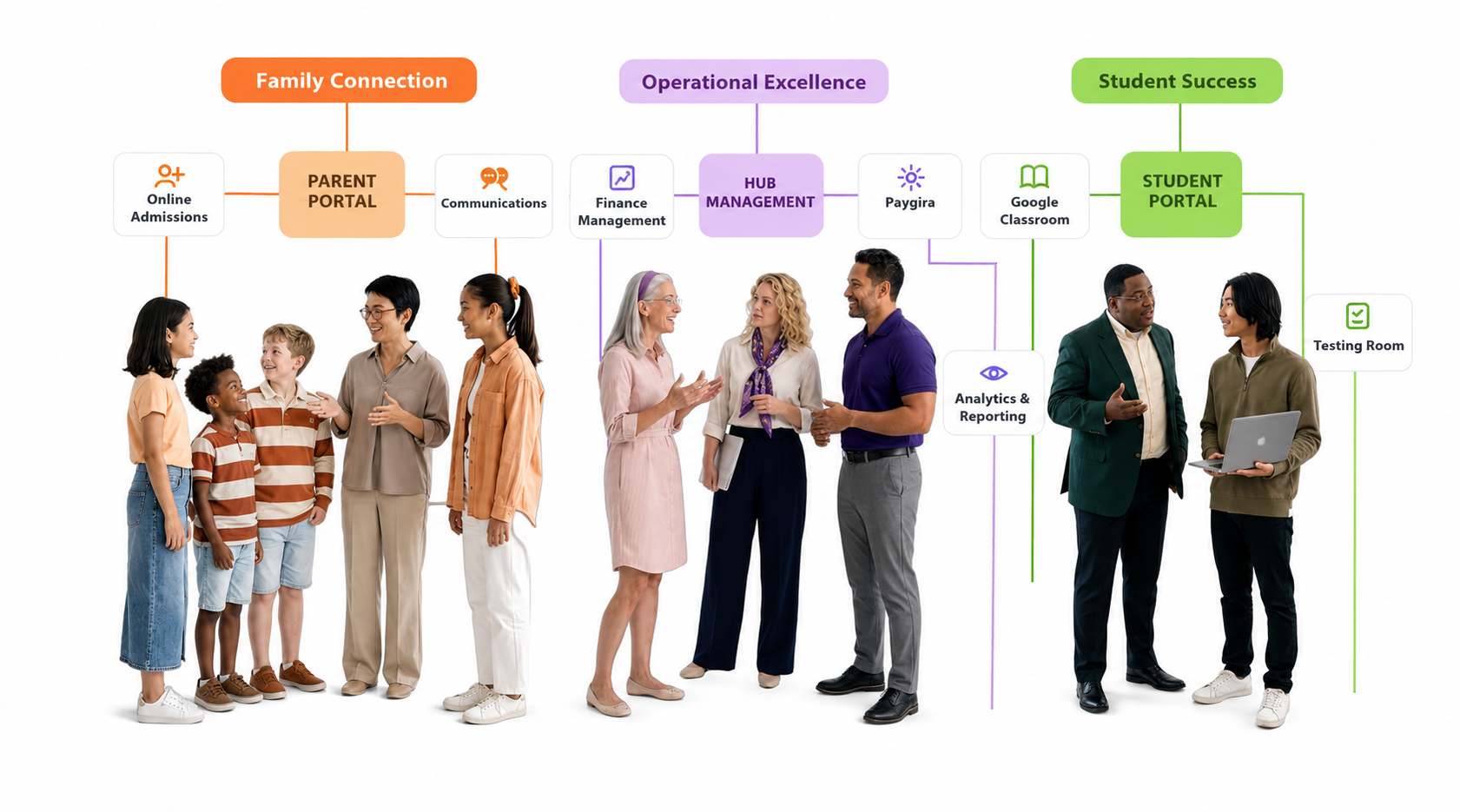
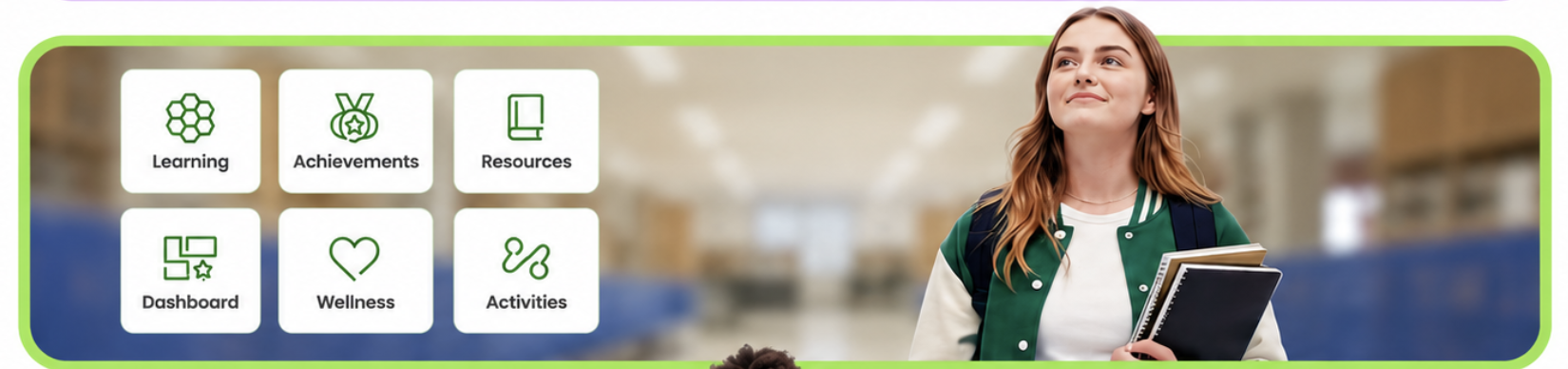
The Student Portal is where students view their academic records and performance for each academic year. Students can see their teachers, class schedule (timetable), grades, and other performance details. The portal also gives students access to the Testing Room — a secure space to take exams, tests, or any assessment set by the school and assigned to their class or to them directly.
The Student Portal becomes visible once the school activates the integration and allows student access.
Giving Students Access
Students log in with their email and a password they set up through an invite. There are two ways to send invites:
Option 1: From the class (individual students)
- Open the class and go to the student's details.
- Click Send Password Invite.
- If the student has an email attached, they receive an invite to set up their password and log in.
Option 2: From Admissions (fastest for many students)
- Go to Admissions > All Students.
- Select all students you want with emails attached.
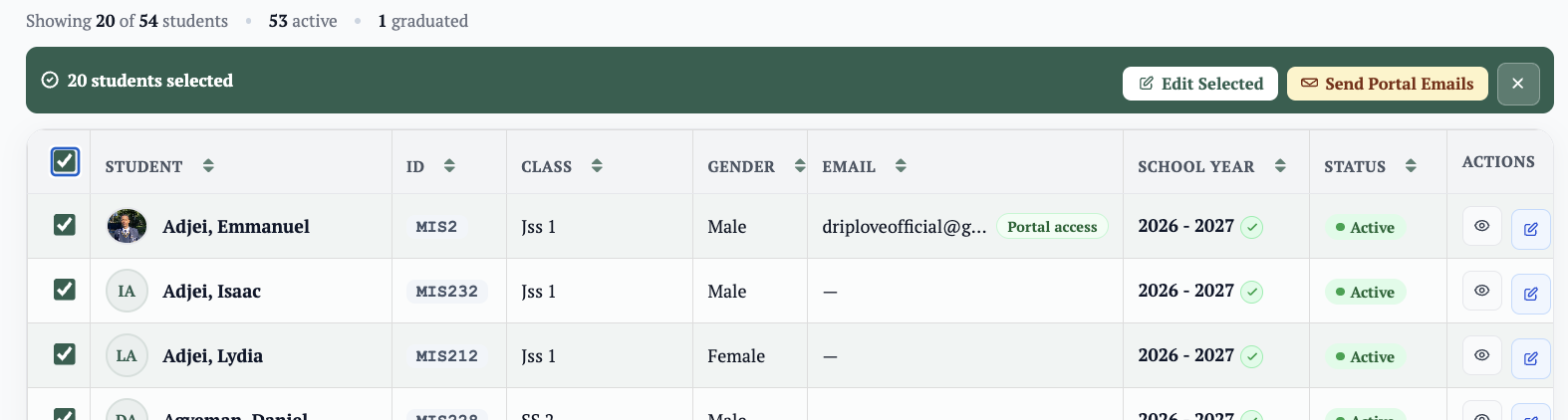
- Click Send Password Invite to invite them all at once.
The Testing Room
The Testing Room is a secure environment for taking exams and assessments online. It protects the integrity of the exam in these ways:
- Restricted access — students cannot open other tabs during the exam.
- Auto-cancellation — the exam is automatically canceled when suspicious activity is detected.
- School-controlled security — the school decides these measures when creating the questions, and can set the assessment as either an open book test or a strict exam.
How grading works:
- Once a student completes the exam, it is sent to the school for grading, and results are posted later.
- Schools can also enable auto-grading, so students receive their results instantly.
Note: If an exam locks and needs to be reopened, the student must contact their teacher or school to unlock it for them.