
Admission Settings: online admission and the fields you collect
One place to open online admission, set the application fee, and choose the fields on student forms and parents' records.
Admission Settings has three tabs. The basic fields every school needs are always asked and can't be removed; you add your own beneath them, and they appear wherever students or parents are added or edited.
Who can do this: Managers, and staff given the Admission Settings or Contact template permission (each tab follows its own permission).
Open Admission Settings
Open Admissions, then Admission Settings.
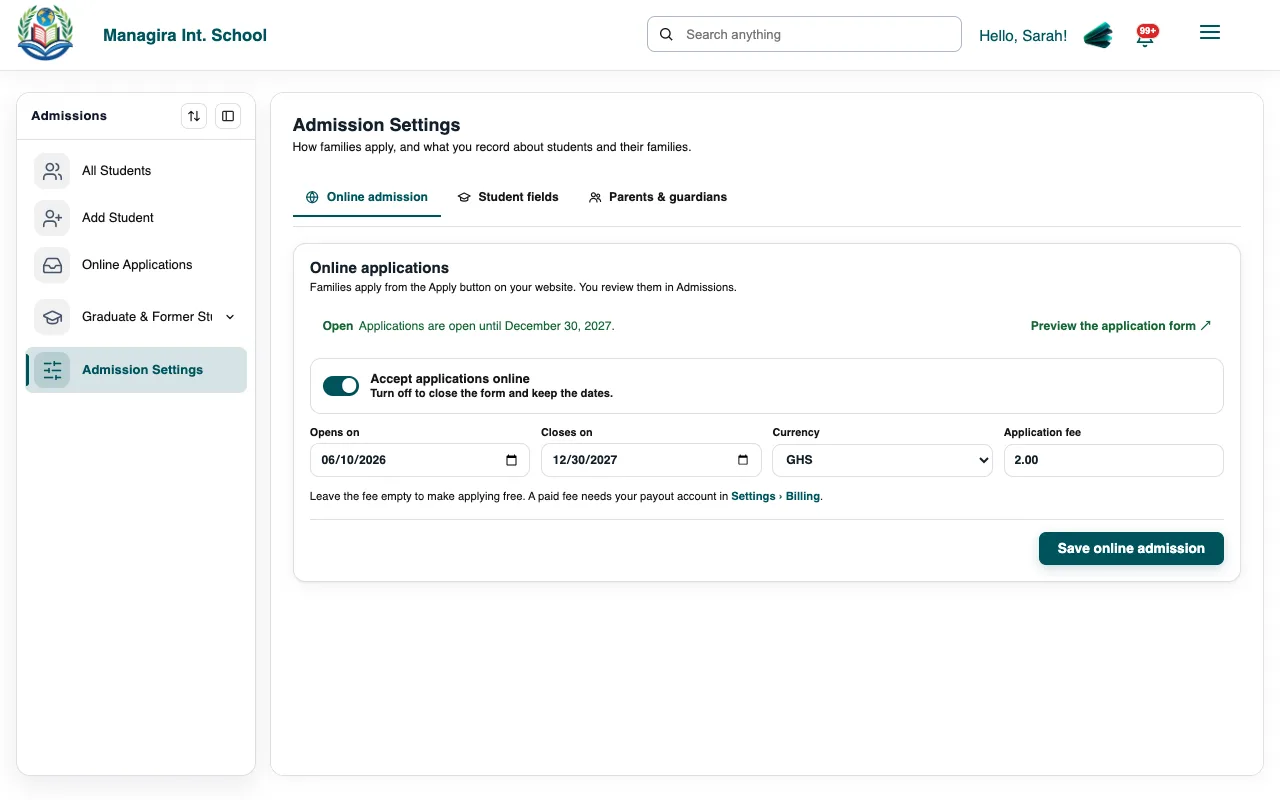
Admissions, Admission Settings: Online admission, Student fields, and Parents & guardians. Choose a tab: Online admission, Student fields or Parents & guardians.
Online admission
Turn online applications on, and choose the dates they're open.
Choose whether to charge an application fee, and how much.
Select Save online admission. Families can now apply from your school website.
Good to know: Applications arrive in Admissions, Online Applications. See Review applications.
Student fields
Under Your fields, select Add Student and choose the type of answer (text, yes or no, a date, a choice and so on).
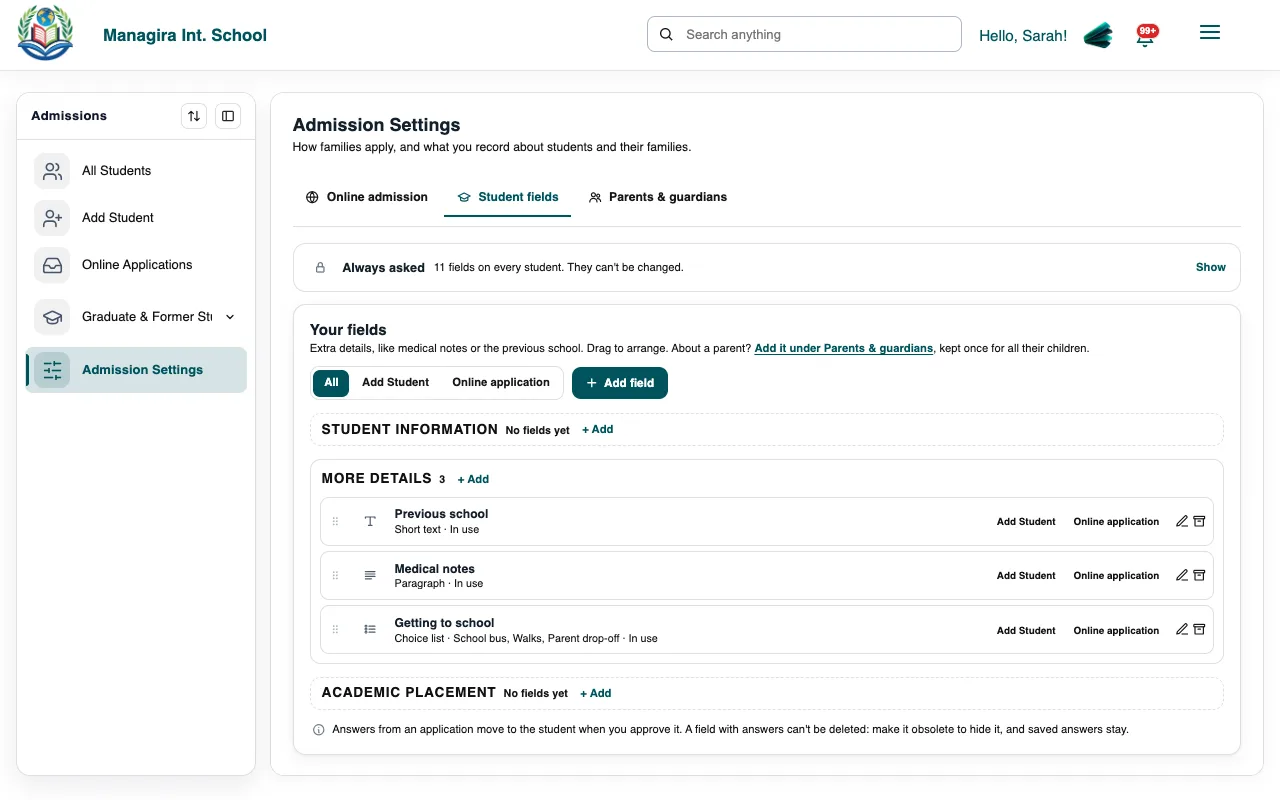
Student fields: the basics are always asked; your own fields follow, in the order you drag them. Choose whether the field appears on the Add Student form, the Online application, or both, and whether it's required.
Drag fields to arrange them. Changes appear on the forms straight away.
Example: A school adds Allergies (text), Has an IEP or 504 plan (yes or no) and Previous school (text) to both forms.
Parents & guardians
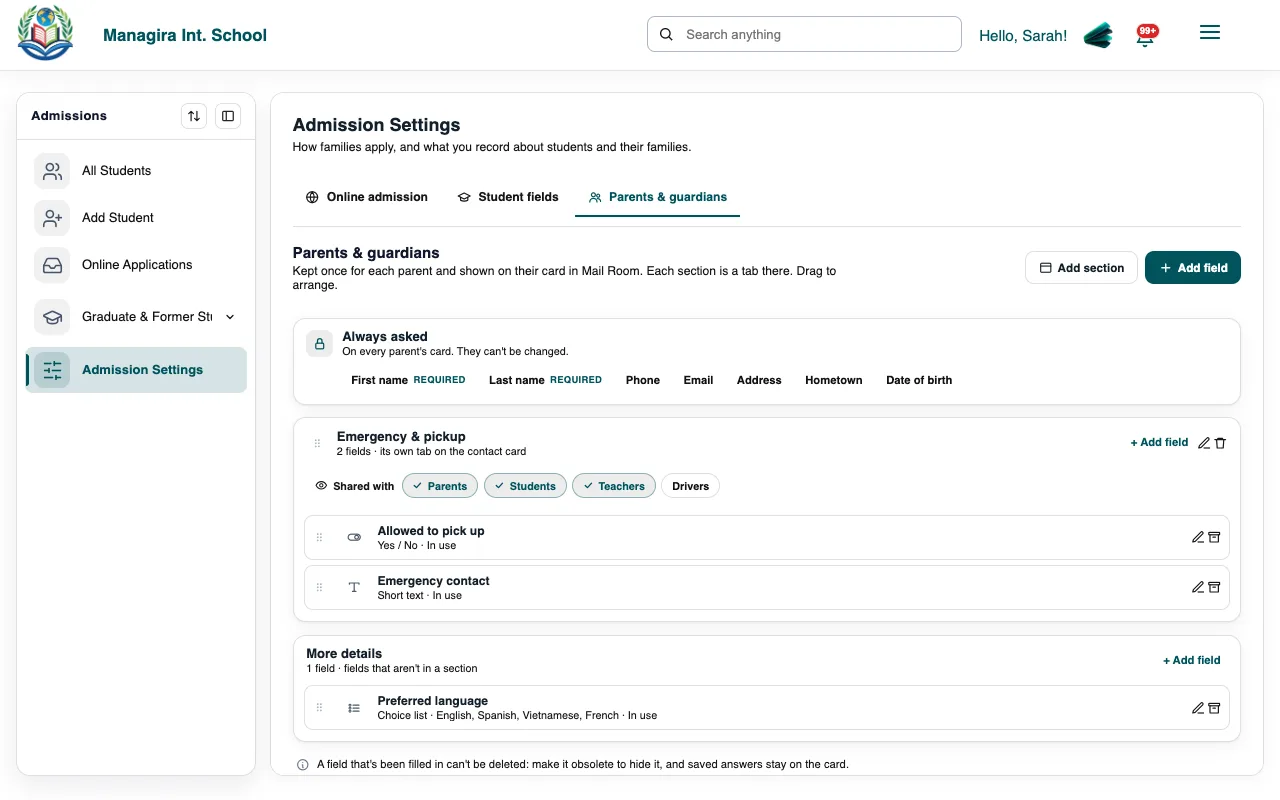
This tab holds the sections and fields kept on each parent's record, such as Emergency contact and Allowed to pick up. For each section you choose who else sees it: parents (who can also update it), students, teachers (on the class Pickup list) and drivers. See Emergency & pickup details.
Frequently asked questions
What happened to Contact Template?
It's the Parents & guardians tab of Admission Settings now, so everything about what you collect is in one place. Old links take you there.
Can I remove a basic field like the student's name?
No. The basics every school needs are always asked. Add your own fields beneath them.
Do new fields apply to existing students?
Yes. They appear empty on existing students, ready to fill in.
Was this guide helpful?