Find your way around Managira
The dashboard, the menu, and the Management, Admissions, Reports and PayGira workspaces: where everything lives and how to get there fast.
Managira opens on your dashboard. From there, the menu (top right) takes you to everything else, grouped into a few workspaces. What you see depends on your role and permissions, so a teacher's menu is shorter than a principal's.
Who can do this: Everyone at your school. Each person sees only the menus their permissions allow.
Your dashboard
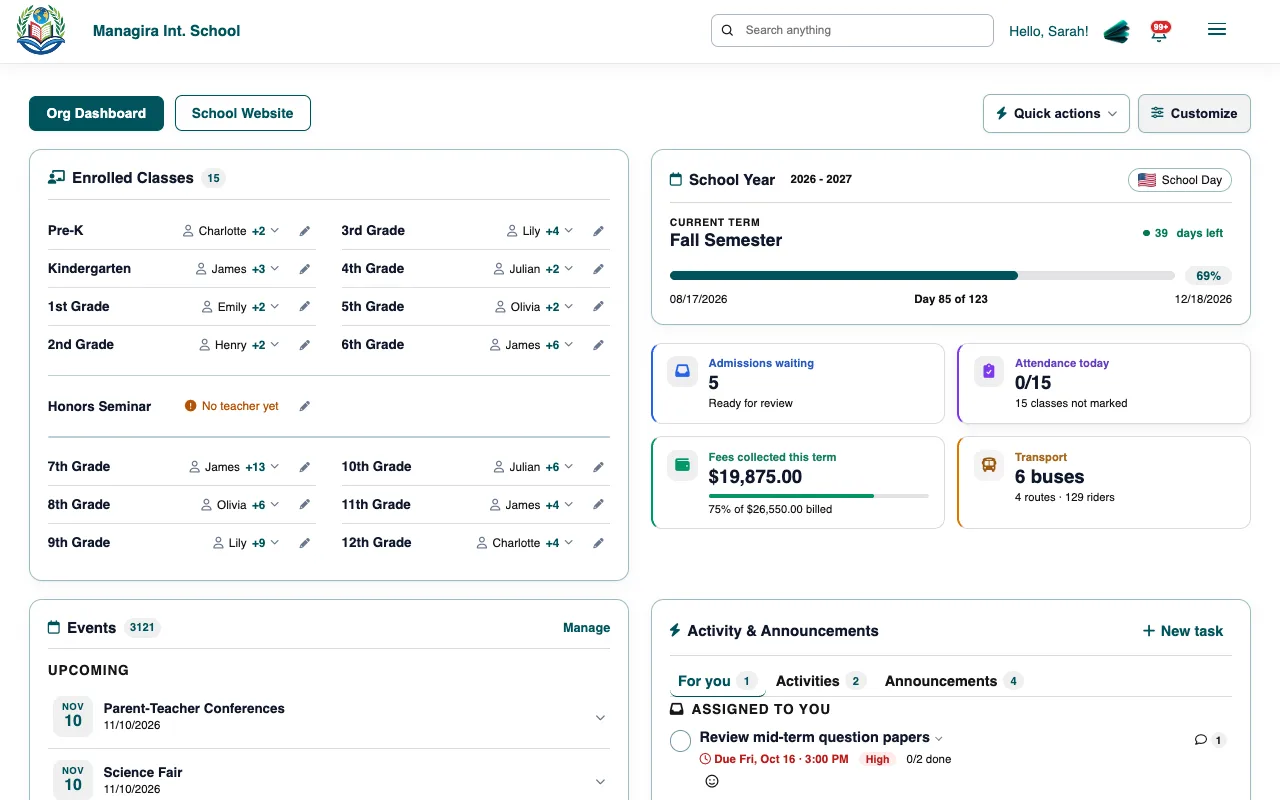
- Quick actions list the pages you can open, ordered by how often you use them.
- Events shows what's coming up. People who manage events see a Manage link that opens Events, announcements & activities in Management.
- Activity & Announcements has three tabs: For you (tasks and things you're tagged in), Activities and Announcements. New task creates a task, or an activity, without leaving the dashboard.
The menu and workspaces
Select the menu button (☰) at the top right. The big areas open as workspaces: a list on the left and the page on the right, so you can move between pages without losing your place.
| Workspace | What's in it |
|---|---|
| Management | School years, classes and subjects, assessments, enrollment, promotion, staff, guardians, transportation, events and activities, the school website, PayGira, integrations and service accounts. |
| Admissions | All students, adding students, online applications, graduates and alumni, and Admission Settings. |
| Reports | Organization statistics, term report cards, transcripts, report settings and Report Builder. |
| PayGira | Bills, payments, arrears, payouts and PayGira settings. |
| Settings | Your school's details, your profile and appearance, billing and plan, security, sign-in rules, single sign-on, access tokens and notifications. |
Tip: Select the arrows icon at the top of a workspace's list to arrange its items in the order you use them. Your order is remembered on every device.
Search, notifications and Mira
- Search anything at the top finds students, staff, classes and pages.
- The bell shows your notifications: tasks, mentions, messages and alerts.
- The Mira button opens the AI assistant, which can do much of this work for you. See Mira.
On a phone
Managira works in any browser on phones and tablets. Workspaces open their list as a Menu button above the page, and long tables scroll sideways inside their box. You can also install Managira like an app.
Frequently asked questions
Why don't I see a menu a colleague has?
Menus follow each person's permissions. A manager can give you more in Management, Users / Employees.
How do I get back to the dashboard?
Select your school's logo or name at the top left.
Was this guide helpful?