
Service accounts and access tokens
Create a service account for each integration, choose exactly what it may read, and give it a personal access token and client secret to call the Managira API.
Other systems, such as a district data warehouse, a library system or a reporting tool, read your school's data through the Managira API. Each signs in as a service account with three credentials: a personal access token, a client secret and your client ID. Access is read-only and limited to what you allow, and revoking any credential stops it at once.
Who can do this: Managers, and staff given the Service accounts permission (for service accounts) and Access tokens in Settings.
1. Create a service account
Open Management, then Service accounts, and select New.
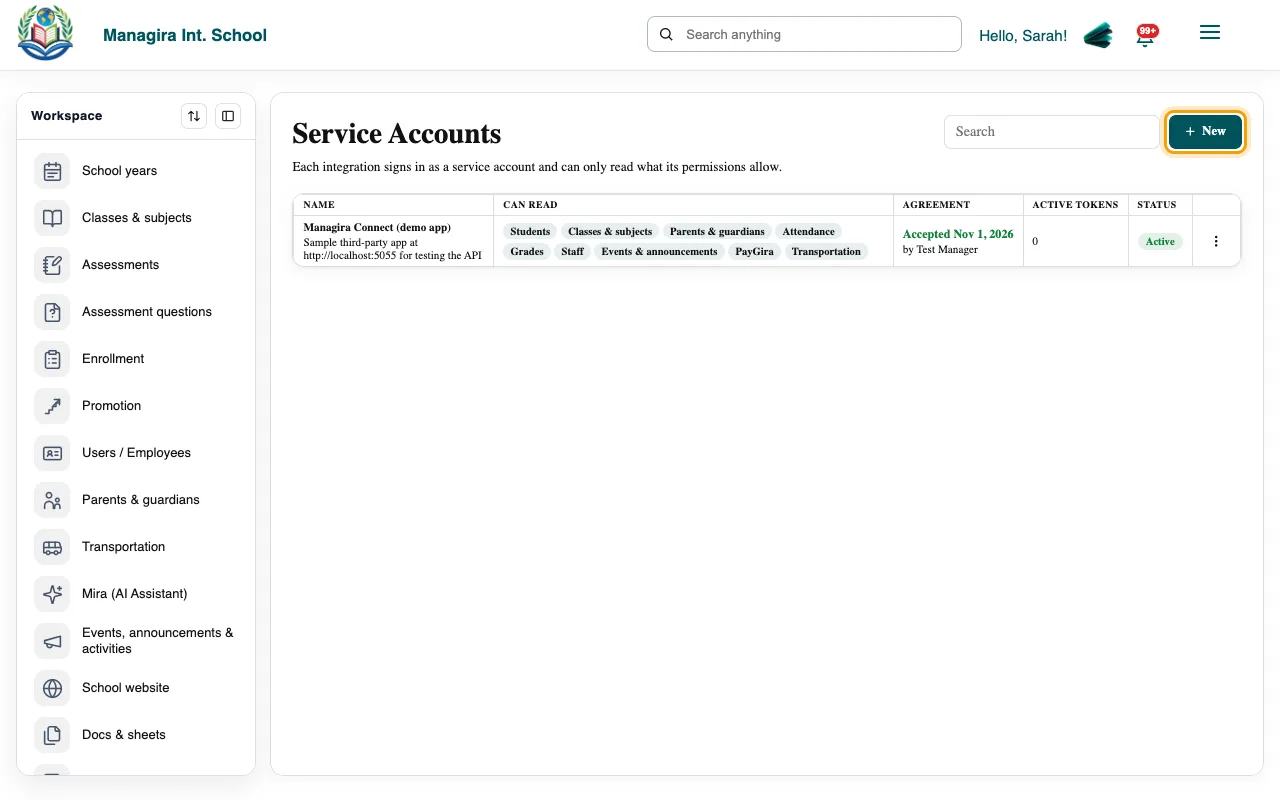
Management, Service accounts: one service account for each integration. Give it a clear Name (for example District data warehouse) and a Description of what it is for.
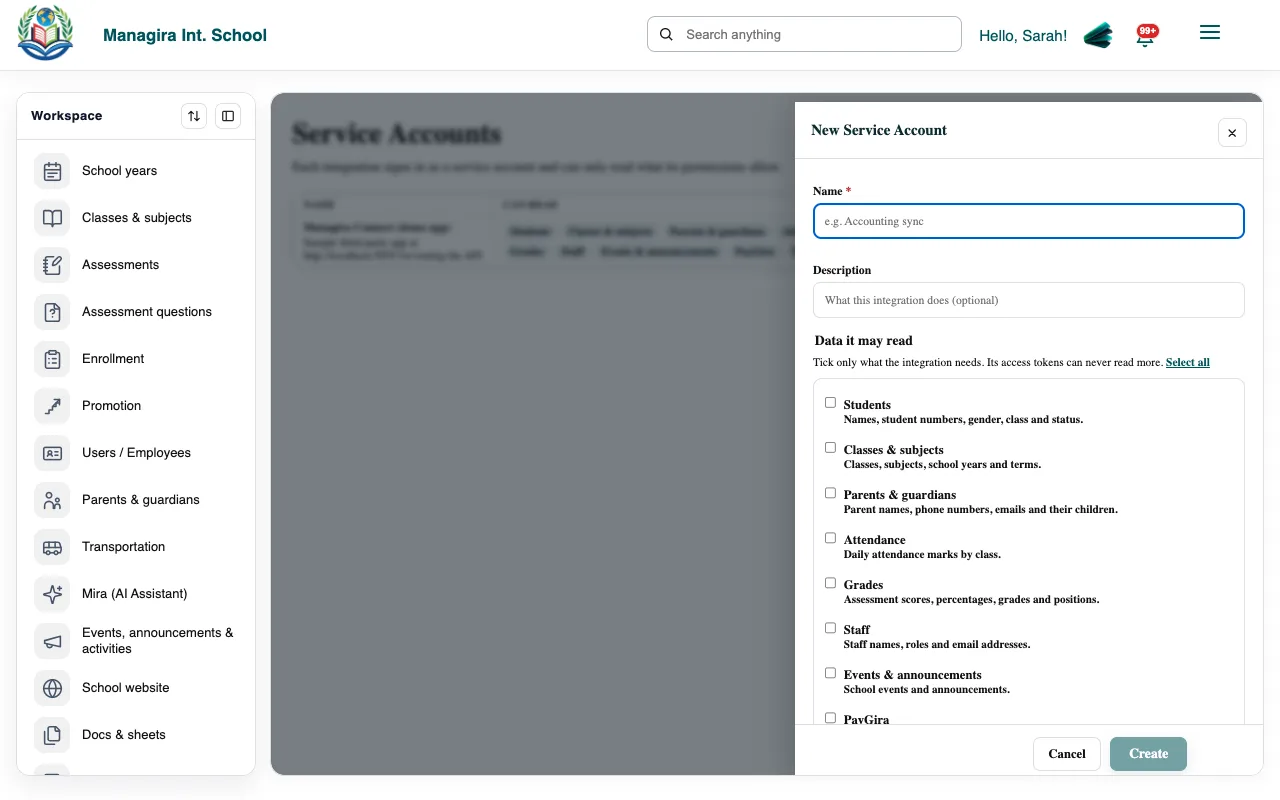
New Service Account: tick only the data the integration needs, then accept the data-sharing agreement. Under Data it may read, tick only what the integration needs. Its tokens can never read more than this.
Read the data-sharing agreement and tick I accept the agreement to confirm your school has an agreement with this integration and that you may accept on the school's behalf.
Select Create.
2. Create a personal access token
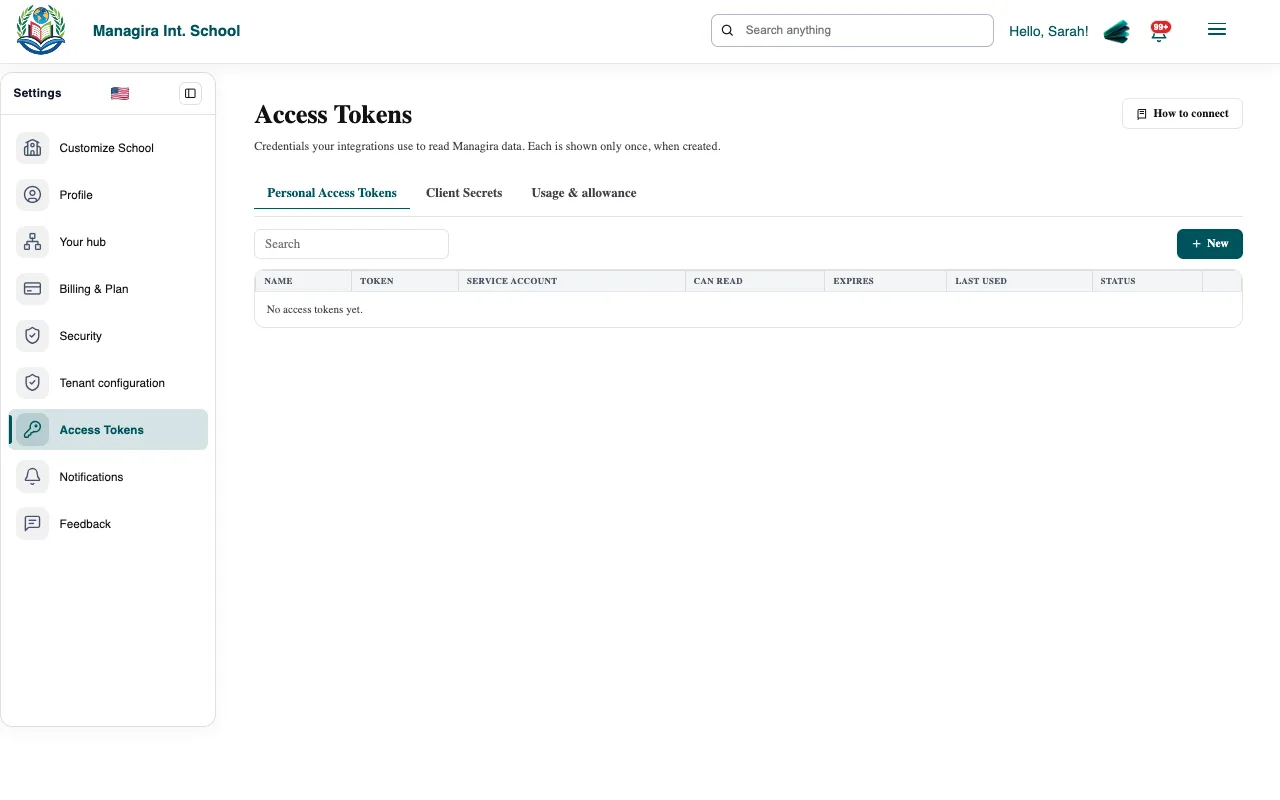
Open Settings, then Access Tokens. On the Personal Access Tokens tab, select New.
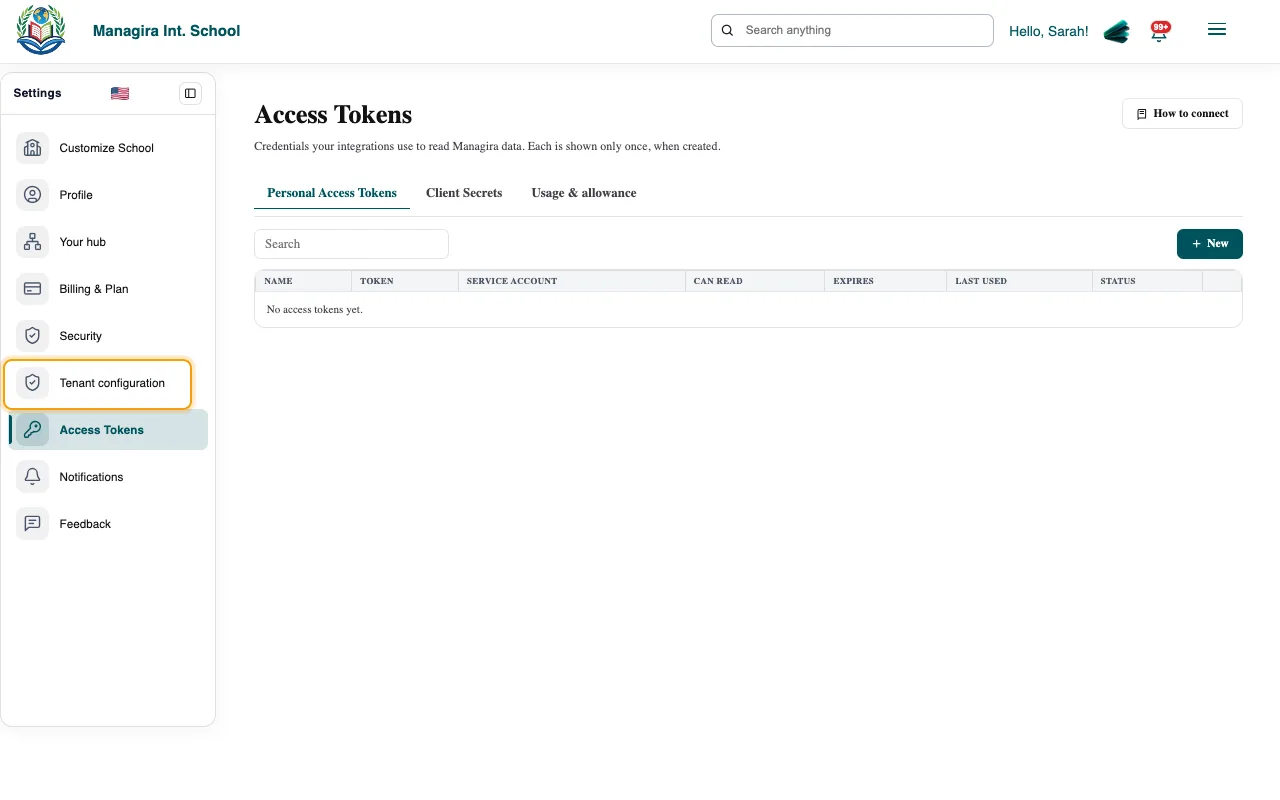
Settings, Access Tokens: personal access tokens, client secrets, and usage. Enter a unique Name, choose the Service account, and pick when it Expires (30 days, 90 days, 180 days or 1 year).
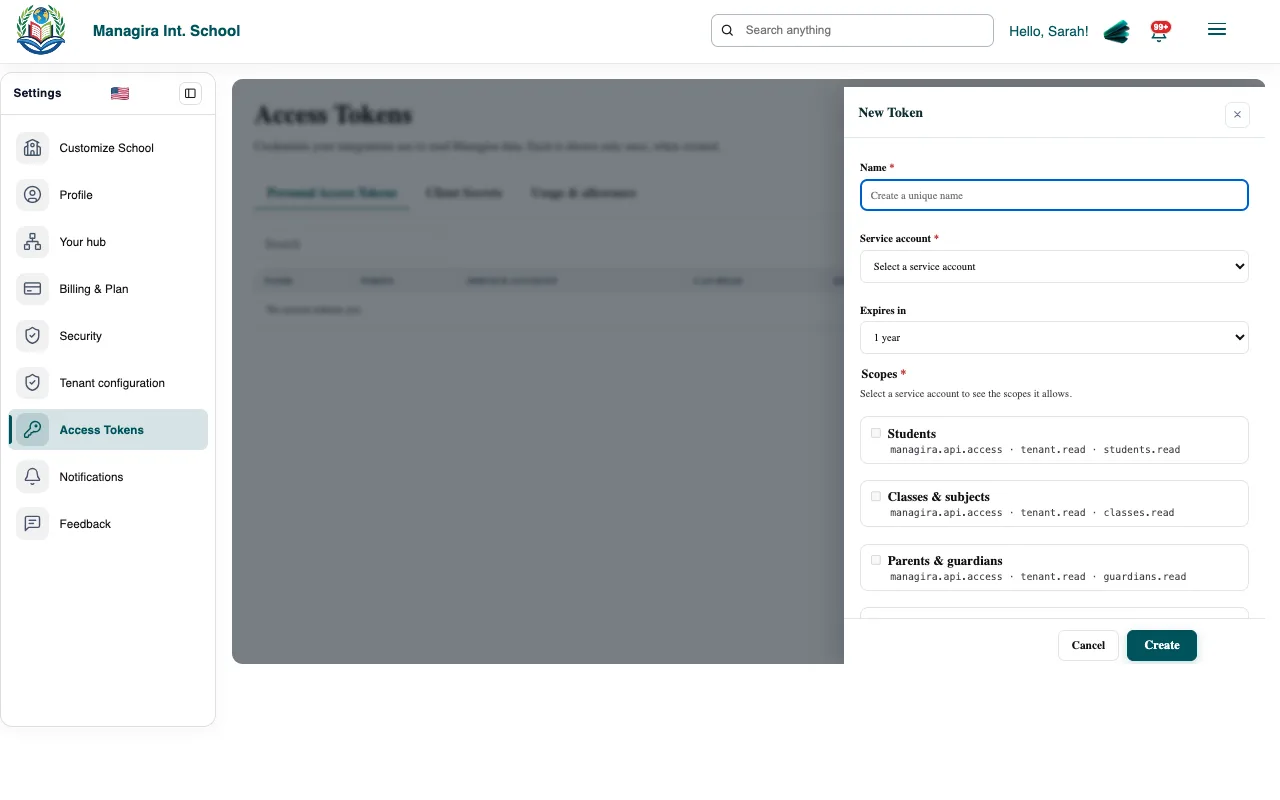
New Token: choose the service account, the expiry and the scopes. Tick the Scopes it needs. You can only choose from what its service account allows.
Select Create and copy the token straight away. It starts with
mgr_pat_and is shown only once.
3. Create a client secret
On the Client Secrets tab, select New and choose when it expires (90 days, 180 days, 1 year or 2 years).
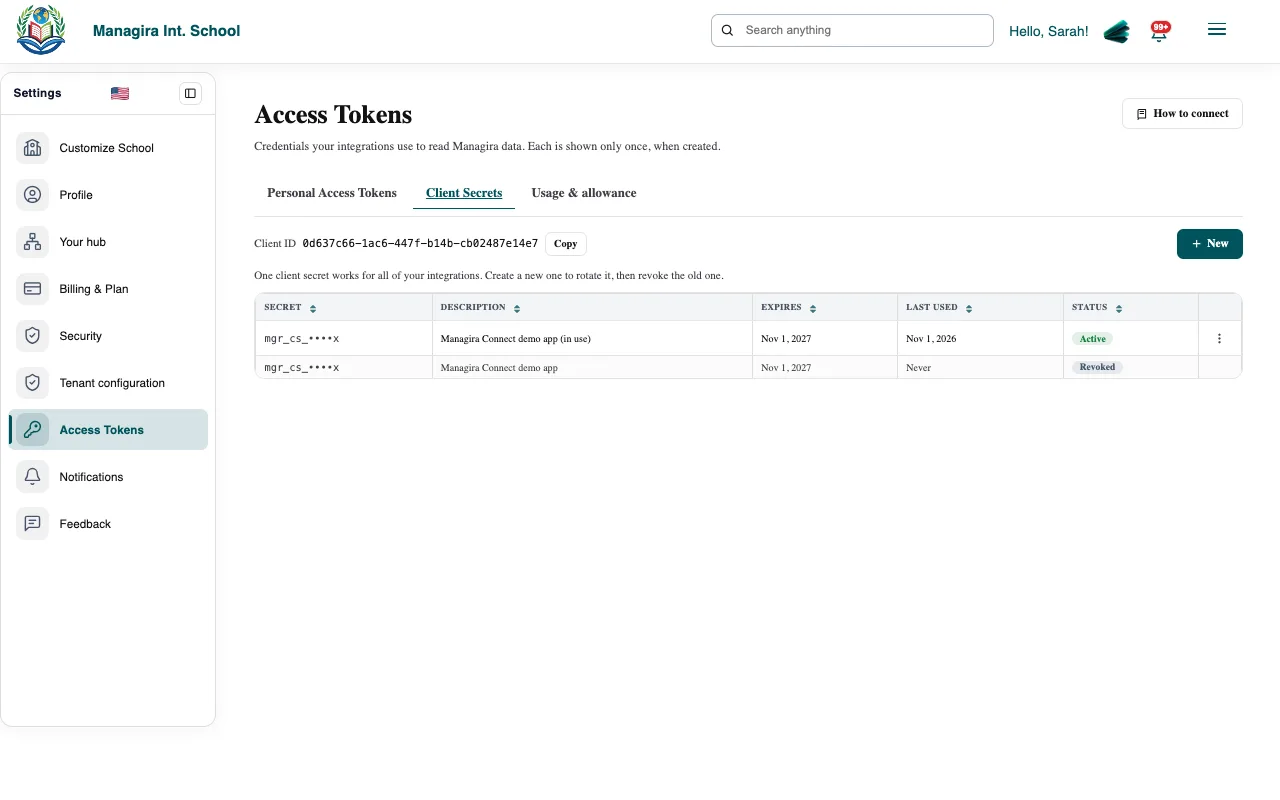
Client Secrets: one secret can serve every integration. Copy the Client ID and the secret (it starts with
mgr_cs_). The secret is shown only once.
Good to know: One client secret serves all your integrations. Give each integration its own service account and token, so you can switch one off without touching the others.
4. Give the integration its credentials
Send the integration's administrator the API address, your Client ID, the client secret and the personal access token, privately: by a password manager or encrypted email, never by text message or chat. The How to connect button on the Access Tokens page shows the API address and a short guide.
What each area allows
| Area | Scope | What it can read |
|---|---|---|
| Students | students.read | Names, student numbers, gender, class and status. |
| Classes & subjects | classes.read | Classes, subjects, school years and terms. |
| Parents & guardians | guardians.read | Parent names, phone numbers, emails and their children. |
| Attendance | attendance.read | Daily attendance marks by class. |
| Grades | grades.read | Assessment scores, percentages, grades and positions. |
| Staff | staff.read | Staff names, roles and email addresses. |
| Events & announcements | calendar.read | School events and announcements. |
| PayGira | paygira.read | Bills, balances owed and payments received (schools that use PayGira). |
| Transportation | transport.read | Buses, routes, stops and which stop each student uses (schools that use Transportation). |
Keep access under control
- Revoke or Regenerate a token from its menu on the Personal Access Tokens tab. Regenerating gives a new value and stops the old one.
- Put on hold a service account to pause every token it has. Turn it back on to resume. Holding, turning back on and revoking each ask for your password.
- The Usage & allowance tab shows calls by token for the last 7 days. Each school may make 120 calls a minute and 10,000 a day; select Request more if you need a bigger allowance.
- Expired tokens and secrets stop working on their own. Create new ones before they expire.
Important: Treat tokens and secrets like passwords. Managira stores only a fingerprint of each, so nobody, including Managira, can show it again. If one may have leaked, revoke it straight away.
Frequently asked questions
Can an integration change data in Managira?
No. The API is read-only. Integrations can read the areas you allow and nothing else.
What happens when a token expires?
Calls with it are refused with a 401 error. Create a new token, give it to the integration, and revoke the old one if it is still listed.
Can one integration read another school's data?
No. Every credential belongs to one school, and every call is limited to that school.
We lost the token. Can you show it again?
No. Tokens and secrets are shown once. Regenerate the token, or create a new one, and update the integration.
Was this guide helpful?