
Sync your calendar with Google, Outlook or Apple
Connect Google Calendar or Outlook, subscribe from Apple Calendar with a private link, and let families add their children's calendar in one tap.
Who can do this: Staff, parents and students.
For staff
In Calendar, select Sync & share.
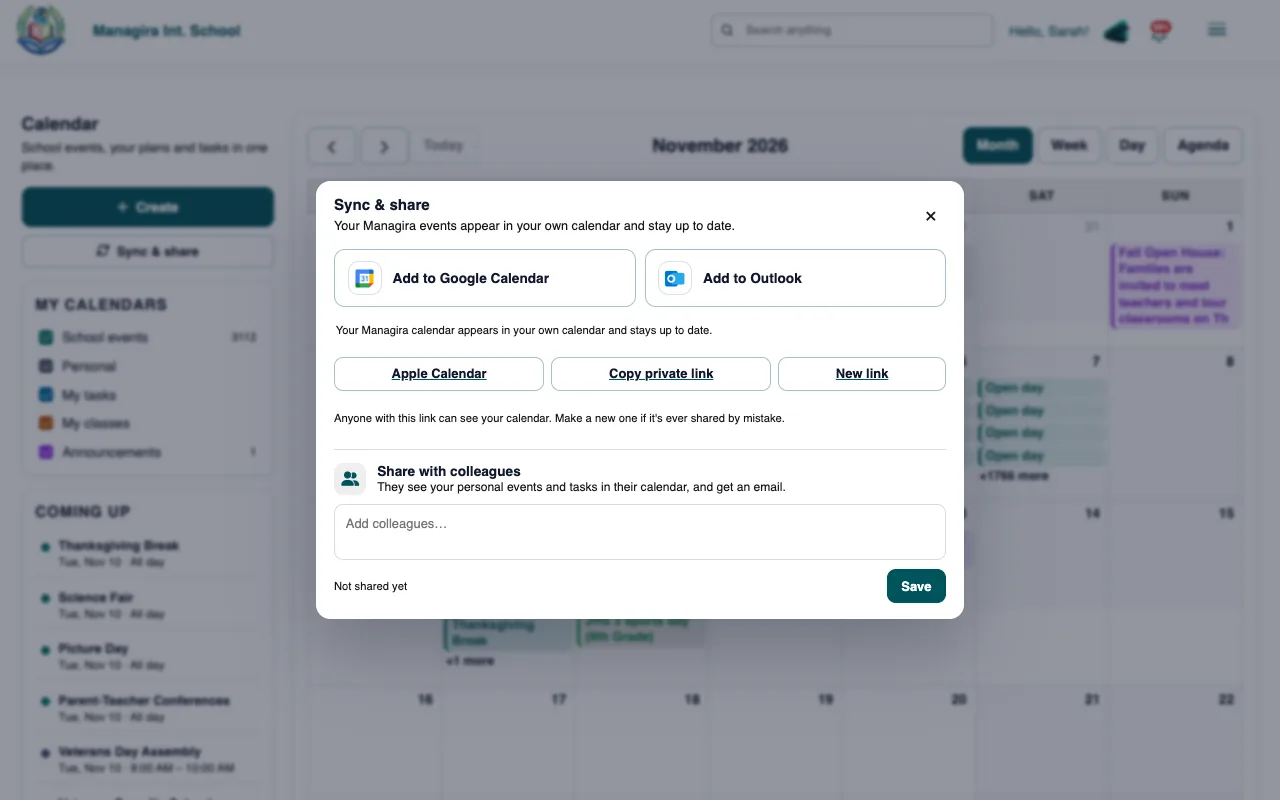
Sync & share: connect Google or Outlook, or copy your private link. Choose Google Calendar or Outlook and select Connect. Sign in and allow access. Your Google or Outlook events now show in your Managira calendar.
To see your Managira calendar inside Google Calendar or Outlook, choose the add option for that app in Sync & share. It subscribes the app to your private Managira link.
For Apple Calendar or any other app, select Apple Calendar, or Copy private link and subscribe to it in your calendar app.
Important: Your private link shows your calendar to anyone who has it. Don't share it. If it leaks, select New link; the old one stops working.
For parents and students
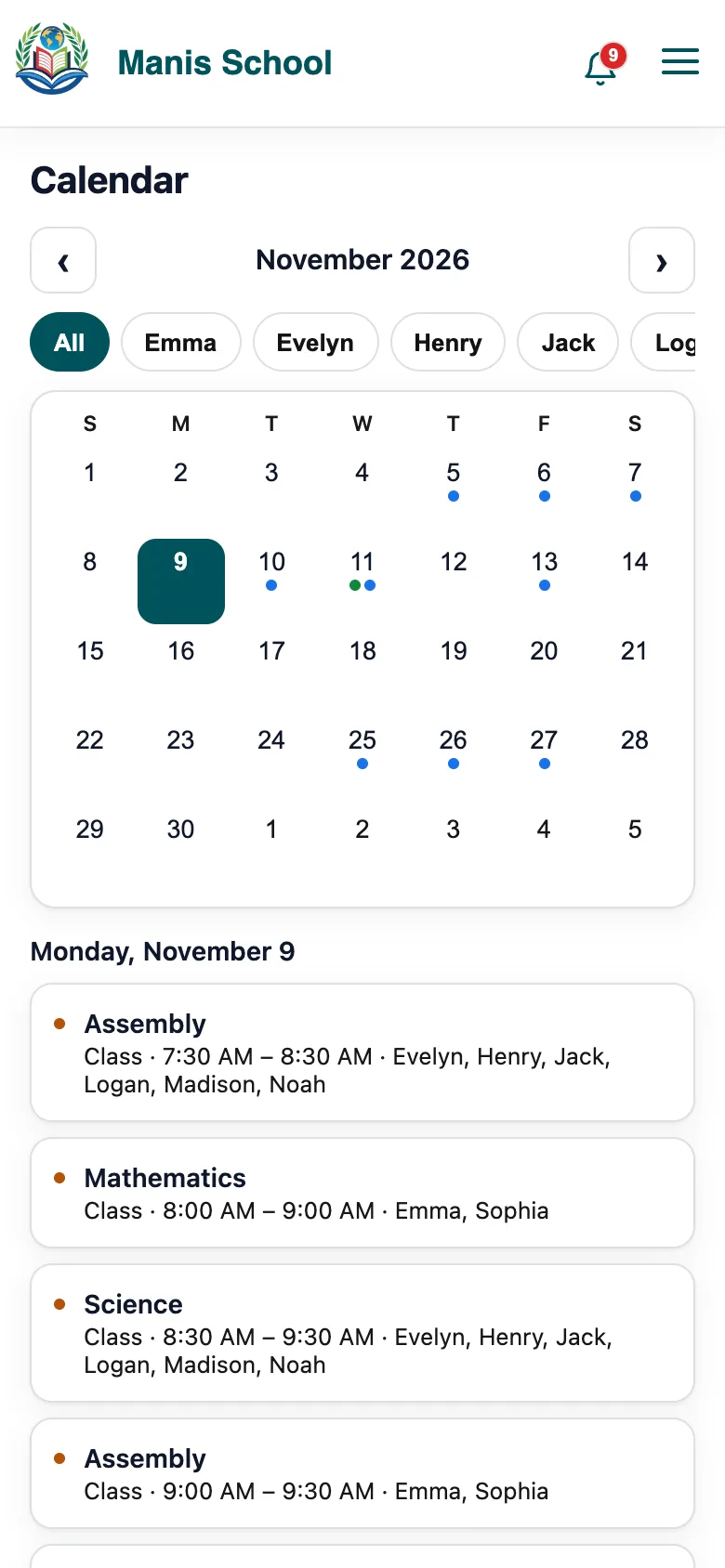
Open Calendar in the parent or student portal.
Select Add to my calendar and choose Google Calendar, Outlook, Outlook.com or Apple Calendar.
Confirm in the calendar app. Classes, activities, school events and work closing dates now appear on the phone and stay up to date.
Frequently asked questions
How quickly do changes show up?
Connected Google and Outlook calendars update on their own. Calendar apps that subscribe to a link refresh on their own schedule, which can take a few hours.
Can I disconnect?
Yes. In Sync & share, select Disconnect. Nothing in Managira is deleted.
Was this guide helpful?