
Set up single sign-on (SAML or OpenID Connect)
Let staff, and students if you choose, sign in with your school's own provider: Google Workspace, Microsoft Entra ID, Okta, ClassLink, Clever and more.
With single sign-on, people sign in to Managira with the account your school already gives them. Managira works with any provider that supports SAML 2.0 or OpenID Connect, including Google Workspace, Microsoft Entra ID, Okta, OneLogin, ClassLink, Clever, JumpCloud, Ping, Auth0, AD FS and Shibboleth.
Who can do this: Managers only. Turning it on, changing it and turning it off ask for your password.
Before you start
- You'll need someone who can add an app in your provider's admin console (your IT team).
- Every person who signs in must already have a Managira account with the same email address. Single sign-on checks who they are; their account and permissions stay in Managira.
Set it up
Open Settings, then Tenant configuration, and scroll to Single sign-on. Under 1. Your provider, choose yours (Google Workspace, Microsoft Entra ID, Okta, OneLogin and more) and the protocol (SAML or OpenID Connect).
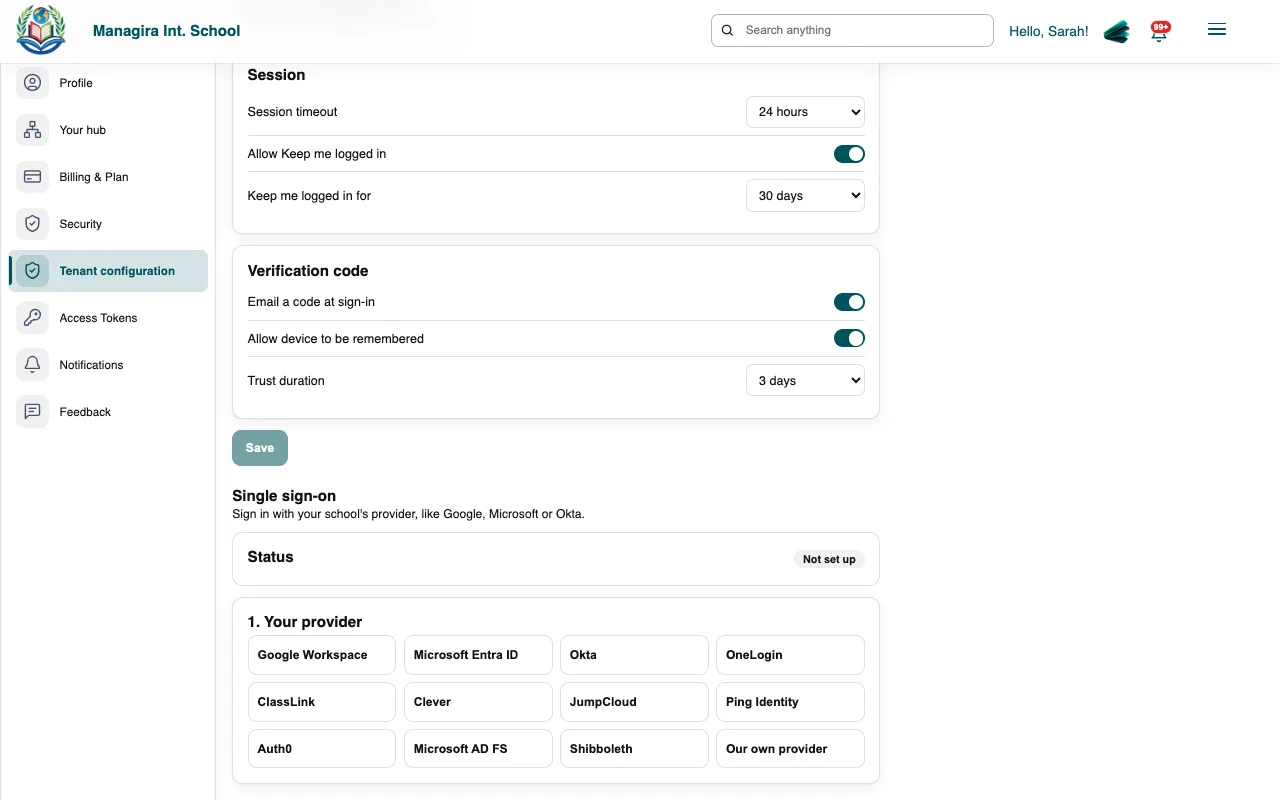
Settings, Tenant configuration, Single sign-on: choose your provider, then give your IT team the addresses shown. Select Copy all for our IT team. It copies the addresses your provider needs: for SAML the ACS URL (Reply URL) and Entity ID (Audience); for OpenID Connect the redirect address and the scopes
openid email profile.Your IT team adds Managira as an app in your provider, using the steps shown for that provider (for example, in the Google Admin console: Apps, Web and mobile apps, Add custom SAML app).
Back in Managira, paste the provider's Metadata address (SAML) or its Issuer address, Client ID and client secret (OpenID Connect), and select Save.
Select Test the connection and finish signing in on the new tab. When it works, the status says Ready to turn on.
Select Turn on and confirm with your password.
Good to know: Tick Students sign in this way too if your students have accounts with your provider. Otherwise they keep signing in with passwords.
How people sign in afterwards
People enter their email on the Managira sign-in page and go straight to your provider. They can also start from your provider's app list. Anyone whose email your school doesn't use with single sign-on still gets the password box.
Stay safe
- Your school's main manager can always sign in with a password, so nobody is locked out if the provider has an outage.
- Changing how single sign-on works (a new certificate, a new provider) turns it off until a new test passes.
- Single sign-on only makes everyone else use the provider. Leave it off until everyone has signed in successfully once.
- Recent activity shows the latest sign-ins and any errors, to help your IT team.
Frequently asked questions
Does single sign-on create accounts?
No. Add people in Managira first (Users / Employees, or Admissions for students), with the same email they use with your provider.
Does it work for Mira?
Yes. Mira signs in through Managira's own page, so single sign-on applies there too.
Why does the test fail?
Most often the provider sends a different email than the one in Managira, or the email isn't sent at all. For SAML, send the email as the NameID or in an attribute named email, and sign the assertion or the response. For OpenID Connect, check the issuer, client ID and secret.
Can we use two providers?
One connection per school. Choose the provider most of your people use.
Was this guide helpful?