
Choose a website design: standard, 3D or emblem
Pick a standard design, a 3D design that moves as visitors scroll, or an emblem design with your mascot or logo as a watermark. Photos stay whole.
Every design shows the same content, so you can switch at any time without retyping anything. Designs are in three groups.
Who can do this: Managers, and staff given the School Website permission.
Pick a design
In School website, open the design picker and choose a tab: Standard, 3D or Emblem.
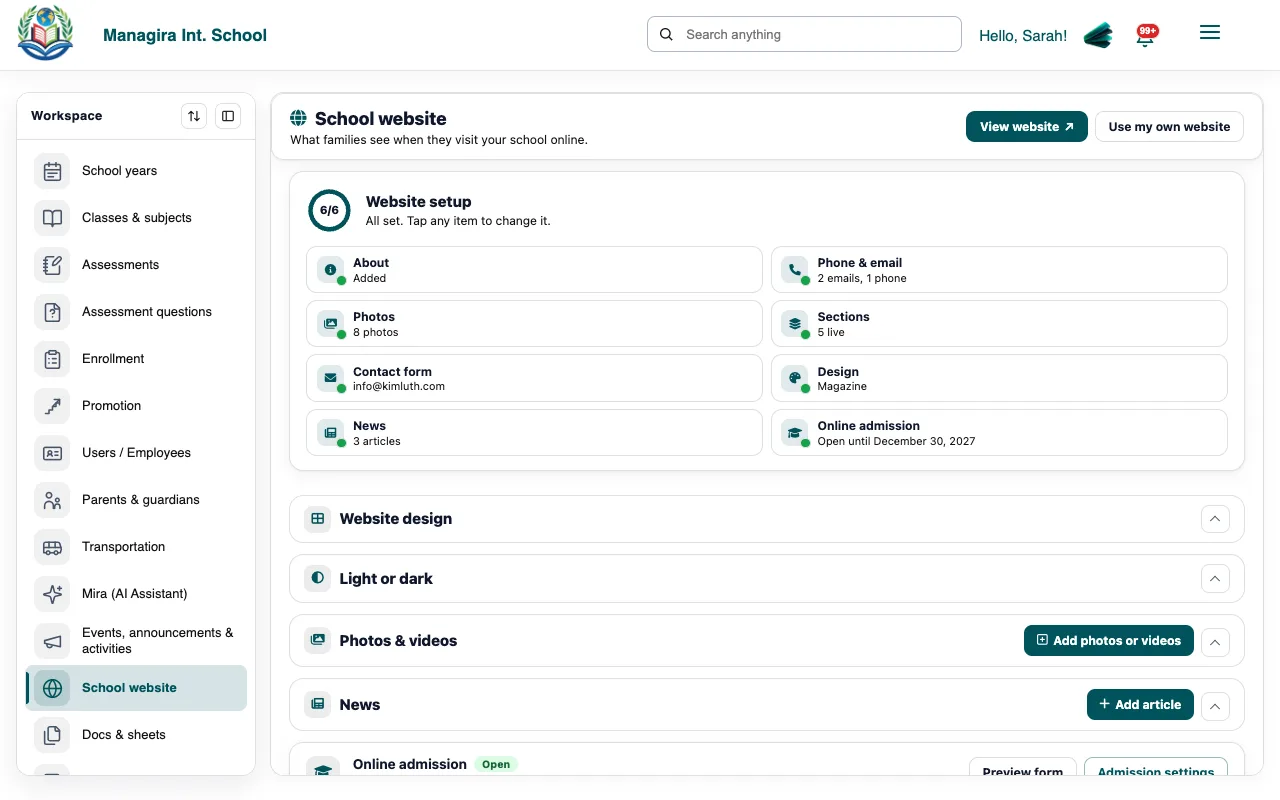
The design picker: Standard, 3D and Emblem. Select a design to preview it, then select Save design.
The designs
| Group | Design | Looks like |
|---|---|---|
| Standard | Academy | A full-screen opening, next steps and big numbers. |
| Standard | Classic | A wide photo banner and centered sections. |
| Standard | Modern | Your welcome beside your photos, in clean cards. |
| Standard | Magazine | A newspaper look with a lead story. |
| Standard | Story | A large photo opening and numbered chapters. |
| Standard | Campus | A side menu with your school's details. |
| Standard | Spotlight | A bold welcome in your color beside your photos. |
| Standard | Minimal | Quiet and text-first. |
| Standard | Mosaic | A grid of tiles: photos, facts and news. |
| 3D | Glide | Calm and simple. Your photo tilts into place as visitors scroll. |
| 3D | Prism | Glass panels, a 3D photo stack and a photo wall that straightens. |
| 3D | Panorama | Full-screen scenes and a gallery that sweeps sideways. |
| 3D | Orbit | Your emblem floats in 3D behind glass and turns as visitors scroll. |
| Emblem | Crest | Your emblem large behind the school's name, with a soft pattern. |
| Emblem | Mascot | A bold welcome in your color with your mascot beside it. |
Good to know: 3D designs move smoothly as visitors scroll. Visitors who've asked their device to reduce motion see them still, and nothing is ever hidden behind the animation.
Your emblem
For an emblem design, choose Your emblem: Mascots & symbols (eagles, lions, wolves, a shield, a book, a torch and more), your School logo, or Your image.
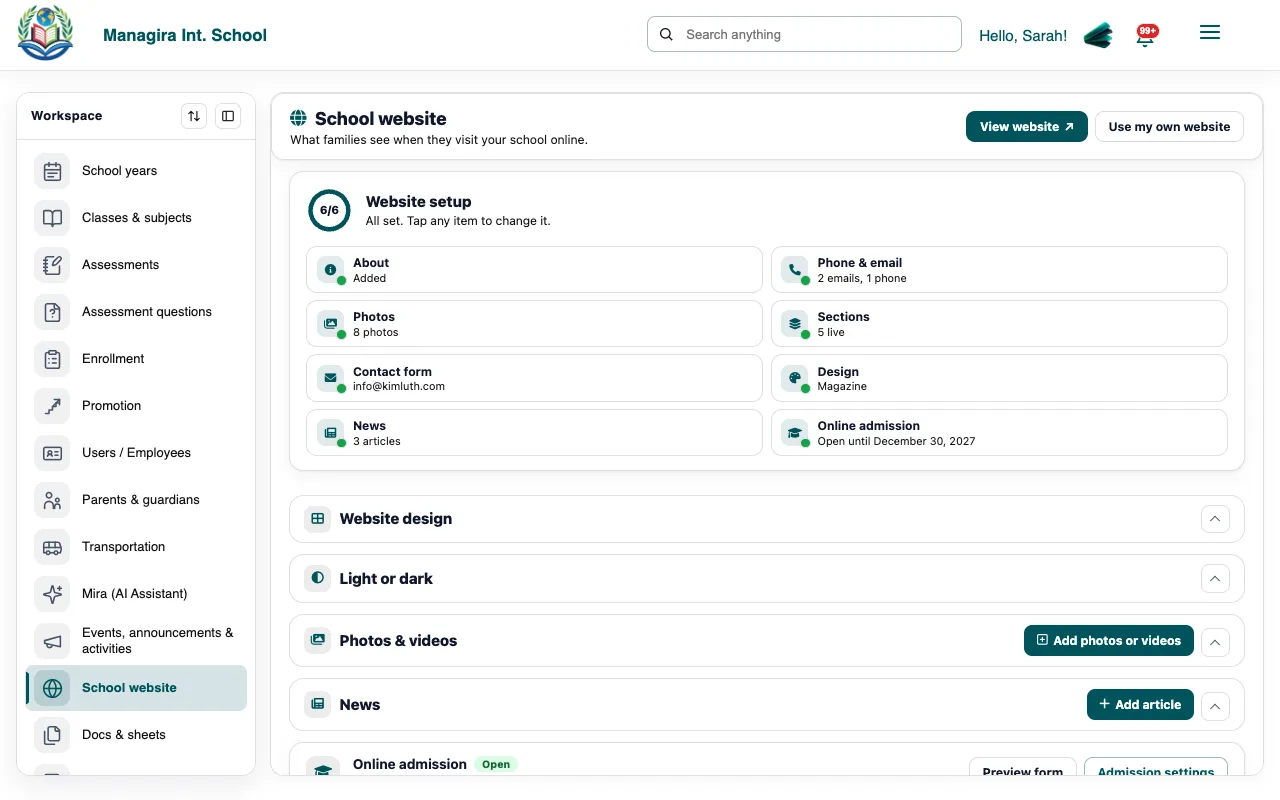
Your emblem: one of ours, your logo, or your own image, in your school color. Choose how it shows: a soft Pattern, or One large emblem.
Select Save design. The emblem is drawn in your school color.
Tip: For Your image, a PNG with a clear background works best.
Photos are always shown whole
Managira never crops your photos. A photo whose shape fits its frame fills it; one that doesn't (a tall portrait in a wide banner, for example) is shown in full over a soft, blurred copy of itself, so nothing important is cut off.
Was this guide helpful?