
Edit your website's sections and photos
Add your welcome, quick facts, programs, leadership, achievements, testimonials, FAQs, contact details, photos and news, in the order you choose.
Who can do this: Managers, and staff given the School Website permission.
Fill in a section
In School website, open a section from Website setup or the list.
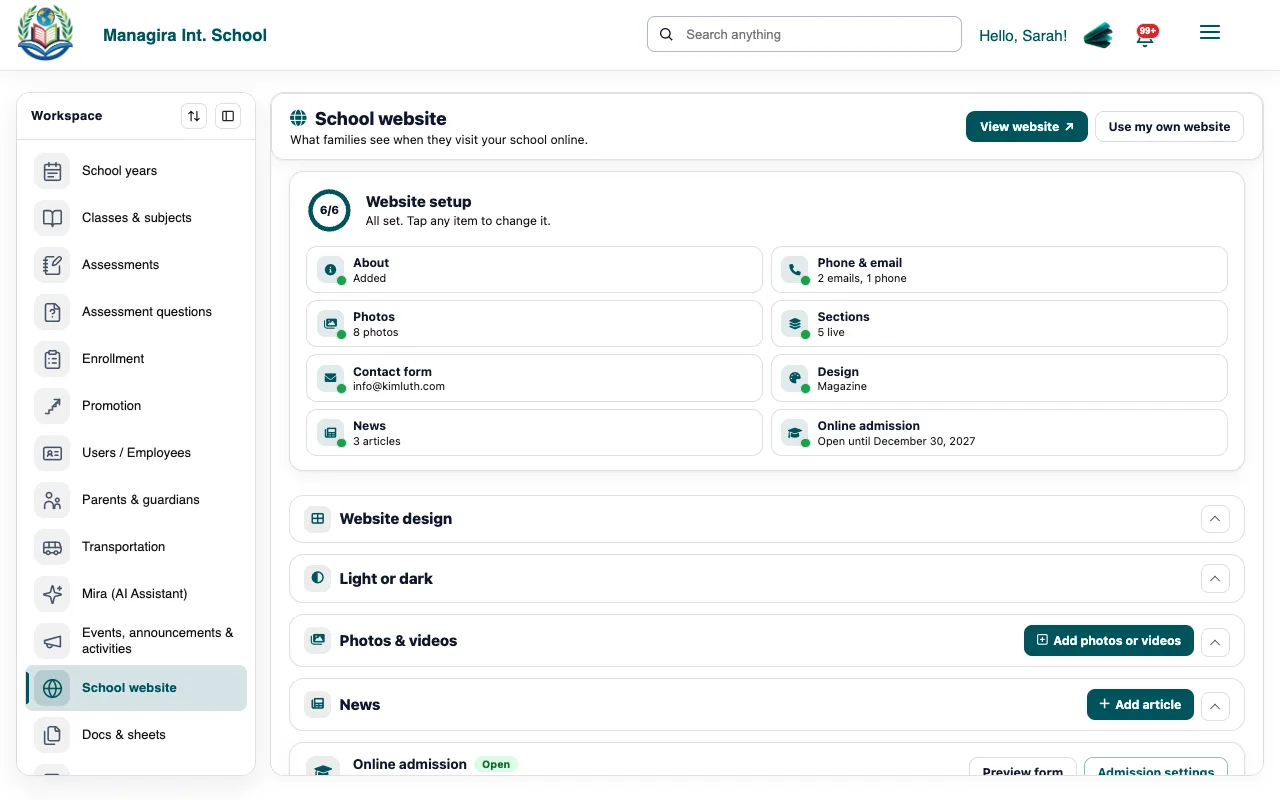
Editing a website section: fill it in, turn it on, save. Fill it in and turn it on. A section that's off, or empty, is hidden from visitors.
Save. The website updates straight away.
| Section | What to put in it |
|---|---|
| Opening | A short kicker and tagline over your main photo. |
| Quick facts | Big numbers, for example 1,250 students or 14:1 students per teacher. |
| Welcome | A message from your principal, with their photo. |
| Programs & facilities | What you offer, each with a photo. |
| Admissions | The steps to join, shown with your Apply button. |
| Leadership | Your leadership team. |
| Achievements | Awards and milestones by year. |
| What families say | Quotes from parents and students. |
| Questions | Frequently asked questions and answers. |
| Contact | Office hours, map and a contact form. |
Photos and news
- Add photos to the slideshow (the opening) and the gallery, each with a caption.
- Write news articles; the newest appear first.
- Events and announcements you publish to the website appear on their own.
Tip: Use bright, landscape photos for the slideshow. Portrait photos are still shown whole, never cropped.
Arrange the page
Use Page order to drag sections into the order you want, and turn sections on or off. The Manage link beside events and announcements opens Events, announcements & activities.
Was this guide helpful?