
Set up transportation: buses, drivers, routes and stops
Turn on Transportation, add your buses and drivers, draw routes with their stops, set schedules, and assign each student to a route and stop.
Transportation covers your buses from morning pickup to afternoon drop-off: who drives which bus, the route and its stops, which students ride, and live tracking for families. Set it up once; drivers and families use it every day.
Who can do this: Managers, and staff given Transportation with the parts they manage: Buses, Manage Drivers, Routes & Stops, Schedules, Rider List, Student Stops & Routes.
Turn it on
Open Management, Integrations, and activate Transportation.
Choose your map provider (Google Maps or Maps) in the same place.
Add buses and drivers
Open Transportation from the menu. Overview shows today's runs, new reports and new requests.
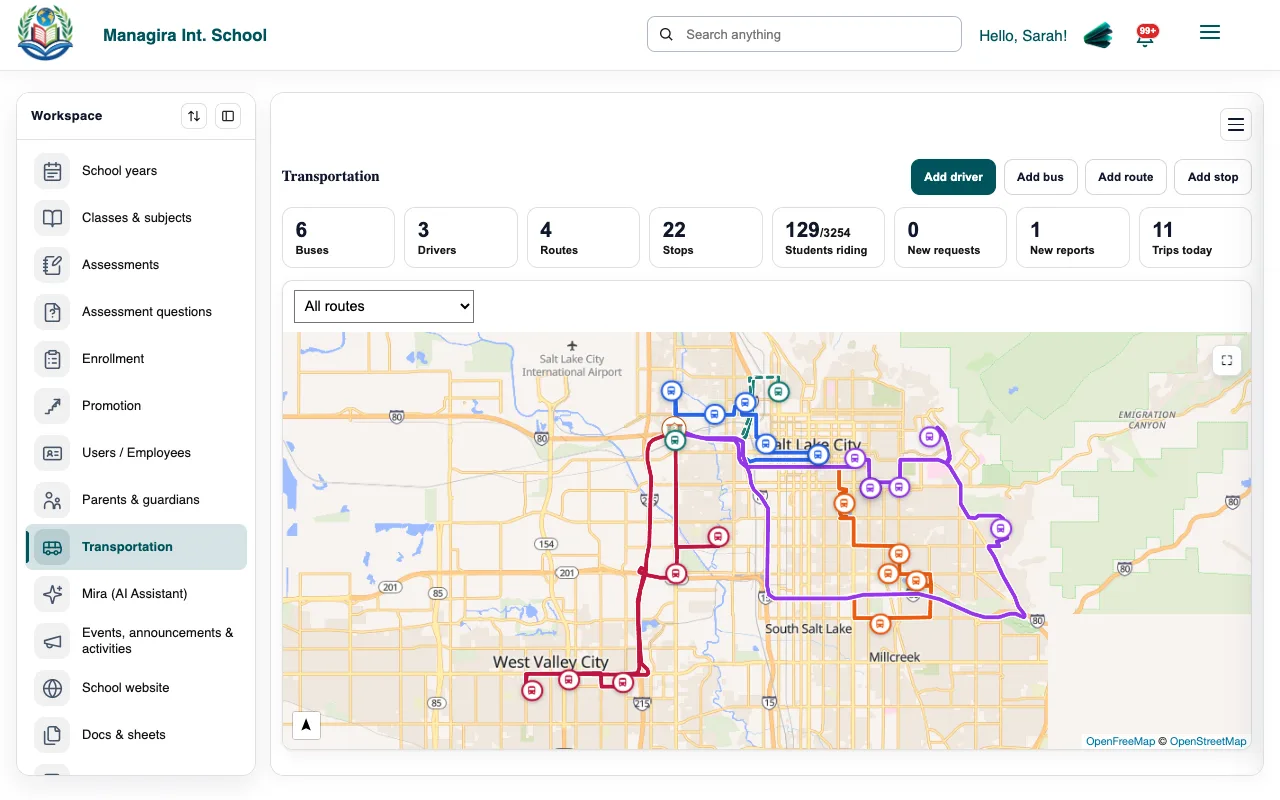
Transportation, Overview: today's buses, reports and requests. In Buses, select Add bus, enter its details, then Save Bus.
In Drivers, select Add driver and choose the staff member (their role is Driver). Mark experienced drivers as Lead Driver so they can help manage the others.
Draw routes and stops
In Routes, select Add route, name it and choose its bus.
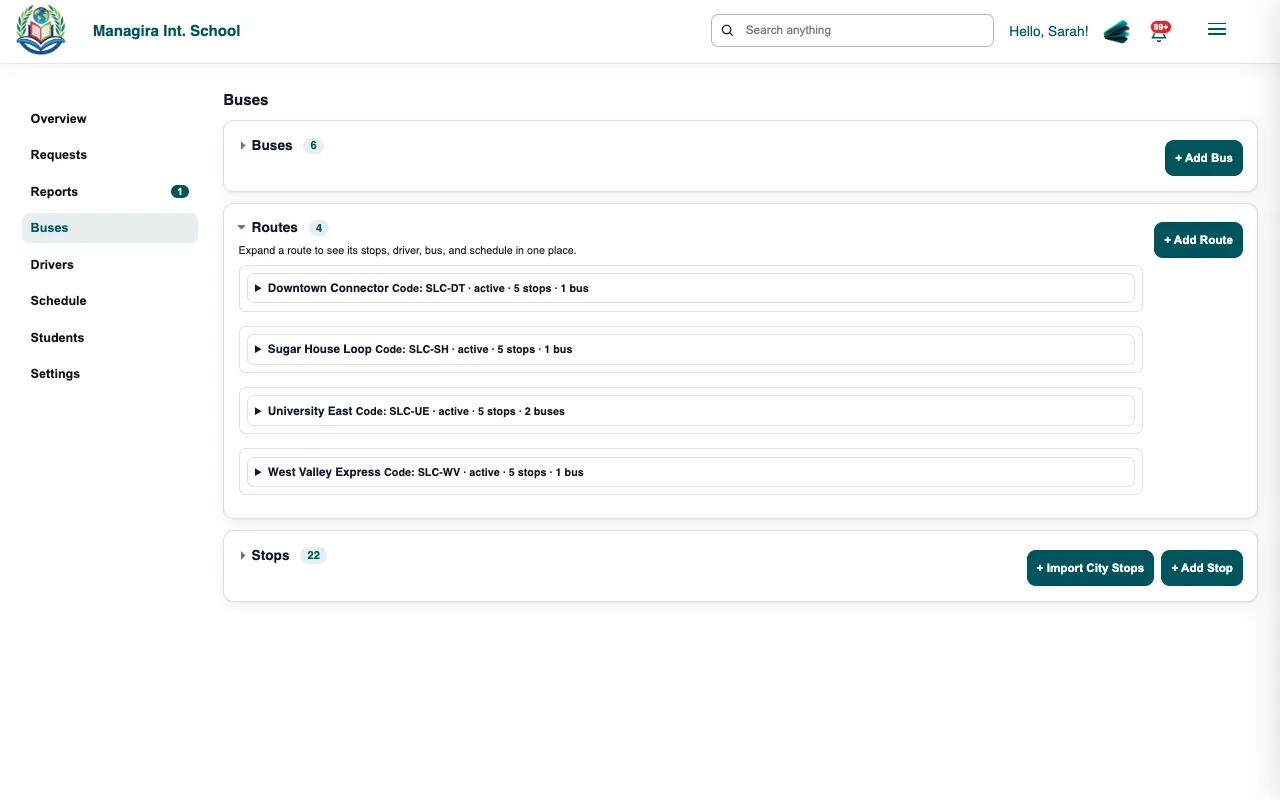
Routes: the route's road through its stops, in order. Add stops in order with Add stop, by searching an address or clicking the map. Many stops at once? Use Import Stops.
Select Fit Bus Stops to see the whole route, then Save Route. The route follows the real roads through its stops.
In Schedules, set the morning and afternoon times, then Save Schedule.
Assign students
Open Student Stops & Routes (or the Rider List).
Give each rider their route and stop. Families see them in the parent portal.
Use Edit class access to choose which classes may use the bus, and whether Parents confirm arrival.
Tip: Use Notify guardians to tell a route's families about a change, such as a new stop time.
Frequently asked questions
Can a driver change routes?
Drivers drive the routes assigned to them. A driver with Any Route can drive any route, for example to cover for someone.
What does a parent see?
Their child's route and stop, the live bus on the day's run, and arrival time. See Live bus tracking.
Was this guide helpful?