
Find students: All Students and filters
Search the whole school, filter by class, gender, status and portal access in one pop-up, and change many students at once with bulk edits.
Who can do this: Managers, and staff given the Students permission.
Search and filter
Open Admissions, then All Students. Type a name or student ID in the search box.
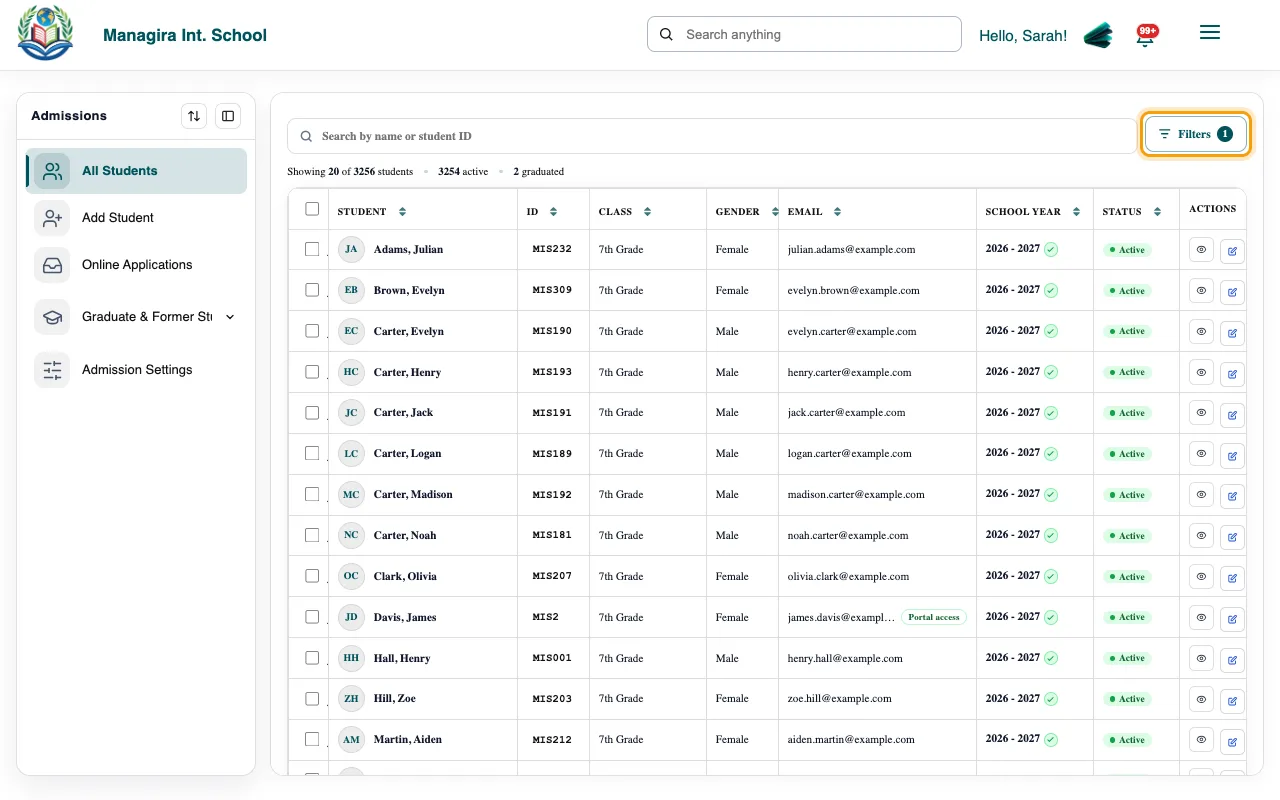
Admissions, All Students: search, Filters and bulk edits. Select Filters to narrow the list by Class, Gender, Status or Portal access, then Done. Clear removes them.
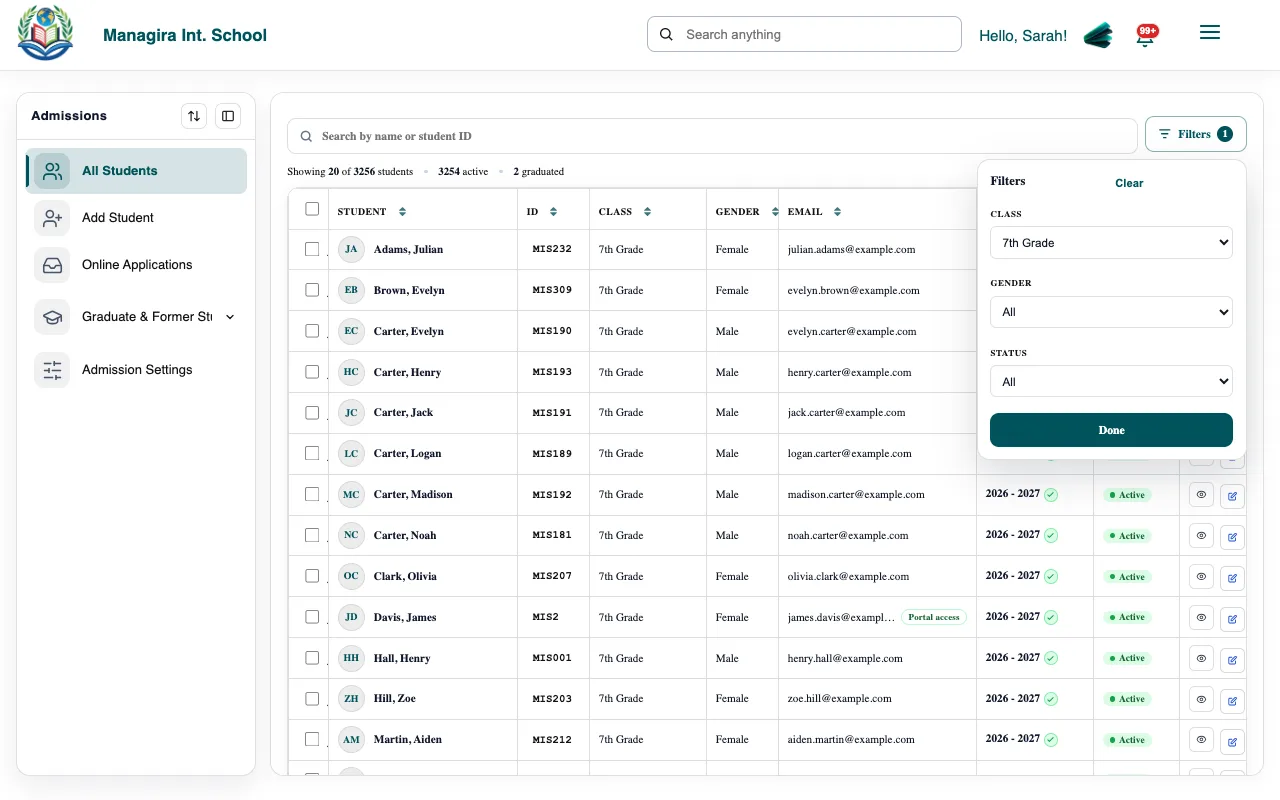
Filters open in a pop-up, and the list shows how many filters are on. Choose how many to Show per page, and use Prev and Next to move through the list.
Change many students at once
Tick the students, then choose Bulk Edit Students:
- Change Class or Assign to Class: move them together.
- Assign School Year: put them into a school year.
- Edit Student Emails and Edit Student IDs: fix many in one go.
- Send Password Invite: invite students with an email to the student portal.
Frequently asked questions
Can I export the list?
Use Report Builder for exports to CSV, Excel or Word with exactly the columns you want.
Was this guide helpful?