
Mira is designed to work like other AI assistants eg Claude Chat GPT etc. Staff can simply ask a question or give Mira a task, and Mira will search the school’s organization data and provide the information or assistance available to them.
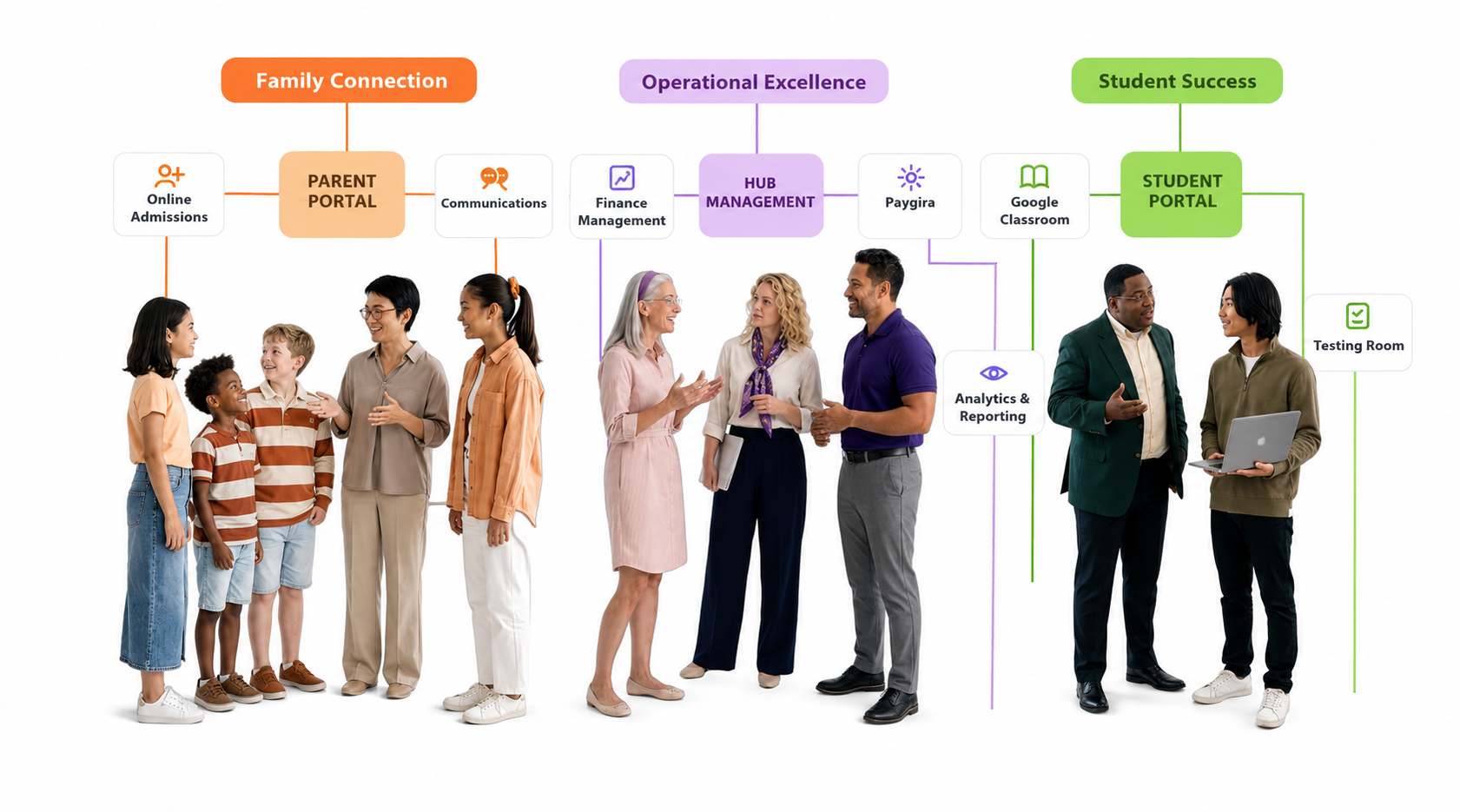
Mira has a wide range of capabilities designed to support the needs of schools.
Who can use Mira
Mira is available to members of the school organization, including Managers, Supervisors, Teachers, Drivers, and other custom staff members.
Access is permission-based. Mira follows the permissions granted to the user by the school administration. This means each user can only view information or perform actions that their account is permitted to access.
For example, a user without permission to manage students will not be able to use Mira to perform student-management actions that require that permission.
Mira licensing
Mira is licensed on a per-user basis.
Each user who is given access to Mira is charged for Mira usage on a monthly basis. School administrators control which members of the organization are given access.
Enabling Mira
Before staff can use Mira, a school administrator must enable the feature.
- Open Integrations.
- Turn on Mira Ai Assistant for the school.
- Open Management Tools.
- Give the appropriate staff members access to Mira.
Once access has been granted, the selected users can use Mira based on the permissions assigned to their accounts.
Accessing Mira Ai assistant
After Mira has been enabled and a user has been granted access, the Mira logo appears in the Managira header.
- Log in to Managira.
- Click the Mira logo in the header.
- Mira opens using the permissions associated with your account.
Mira can also be accessed directly at:
mira.managira.com
Using Mira
Mira is designed to be simple to use. Staff can interact with it using natural-language questions or instructions.
For example, you can ask Mira to:
- Find a student or guardian.
- Check attendance or fee information.
- View school, class, or enrollment information.
- Generate reports or summaries.
- Manage supported school records and settings.
- Help manage assessments, transportation, events, documents, and other supported school functions.
The information and actions Mira provides depend on the user’s access and the capabilities enabled for the school.
Permissions and security
Mira operates within the user’s organization and respects the permissions assigned to that user.
A user’s role or title alone does not automatically give them access to every Mira capability. Mira checks the permissions available to the individual user before performing supported actions.
Actions that change school data are also recorded in Activity Logs as actions performed through Mira.
Important: Administrators should only give Mira access to staff members who should have access to the underlying school information and management functions.
All actions performed using Mira are logged in Activity Logs for accountability and auditing.
Getting started
Once Mira has been enabled, administrators should:
- Enable Mira under Integrations.
- Open Management Tools and select the staff members who should have access.
- Confirm that each user has the appropriate permissions.
- Have users open Mira from the Managira header or visit mira.managira.com.
- Start using natural-language questions and commands to manage supported school activities.
Tip: Mira works best when users clearly describe what they need. For actions that change school data, make sure the user has the appropriate permission before attempting the action.