
Your calendar and tasks
See school events, your lessons, personal events and tasks in one calendar; assign tasks to colleagues, tag them in events, and track what's due.
Who can do this: All staff. Posting school events needs Publish Events & Announcements.
Your calendar
Open the menu and choose Calendar.
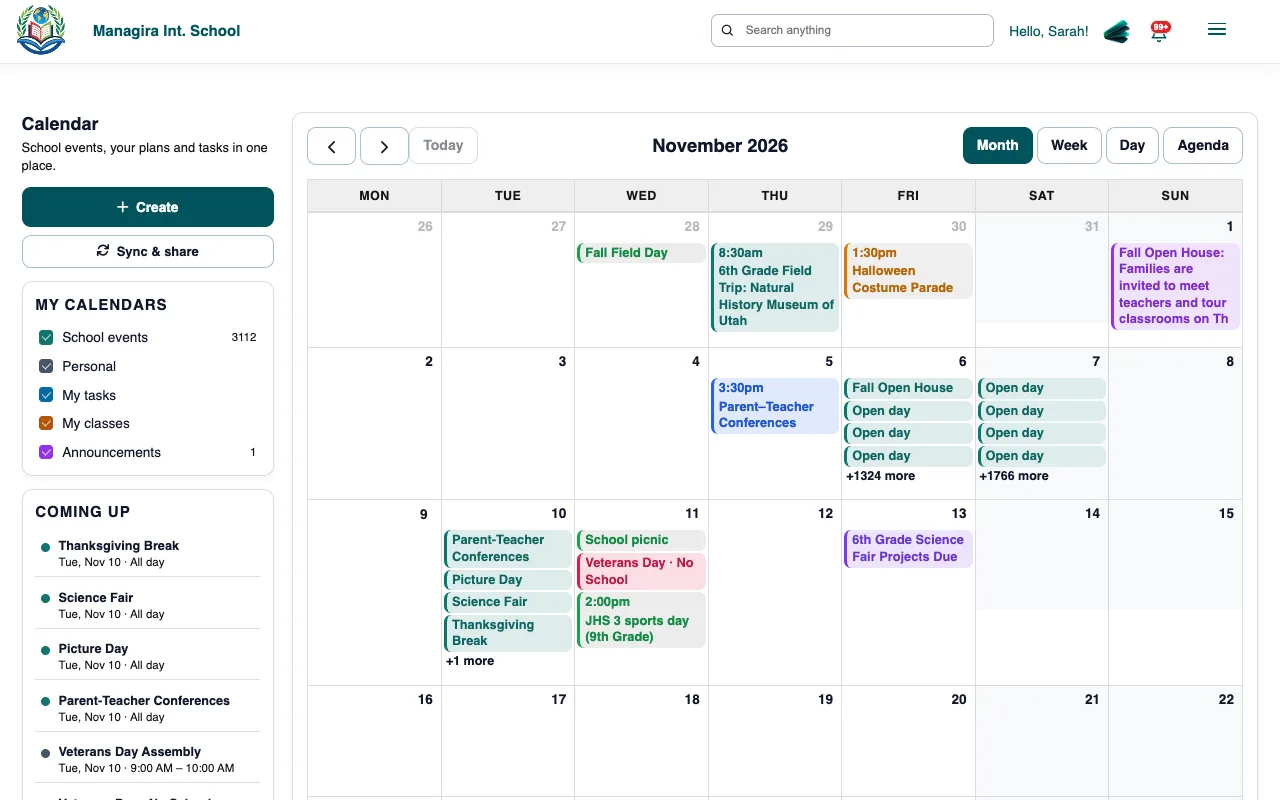
The staff calendar: school events, lessons, personal events and tasks. Click a day to add something, or select an existing item to see or change it.
Use My calendars to show or hide layers: school events, your lessons from the timetable, personal events, tasks and connected calendars.
Assign a task
Select New task on the dashboard, or add a task in the calendar.
Describe the task. Type @ and a colleague's name to mention them, and they're added as an assignee.
Set a due date, time and priority, then save. Assignees get a notification and an email.
Each assignee marks the task done; you see who's finished on your dashboard's For you tab, and can comment on it there.
Example: "@Daniel Lee please send the 7th Grade science results to families by Friday." Daniel is assigned, and the task shows on both dashboards until he marks it done.
Personal events and tags
- A personal event is just for you, plus anyone you tag.
- Tag colleagues in an event so it shows on their dashboard and calendar, with a notification.
- Share with colleagues (in Sync & share) lets them see your personal events and tasks.
Was this guide helpful?