
Student files: insurance cards, plans and other papers
Keep a student's papers on their record, such as an insurance card or a birth certificate, and choose who can see each one.
Every student has Files at the top of their page. Files are private: only the people you choose can open them.
Who can do this: Staff who can open the student (Manage Students). Teachers, for students in their classes.
Add a file
Open the student. Files is under their name.
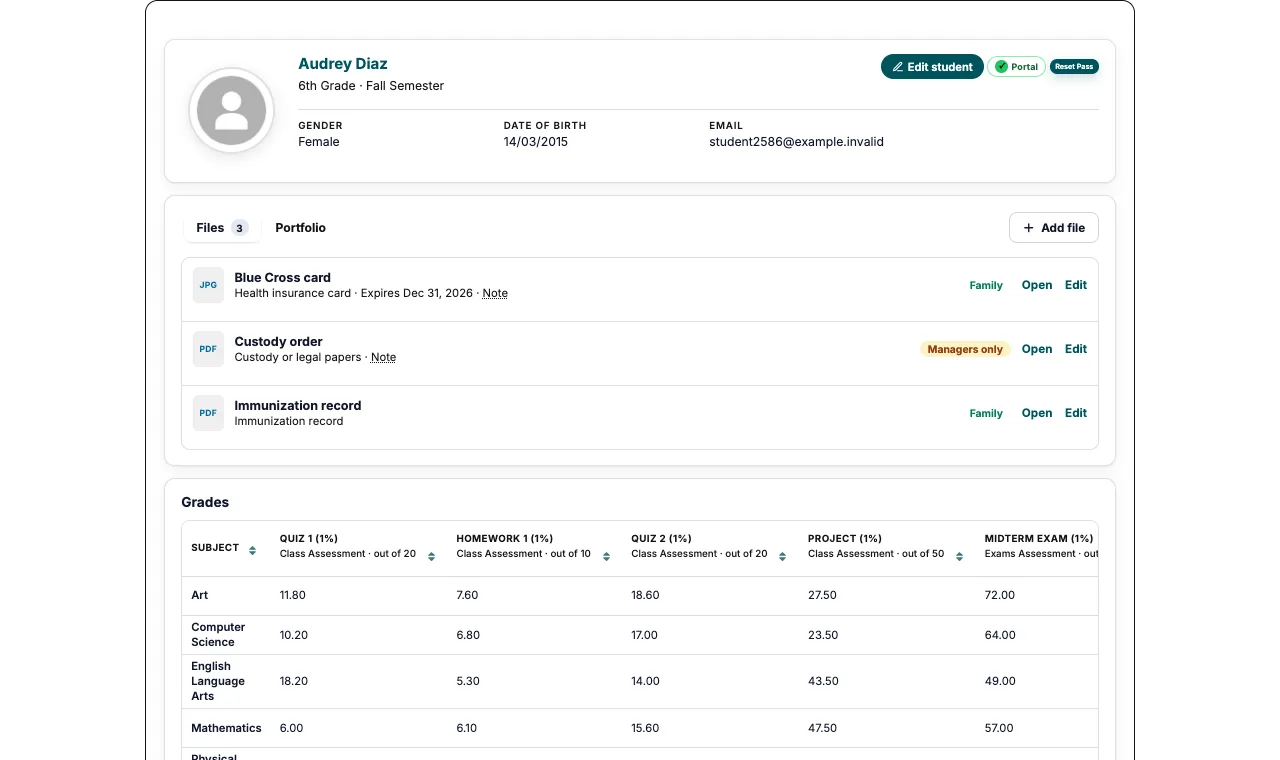
Files at the top of the student's page. Select Add file.
Choose the file, its type and who can see it. A title, expiry date and note are optional.
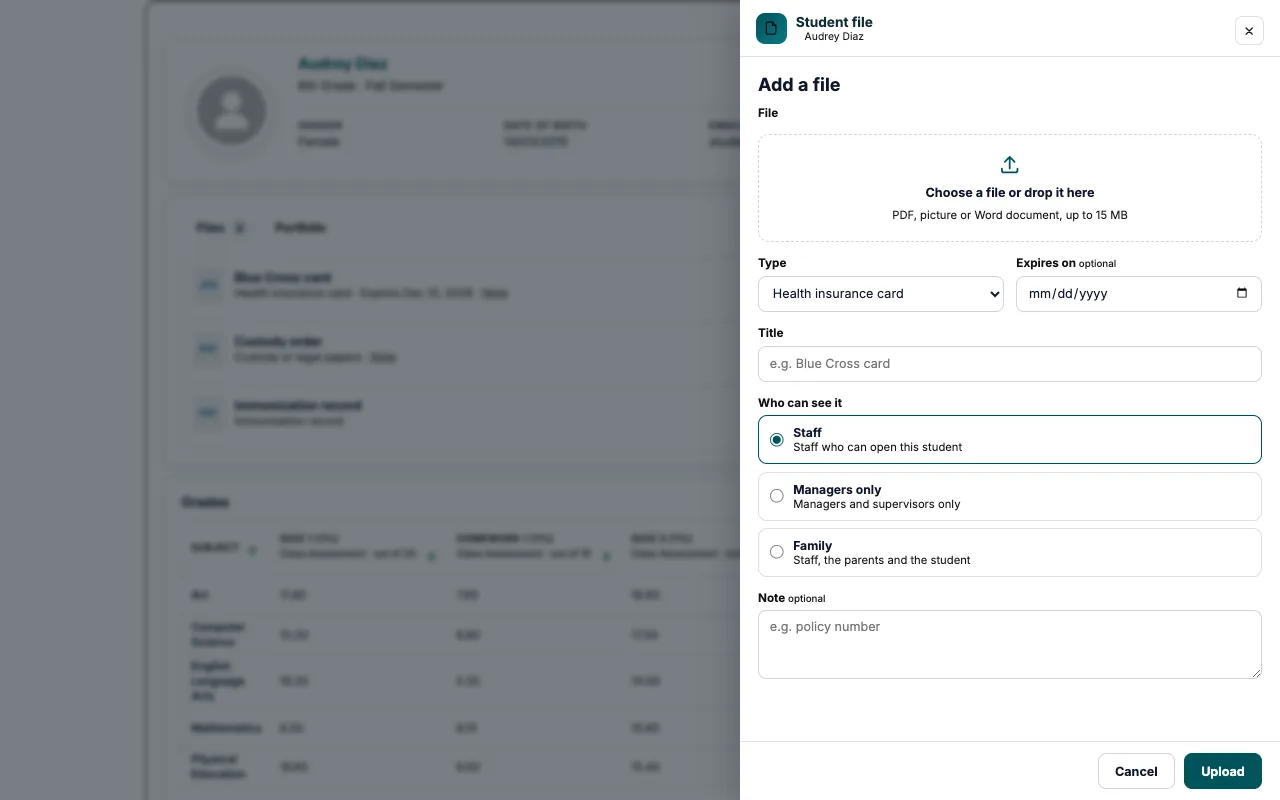
Add a file opens on the right. Select Upload.
Good to know: PDFs, pictures and Word documents, up to 15 MB each.
Who can see it
| Choice | Who can open it |
|---|---|
| Staff | Staff who can open the student |
| Managers only | Managers and supervisors |
| Family | Staff, the student's parents and the student |
Tip: Custody papers and IEP or 504 plans start as Managers only.
Change or remove a file
Select Edit beside the file.
Change what you need and select Save, or select Remove file.
Good to know: A file close to its expiry date shows in orange; an expired one shows in red.
Add files with a new student
On Add student, under Files, select Add a file.
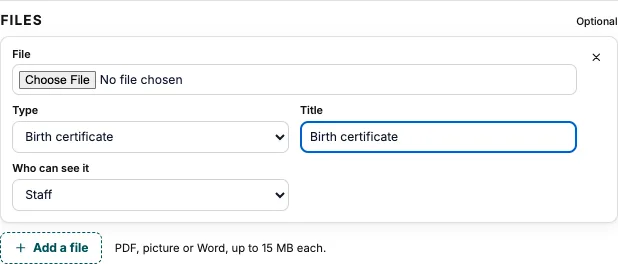
Files on Add student. Choose the file, its type and who can see it. Add more if you need to.
Save the student as usual.
Good to know: Edit student has the same Files section, to add, rename or remove files.
Require a file for every new student
Open Admissions, Admission Settings, then Student fields.
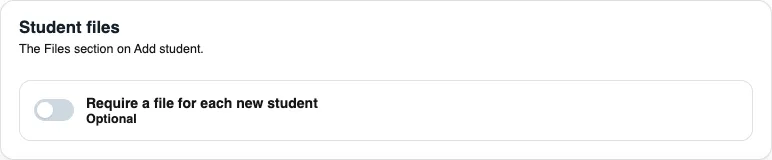
Student files: optional unless you turn this on. Turn on Require a file for each new student.
Good to know: It's off unless you turn it on.
What families see
Files set to Family show on the parent's Documents and Portfolio, and on the student's Portfolio. To keep them from a class, untick Student files in Class settings.
Frequently asked questions
Who can see a file set to Managers only?
Managers and supervisors. Teachers and families don't see it in the list.
Can I replace a file?
Remove it and add the new one.
Where are files kept?
Privately, on the student's record. Opening one gives a link that works for a few minutes.
Was this guide helpful?