
Add and change fields in a form
Add questions to a section, pick the right field type, make a field required, and show it only when another answer calls for it.
Each question in a form is a field. A section can hold up to 80.
Who can do this: Managers, and staff given the Custom Editor permission.
Add a field
Open the section, then select Add field above the list of fields.
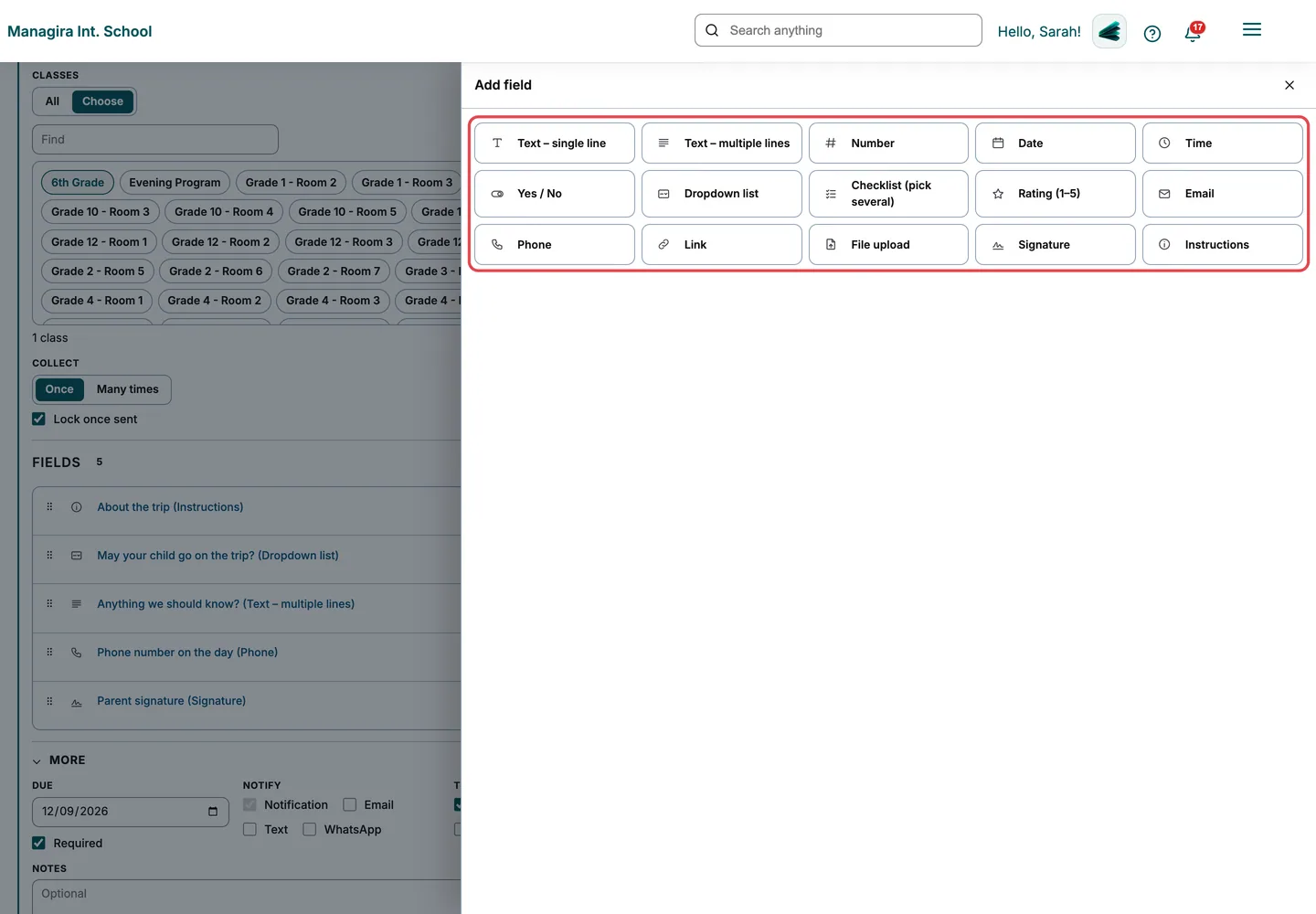
Add field opens the list of field types. Choose a type.
Type the Label (the question). Add Help if it needs explaining, and check Required if it must be answered.
Select Done, then Save the section.
Tip: Drag a field by its handle to reorder the list. Select a field to change it later.
Field types
| Type | Use it for |
|---|---|
| Text – single line, Text – multiple lines | Names, notes and explanations |
| Number, Date, Time | Amounts, dates and times |
| Yes / No | A simple yes or no. Show it as Words, or as a check and a cross. |
| Dropdown list | Pick one. Show it as a List, as Buttons with words, or as Icons. |
| Checklist (pick several) | Pick all that apply |
| Rating (1–5) | A score from 1 to 5 |
| Email, Phone, Link | Contact details and web addresses |
| File upload | A photo or a document, such as a doctor's note |
| Signature | The person types their name and checks a box to sign |
| Seat (seating chart) | Where a student sits. Classroom sections only. See Quick forms, seating charts and groups |
| Instructions | Text to read. Nothing to answer |
Choices for a dropdown or checklist
Add a Dropdown list or Checklist. Under Choices, type each option on its own row.
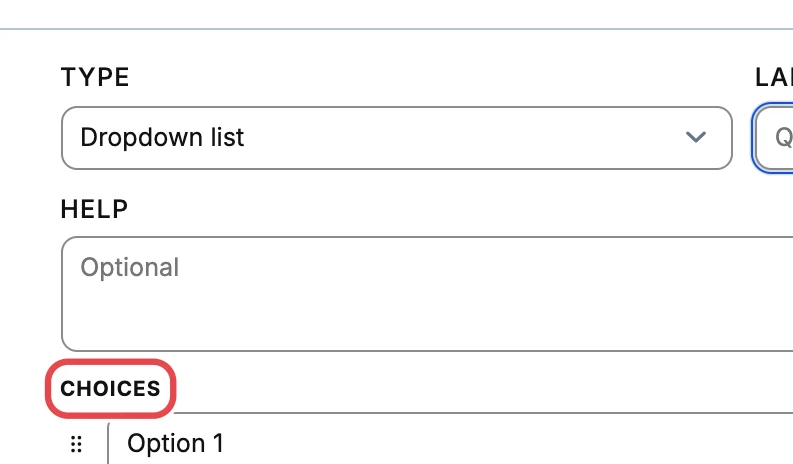
Choices, and how a dropdown shows: List, Buttons or Icons. For a dropdown, choose Show as: List, Buttons or Icons. Icons are picked from each choice's words. Select an icon to change it.
Show a field only when it is needed
Select the field, then open More in the field's panel.
Under Visibility, choose Show or Hide, the other field to watch, and the answer.
Select Done, then Save.
- Width: Half puts two short fields side by side.
- Stop using: hides the field from now on. Answers already given are kept. A field you stopped using shows Not used in the list.
- Delete (bottom left of the panel) removes the field from the form.
Example: Show Which medication? only when Does your child take medication? is Yes.
Frequently asked questions
Can I change a field after people have answered?
Yes. Reword it or add fields at any time. To retire a field without losing its answers, check Stop using.
Why is Seat missing from my list of types?
Seat is for classroom sections only. Change Place to Classroom first.
Was this guide helpful?