
Report remarks: teacher comments through the Custom editor
Write teacher remarks through the Custom editor with tap-to-add suggestions, and add a form's answers to the report card.
Every school has a Report remarks section in the Custom editor. Each remark prints on the report card in its usual place. Other forms, such as skills and effort, can print on report cards too.
Who can do this: Managers, and staff given the Custom Editor permission. Teachers write the remarks.
The Report remarks section
Go to Management › Custom editor and open Report remarks.
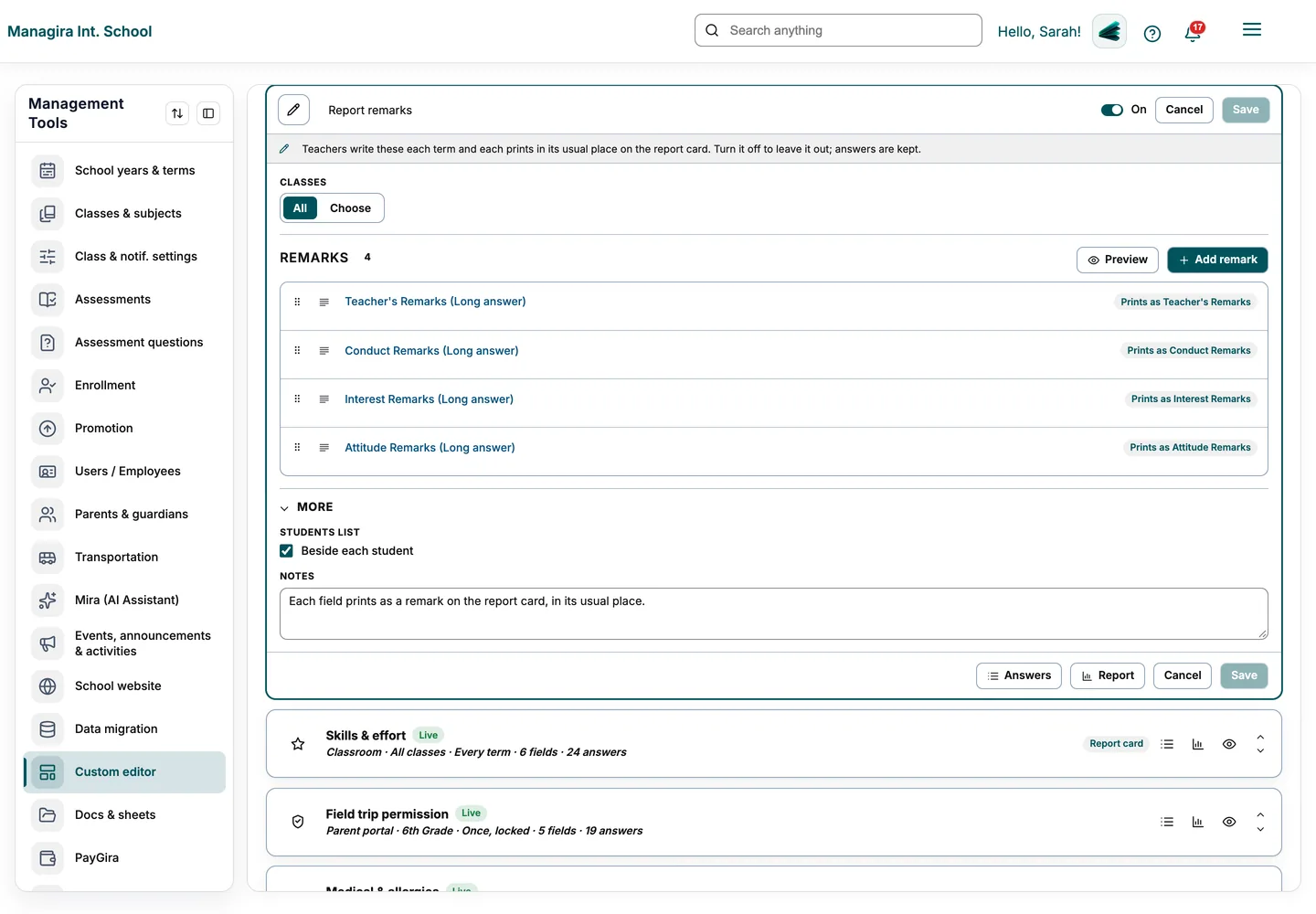
Teacher's, Conduct, Interest and Attitude remarks, each printing in its own place. Switch On or Off at the top to leave remarks out. Answers are kept, and Report settings shows Turn on to bring them back.
Add or change a remark
Select Add remark, name it (for example Head Teacher's Remarks) and select Done.
Open a remark to give it Suggestions: your school's ready-made remarks, one per line.
Select Save.
Good to know: You can also start from Report settings: select + Add remark at the top right of Report remarks and the Custom editor opens beside the page.
How teachers write them
With Beside each student on (it is on in Report remarks), teachers tap the remark icon beside the student on the class page.
They tap a suggestion or type, then save.
Good to know: Remarks written the old way still print until a form answer replaces them.
Add another form to the report card
Use this for things you grade every term, like effort, behavior or work habits.
Create a section whose Place is Classroom and that is collected Every term. Skills & effort in the library is ready-made.
Open More and check On report card under Report card. Save.
Teachers fill it in for each student on the class's Forms tab.
Generate report cards as usual. Each student's answers for the term print under the section's name.
- A typed field can print as a remark: open the field and choose Prints as, then the remark. The answer prints in that remark's usual place. Each remark can come from one field.
- To leave a form off the report cards, uncheck it in Report settings › Advanced. See Report settings.
- On your own report card template, add the field
{{forms.all}}where the answers should print.
Frequently asked questions
Where did the old remark pencil go?
Teachers keep it until Beside each student is on for Report remarks. After that they write remarks from the Students list.
Where do I add a Head Teacher's remark?
In the Custom editor on Report remarks, select Add remark. Report settings has a + Add remark link to the same place.
Was this guide helpful?