
Quick forms, seating charts and student groups
Answer for a whole class on one screen with tap-to-answer forms, arrange a seating chart, and sort students into groups.
A section made only of tap-to-answer fields (Yes / No, dropdown, rating, seat) is quick: a teacher answers for every student on one screen. The editor shows Quick under Collect when a section qualifies.
Who can do this: Managers and staff with the Custom Editor permission build them. Teachers use them in their class.
Student groups
In Management › Custom editor, select New section and choose Student groups under Every day in class. Rename the groups: reading groups, project teams or houses.
In the class, open Forms in Class Tools and choose Student groups. The List shows a dropdown beside each student.
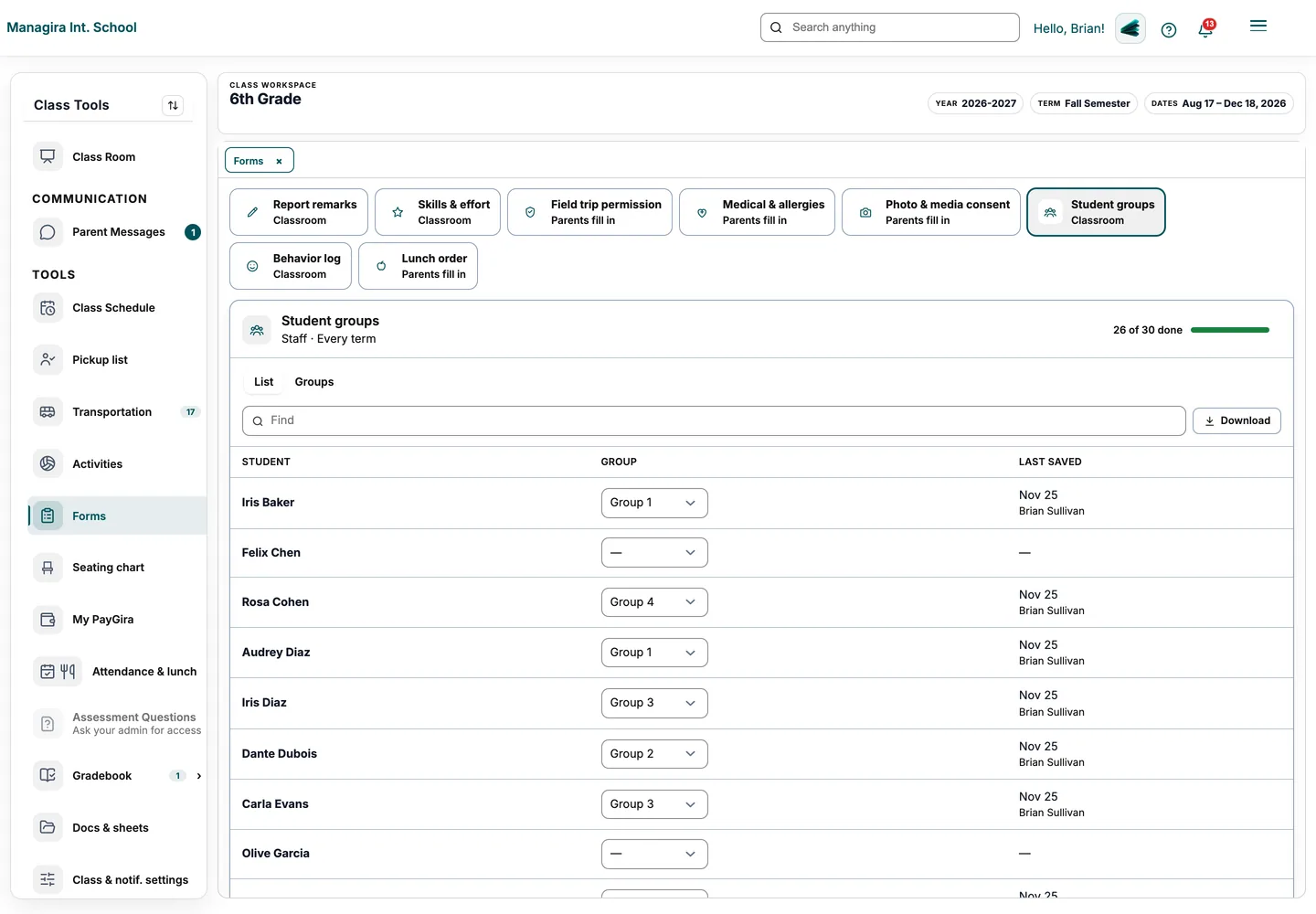
List: pick each student's group from a dropdown. Select Groups to see the groups as columns.
Tap a student, then tap the group to move them to.
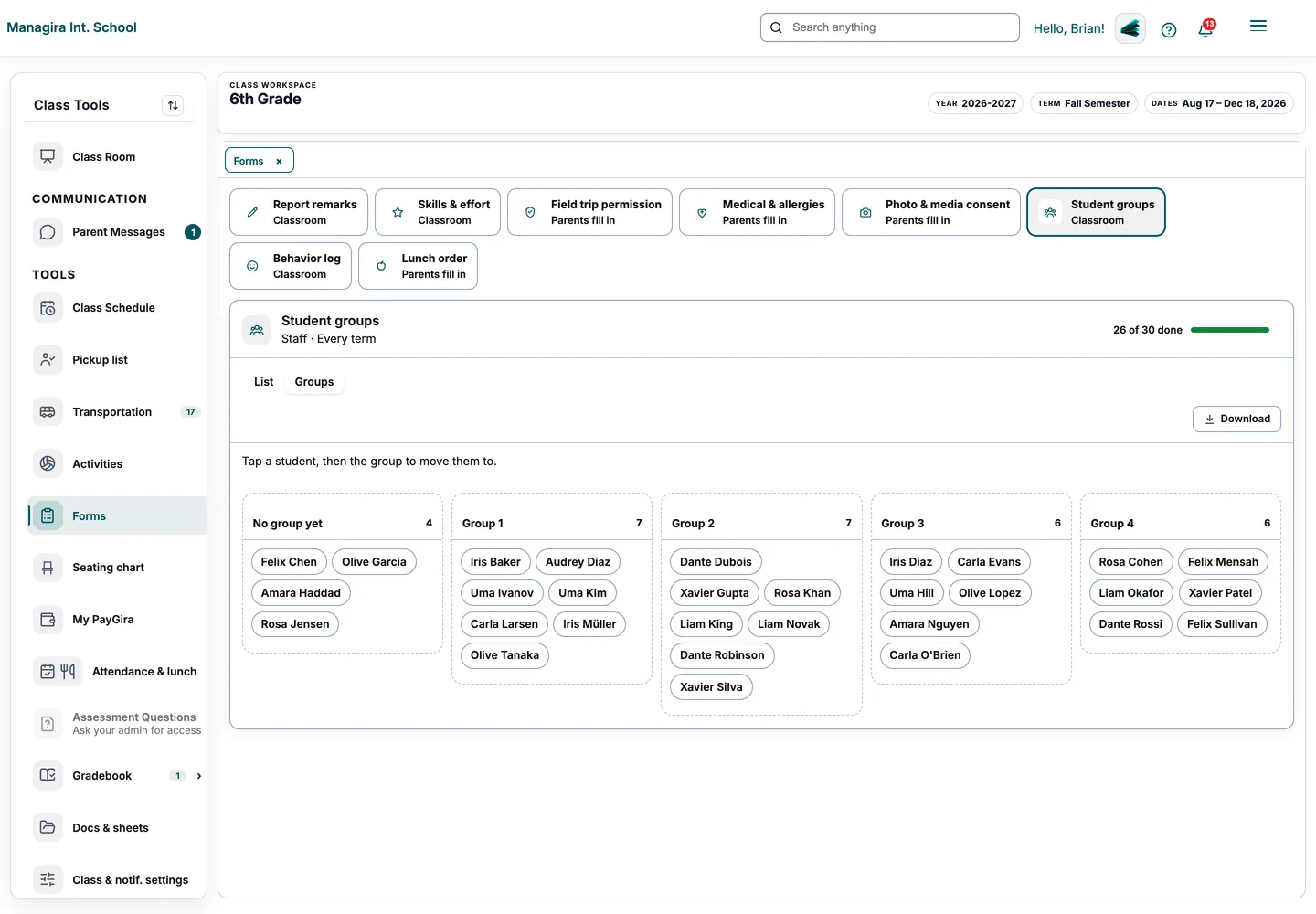
Students with no group sit under No group yet.
A seating chart
Create a section from Seating chart in the library. It has one field of the type Seat and its own tile.
In the class, open Seating chart in Class Tools. Students without a seat wait at the top as Not seated yet. Tap a student, then tap a seat.
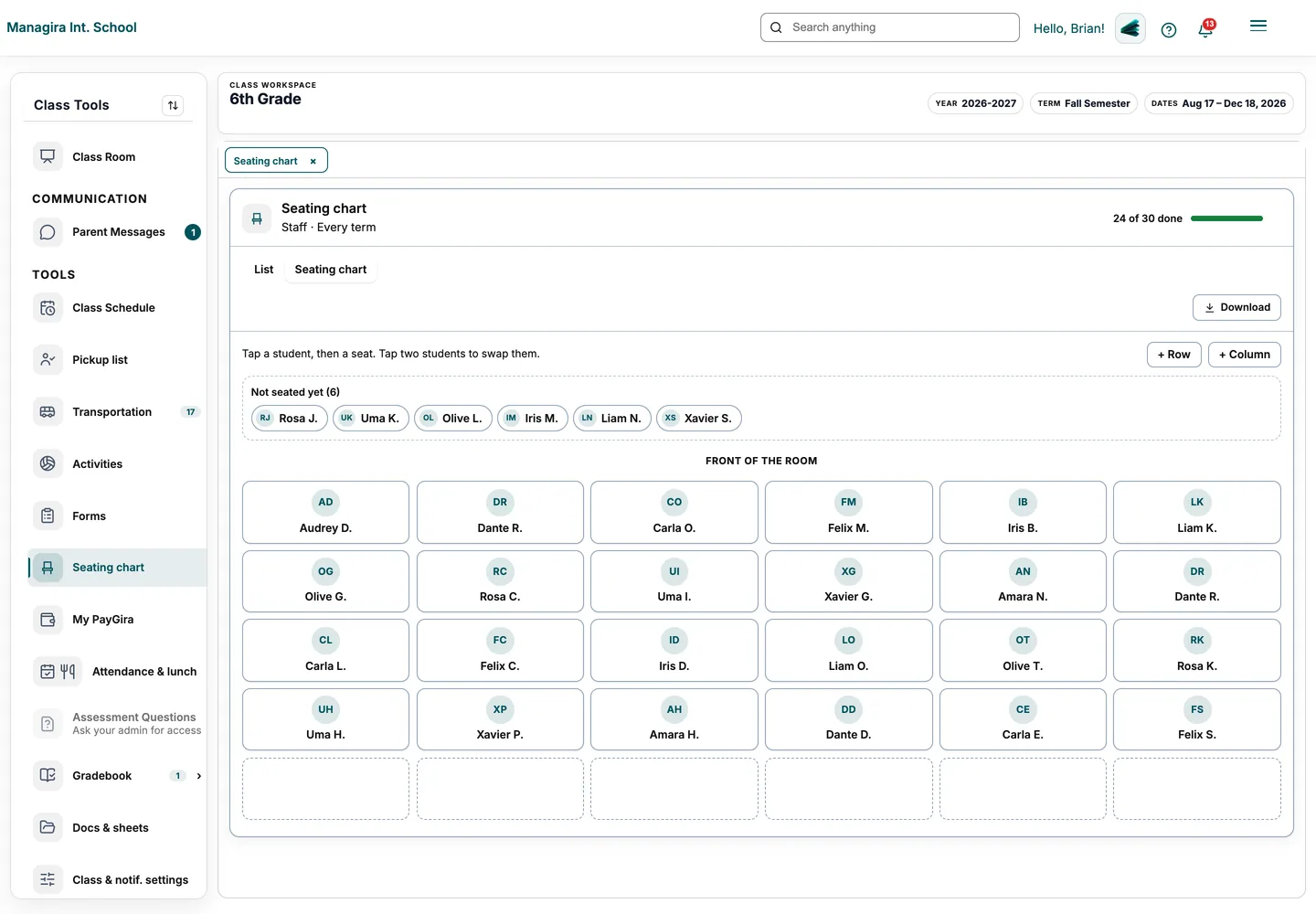
The front of the room is at the top. Tap two seated students to swap them. + Row and + Column make the room bigger.
Tip: Choose how each seat shows: photos or names only. Open the Seat field and set Show to Photos or Names.
Icons, words and counts
- Icons or words: in a dropdown field, choose Show as and then Icons. Each choice gets an icon picked from its words, and you can change it.
- One tap: the answer you tap lights up and the others fade. Tap it again to clear it.
- A count: a key above the list shows each answer and how many students have it.
Lunch
Lunch is built into attendance, with a plate beside each student's checkbox. You don't need a form for it. See Take attendance.
Tip: Want parents to order ahead? Use Lunch order from the library. It lives in the parent portal and is asked every week.
Frequently asked questions
Why isn't my section quick?
A quick section has up to four tap-to-answer fields, none of them shown on a condition. Add a text field or a fifth field and it becomes a normal form.
Can parents see the seating chart?
Only if you check Parents under Seen by in More. See More options.
Was this guide helpful?