
Search anything and Search deeper
Find a student, parent, staff member or class from the header, then use Search deeper to look through notes, forms, messages, bills and more.
Search anything at the top of every page finds people and classes as you type. Search deeper looks through much more of your school's records.
Who can do this: Staff. You only find what you can open: teachers and supervisors find their own classes' students and parents. Parents, students and drivers don't have Search deeper.
Search anything
Select the Search anything box at the top and start typing a name, email, ID or class.
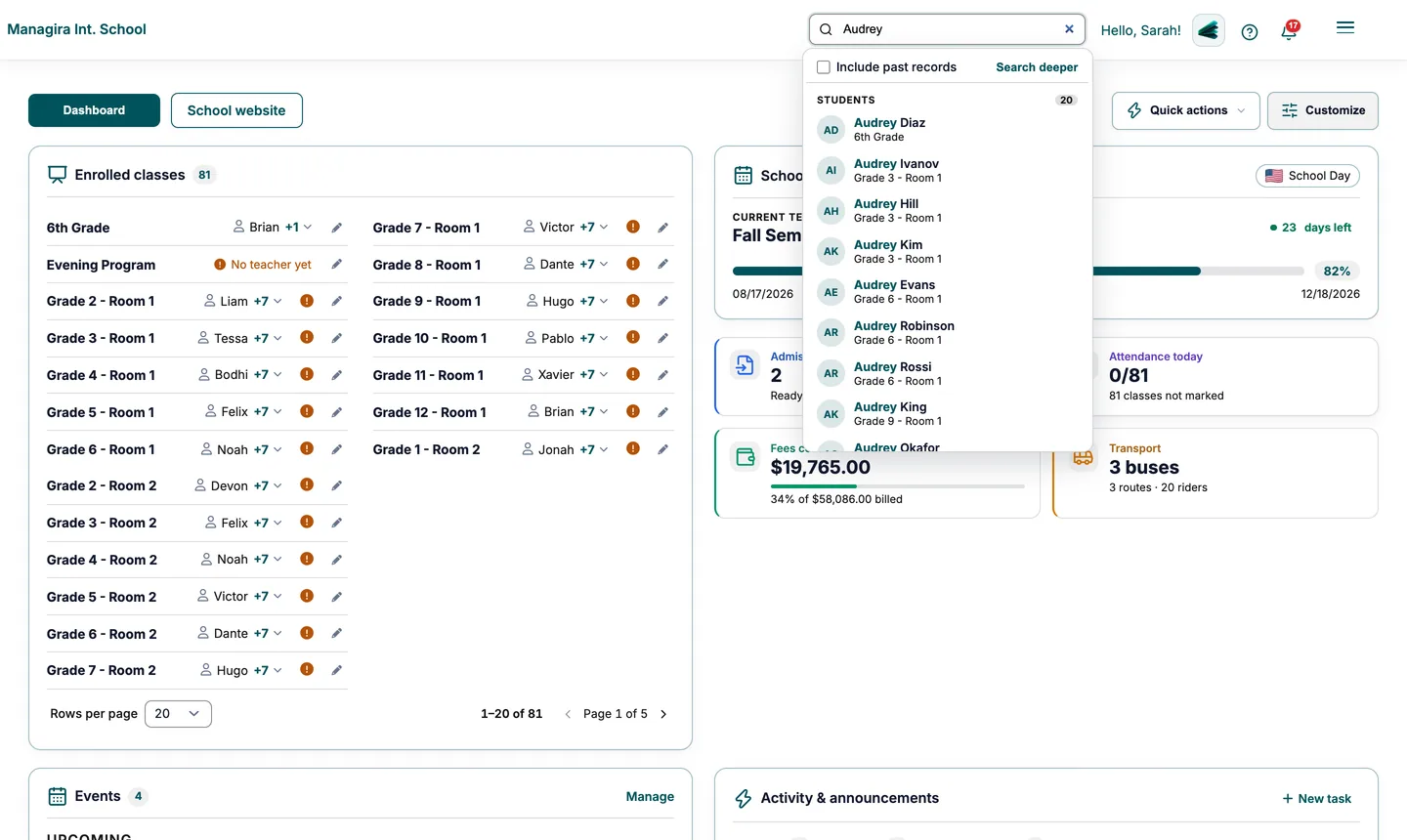
Results appear under the box as you type. Select a result to open it. A student opens their page, a staff member or parent opens a card on the right side, and a class opens its classroom.
- Results are grouped by kind, such as Students and Parents & guardians, each with a count.
- Each list shows only what you can open. Teachers see their own classes' students, parents, classes and subjects.
Include past records
Check Include past records at the top of the results to add graduated and withdrawn students.
Leave it unchecked to keep them out. The box is remembered while the tab stays open.
Good to know: When nothing matches and past records are off, the message reminds you to check it.
Search deeper
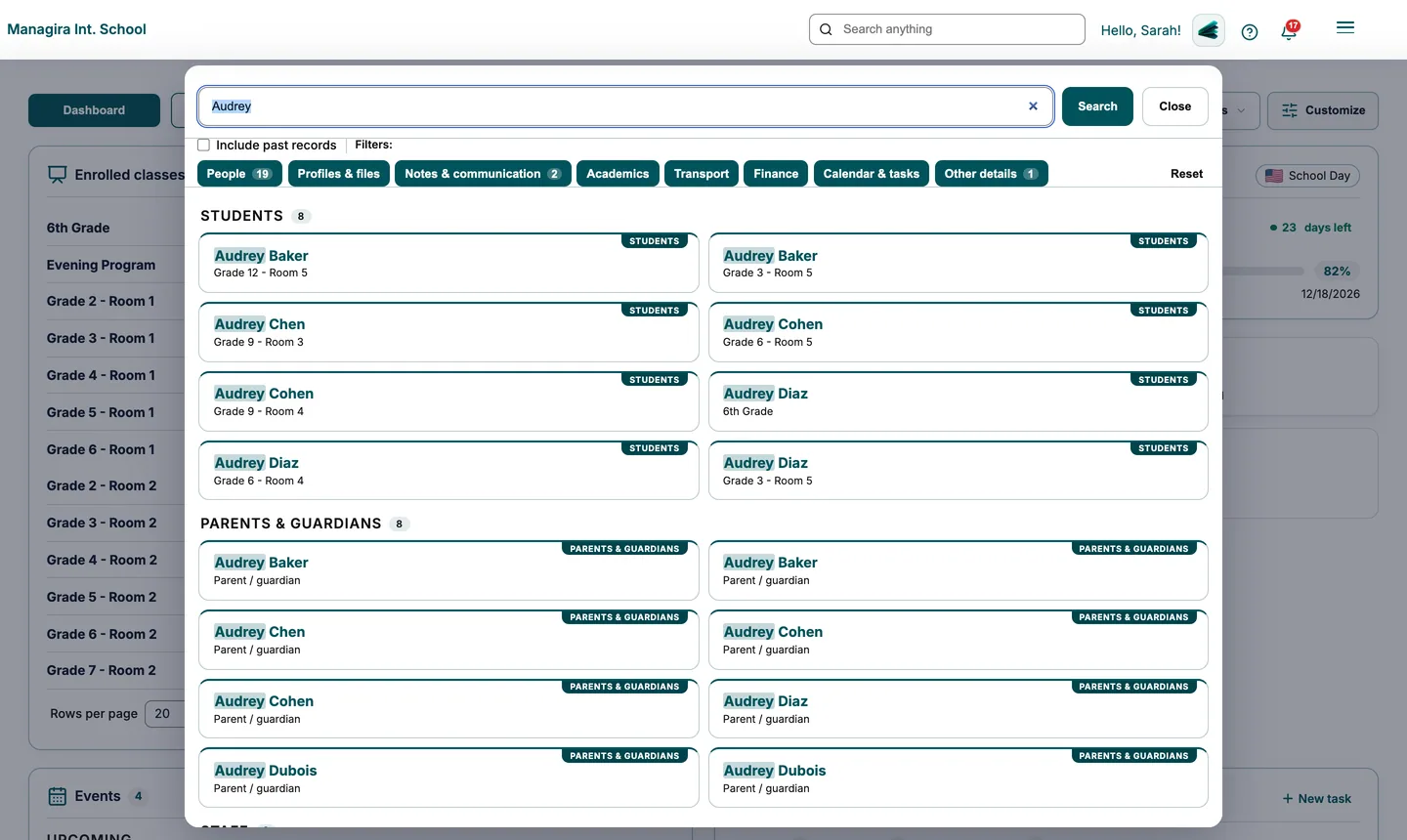
Type what you want, then select Search deeper at the top of the results.
Check the Filters row. Every category is on until you narrow it.
Select Search, or press Enter. Select a result to open it.
The filters
- Include past records sits at the left of the row. Reset at the right turns every category back on.
- A category appears only when you can search it. Results come best first, under Exact match, then Related, each with its own count.
- Search deeper covers your school's records only. The guides and app pages aren't in it: use Ctrl+K for pages.
| Category | What it searches |
|---|---|
| People | Students, parents, staff and applicants: names, email, phone, address, ID, a staff member's role and About me. |
| Profiles & files | Student profile details, student files and Custom editor forms and answers. |
| Notes & communication | Student alerts, portfolio notes, parent messages and replies, and announcements. |
| Academics | Classes and subjects, assessments and report card remarks. |
| Transport | Buses, drivers, routes and stops (when transportation is on). |
| Finance | Bills (PayGira). |
| Calendar & tasks | Activities, events and your own tasks. |
| Other details | Application answers, fields kept from an old system, a student's other contacts, PayGira fee and payment notes, and driver reports. |
Frequently asked questions
Why can't I find a student?
They may be in a class you aren't assigned to, or a past student. Check Include past records, or ask a manager.
Can parents search?
No. Parents don't have search. Students can search their own teachers.
Why is a category missing from the filters?
You only see categories you have the permission to open.
Was this guide helpful?