
Add drivers, make a lead driver and set weekly schedules
Add a driver with a bus, a route and weekly days in one form, change single days on the schedule, and give a driver lead permissions.
Each driver is a staff member with the role Driver. One form gives them a bus, a route and the days they run it.
Who can do this: Managers, and staff with Transportation and Manage Drivers (drivers) or Schedules (the Schedule tab).
Add a driver
Open Management › Transportation, then the Drivers tab. Select Add driver.
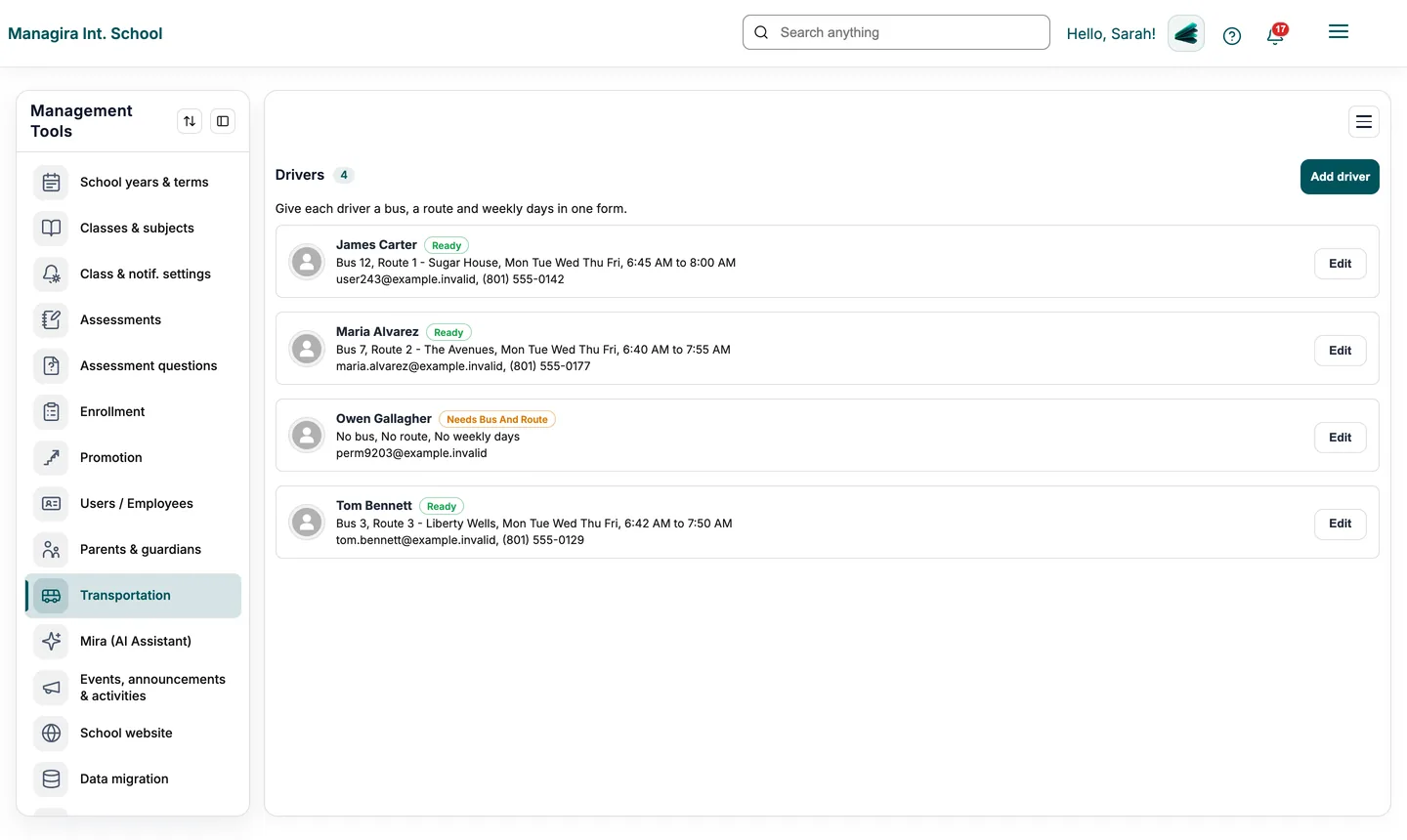
The Drivers tab. Type the driver's First name, Last name and Email. Add a Phone, License number and photo if you have them.
Under Bus, route and weekly days, choose the Bus and Route, check the days they run it, and set the Start time and End time.
Select Save driver. A new driver gets an email invitation to set a password. They can only sign in to the driver screen.
Good to know: If you pick weekly days, you must also pick a bus and a route. If the email already belongs to a driver, that driver is updated. If it belongs to someone with another role, change their role in Users / Employees first.
Read the Drivers list
Each row shows the bus, route, days and times, email and phone, and a badge.
- Ready: the driver has a bus and a route.
- Needs bus and route: give them both before they can start a trip.
- Inactive: the driver can't start trips. Set Status back to Active in Edit to bring them back.
Set or change a schedule
Open the Schedule tab. Schedules are grouped by start time. Select a time to see each bus running then, its driver, route and days.
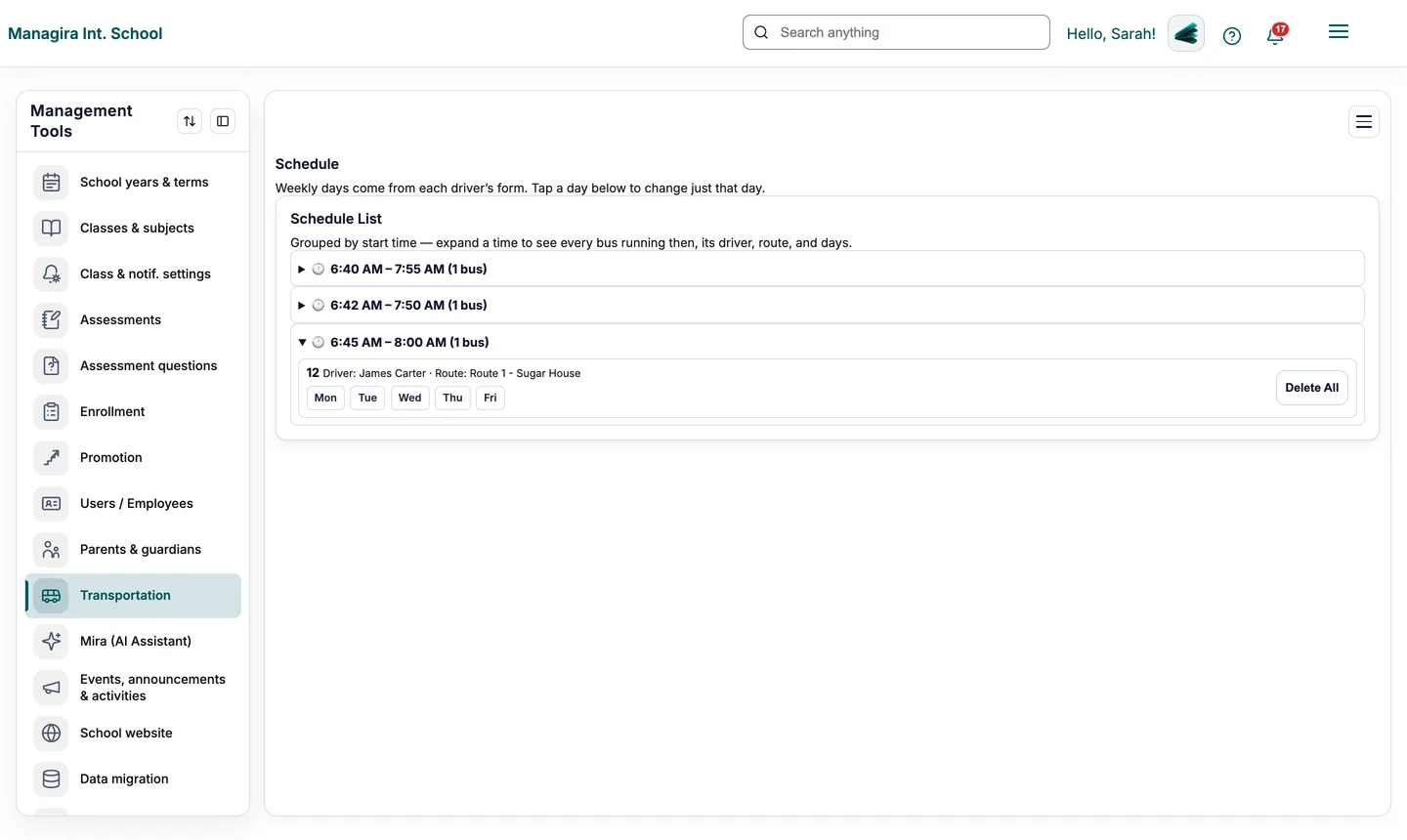
The Schedule tab, grouped by time. Select a day (Mon, Tue and so on) to change only that day: its bus, driver, route, times, Status or notes.
Select Save Changes. A day set to inactive shows (off) on the schedule. Delete All removes every day for that bus.
Tip: To change all of a driver's days at once, edit the driver on the Drivers tab.
Give a driver more access
Go to Management › Users / Employees and edit the driver. A driver can only hold driver and transportation permissions. See Create and manage employee accounts and permissions.
Check Lead Driver to make them a lead. See The lead driver.
Other driver permissions: Student Details (riders' home address and parent phone), Pickup & Emergency (the details the school shares with drivers), Reports (Report Builder for their own trips and riders), School website and Any Route (drive any route, for example to cover for someone).
Important: Take care with Student Details. It shows riders' home addresses and parents' phone numbers on the driver's phone.
Frequently asked questions
A driver can't start a trip. Why?
Check four things: the bus is Active (not Maintenance or Out of Service), the route is active, the driver is Active, and the route is the driver's own (or they hold Any Route).
Can one bus have two drivers?
A bus has one assigned driver at a time. Use the Schedule tab to give different days to different drivers.
Was this guide helpful?