
Answer bus requests from families
Parents and school staff ask for a bus for a student. Approve the request to put the student on a route and stop, or decline with a note.
A parent asks from the parent portal, and staff of the school can ask for a student too. Each request waits on the Requests tab until you answer it.
Who can do this: Managers, and staff with Transportation and Rider List.
See new requests
Open Management › Transportation, then the Requests tab. The badge counts new requests.
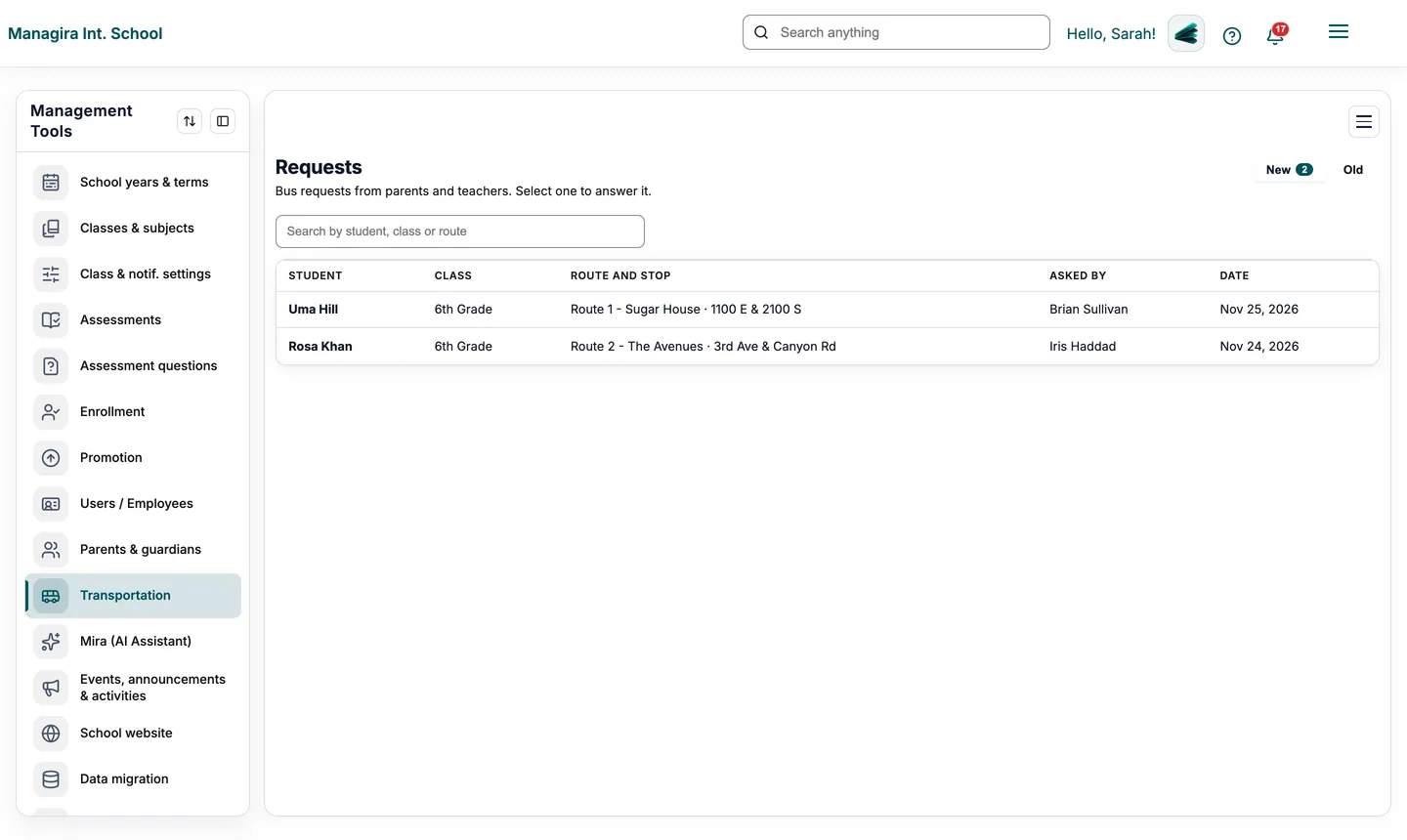
The Requests tab. New lists requests waiting for you. Old lists the answered ones, with their status: Approved, Declined or Canceled (the family took it back).
Use the search box to find a request by student, class or route.
Approve a request
Select a request. The panel shows the class, who asked and when, the address (with View on map) and the Distance to stop.
Under Put on a bus, check the Route and Stop the family asked for, or choose others. Leave Bus on The route's scheduled bus, or pick one.
Add a Note to the family (optional), then select Approve. The student now has bus access, on that route and stop.
Decline a request
Open the request, type the reason in Note to the family (optional) (for example, that the route is full this term) and select Decline.
Good to know: Only the first person to answer a request counts. If a colleague answered first, you'll see that the request was already answered.
Frequently asked questions
Can a family ask twice for the same student?
No. A student can have only one waiting request, and a student who already has bus access can't ask.
Where do parents make the request?
In the parent portal, on their child's page. See The parent portal.
Was this guide helpful?