
Turn on Mira and choose who uses it
Switch Mira on for your school in Integrations, choose who can open it in Management › Mira, and see what staff see when Mira is off or they lack access.
Mira has two switches: one for the school, and one for each person. Both must be on before someone can use it.
Who can do this: Managers, and staff given Integrations (to turn Mira on) and Mira Settings (to choose who uses it).
1. Turn Mira on for the school
More about the cards on this page is in Integrations.
Go to Management › Integrations and open Mira (AI Assistant).
Select ⋮, choose Activate and confirm with your own password.
2. Choose who can open Mira
Go to Management › Mira (AI Assistant).
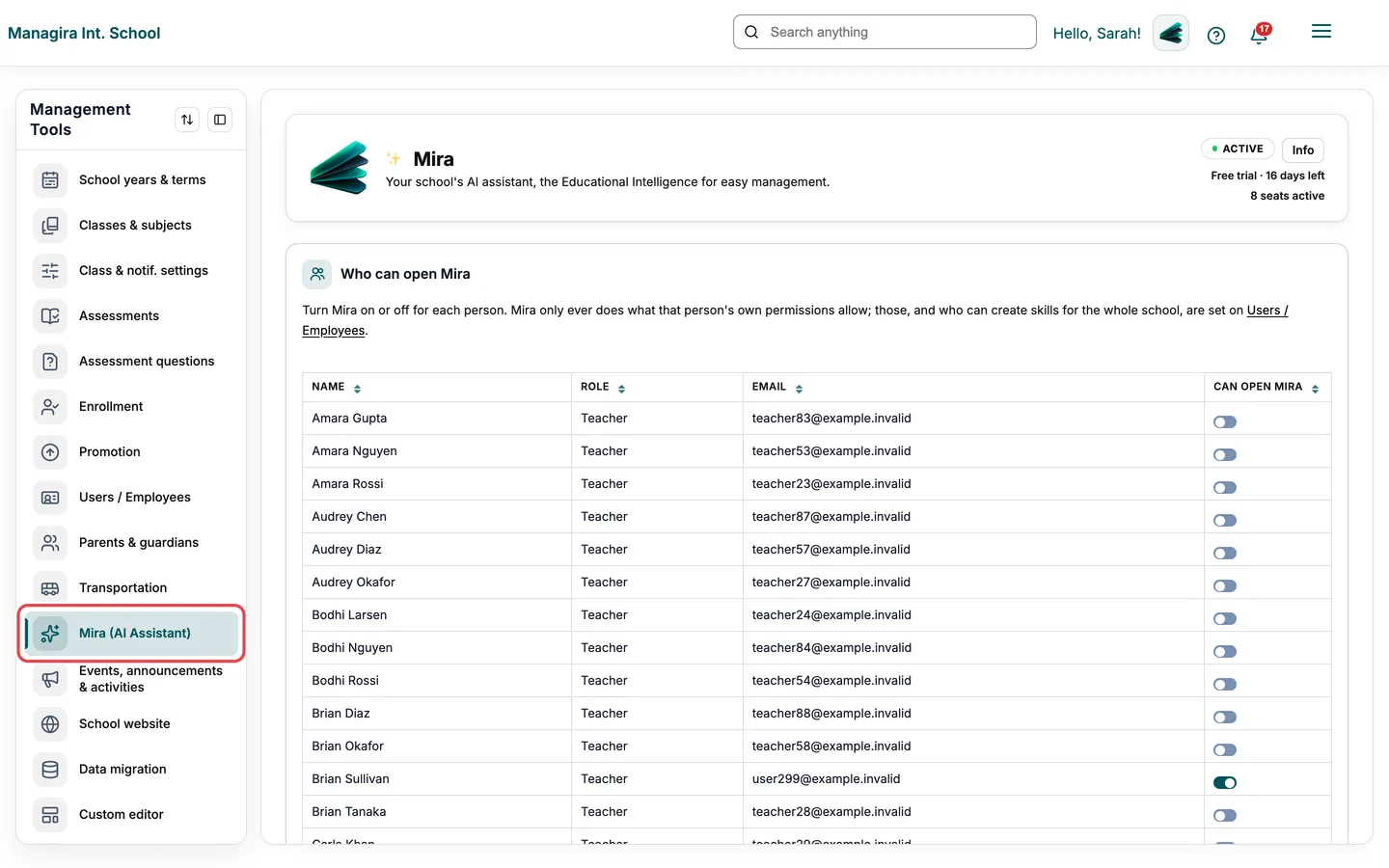
Management, Mira: who can open Mira. The top of the page shows whether Mira is Active, how many days of the free trial are left, and how many people have it (seats).
In the Can open Mira column, switch Mira on or off for each person. It saves at once.
- The switch is the same permission as Use Mira (AI Assistant) on the staff form. It does not change anything else a person can do.
- Mira still does only what that person's own permissions allow. Change those on the staff form in Users / Employees.
- Use Show more under the list for the rest of your staff.
Who can write school skills
Skills that apply to everyone are written by managers, and by staff a manager gives Org-wide skill creation (it sits under Use Mira (AI Assistant) on the staff form). Mira Settings alone is not enough. See Mira skills.
What staff see when Mira is off
If the school has not turned Mira on, the Mira button still shows. It opens a note: Mira isn't turned on for your school. Someone who can turn it on sees Turn on Mira, which goes to Integrations.
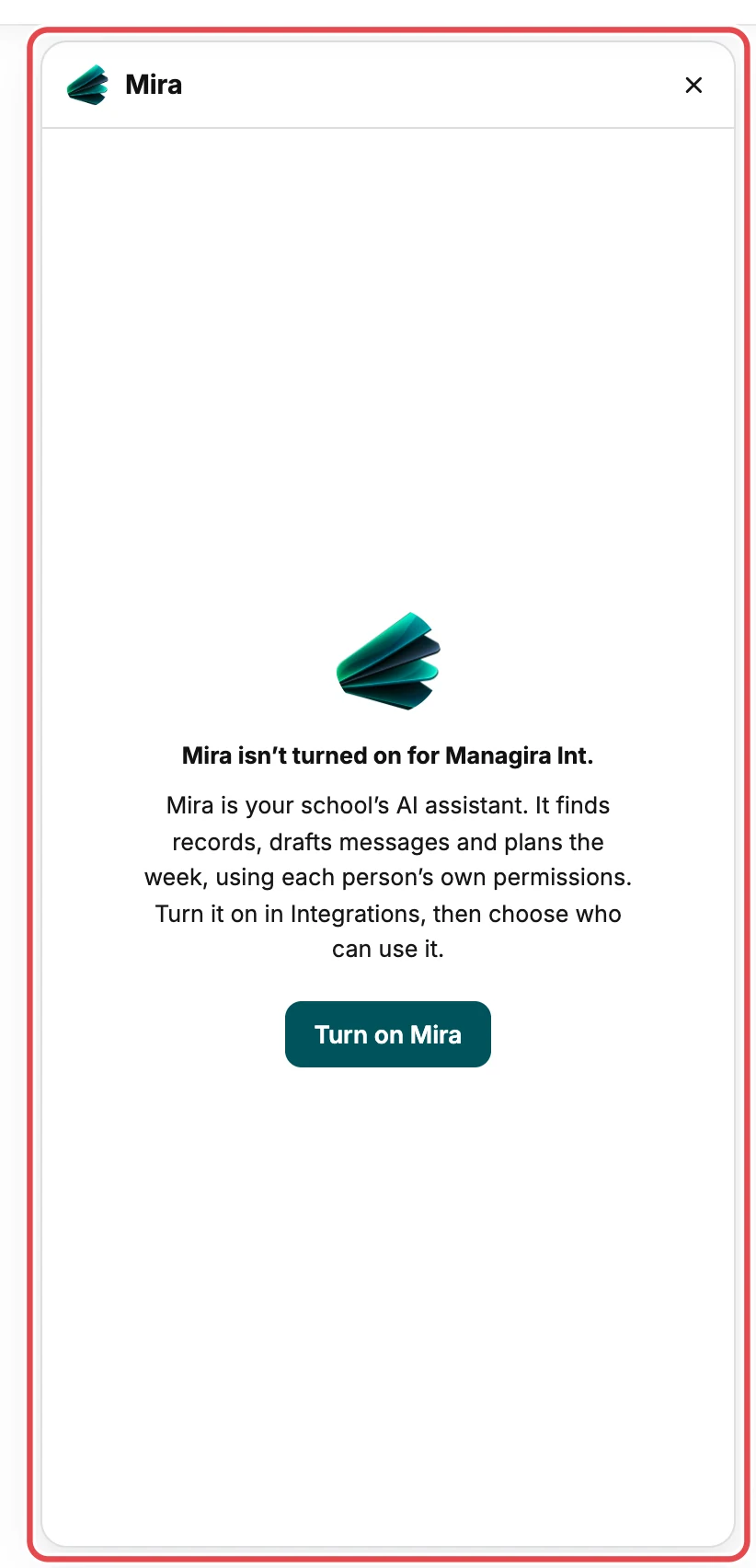
Mira off, seen by a manager. Everyone else is told to ask their school's manager.
If Mira is on but a person has no Use Mira switch, they see You don't have access to Mira yet. Managers who hold Mira Settings also get Manage Mira access.
Tip: After you give someone access, they can open the Mira button again right away. No new sign-in is needed.
Frequently asked questions
Does Mira cost extra?
Mira is a paid add-on on some plans and included on others. The Mira page shows a free trial while one is running, and Billing & plan in Settings shows what applies to your school.
I switched Mira off. Is anything lost?
No. Chats, skills and each person's access stay saved. Switch Mira back on and everyone has what they had.
Why can't I see the Mira page in Management?
It needs the Mira Settings permission.
Can parents or students use Mira?
No. Mira is for staff only.
Was this guide helpful?