
Schedule, lunch and teachers
See your child's weekly schedule, their lunch days, leave a note for the kitchen, and message their teachers.
Three small pages on your child's page: Schedule, Lunch and Teachers.
Who can do this: Parents and guardians.
Schedule
On your child's page, tap Schedule.
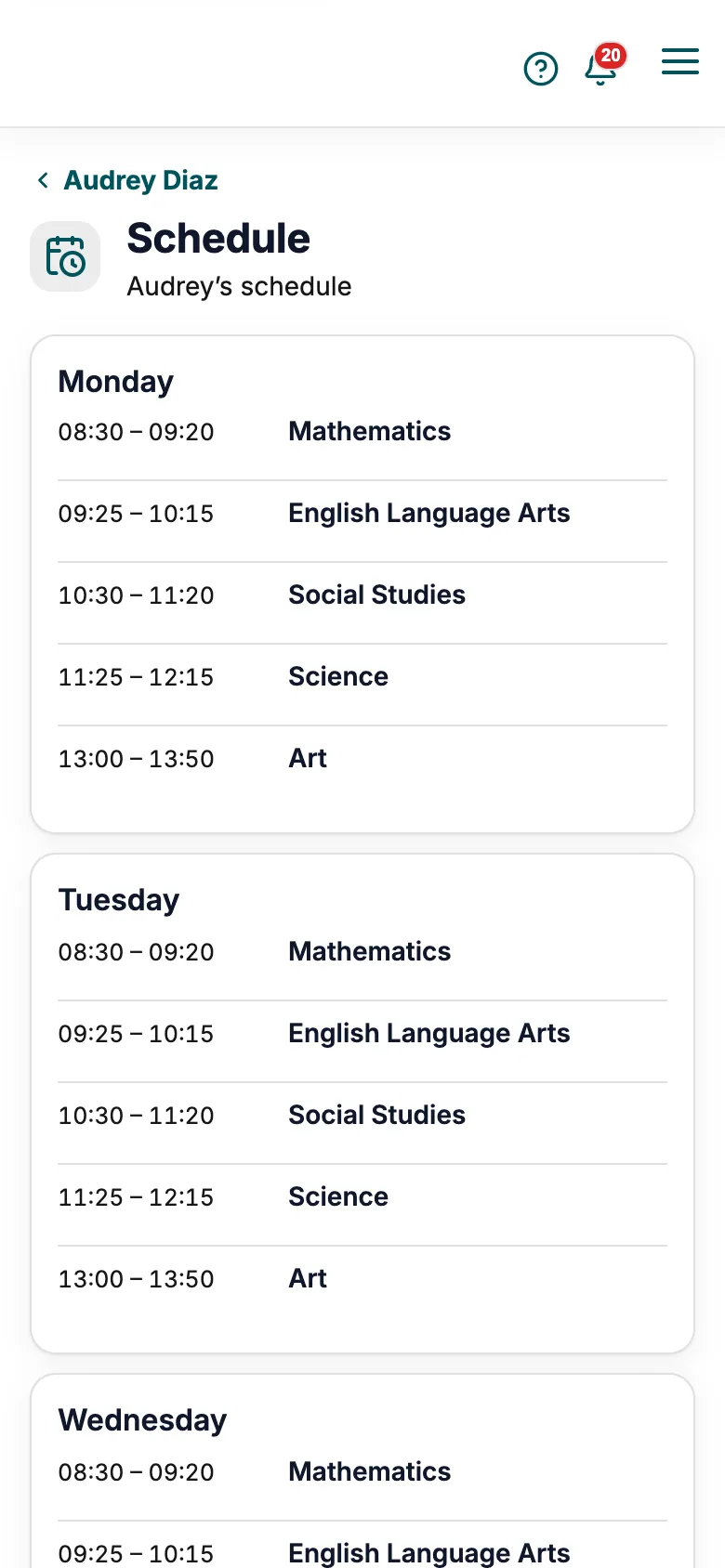
The week, Monday to Friday, class by class with times. Each day lists the classes in order. It says No schedule yet if the school hasn't made one.
Lunch
Tap Lunch. The cards show Days with lunch, Overall lunch and Days without for this term.
Under Each day, a check means lunch that day. A cross means no lunch.
To tell the kitchen something, type in Note for lunch (an allergy, a special meal) and tap Save.
Good to know: Lunch shows only when your child's class takes lunch and shares it with parents.
Teachers
Tap Teachers.
Each card shows the teacher's name, role and subject. The school decides whether their email, phone and a short About me show.
Tap Message to write to that teacher. See Messages.
Frequently asked questions
Lunch says it hasn't been taken yet.
The teacher hasn't marked lunch this term. It fills in as they do.
Why can't I see the teacher's phone?
The school keeps phones off unless it turns them on for the class.
Was this guide helpful?