
Manage your schools: view, open, edit, hold and remove
Look at each member school, open it as its owner, edit its details, put it on hold, answer leave requests, or take it out of the hub.
The Schools page lists every school in your hub. From there you can look at a school's numbers, go into it, or change its status.
Who can do this: Hub admins, and hub users with View schools (look), Open schools, Edit school details, Put schools on hold, Remove or delete schools or Handle leave requests.
See your schools
Select Schools in the menu.
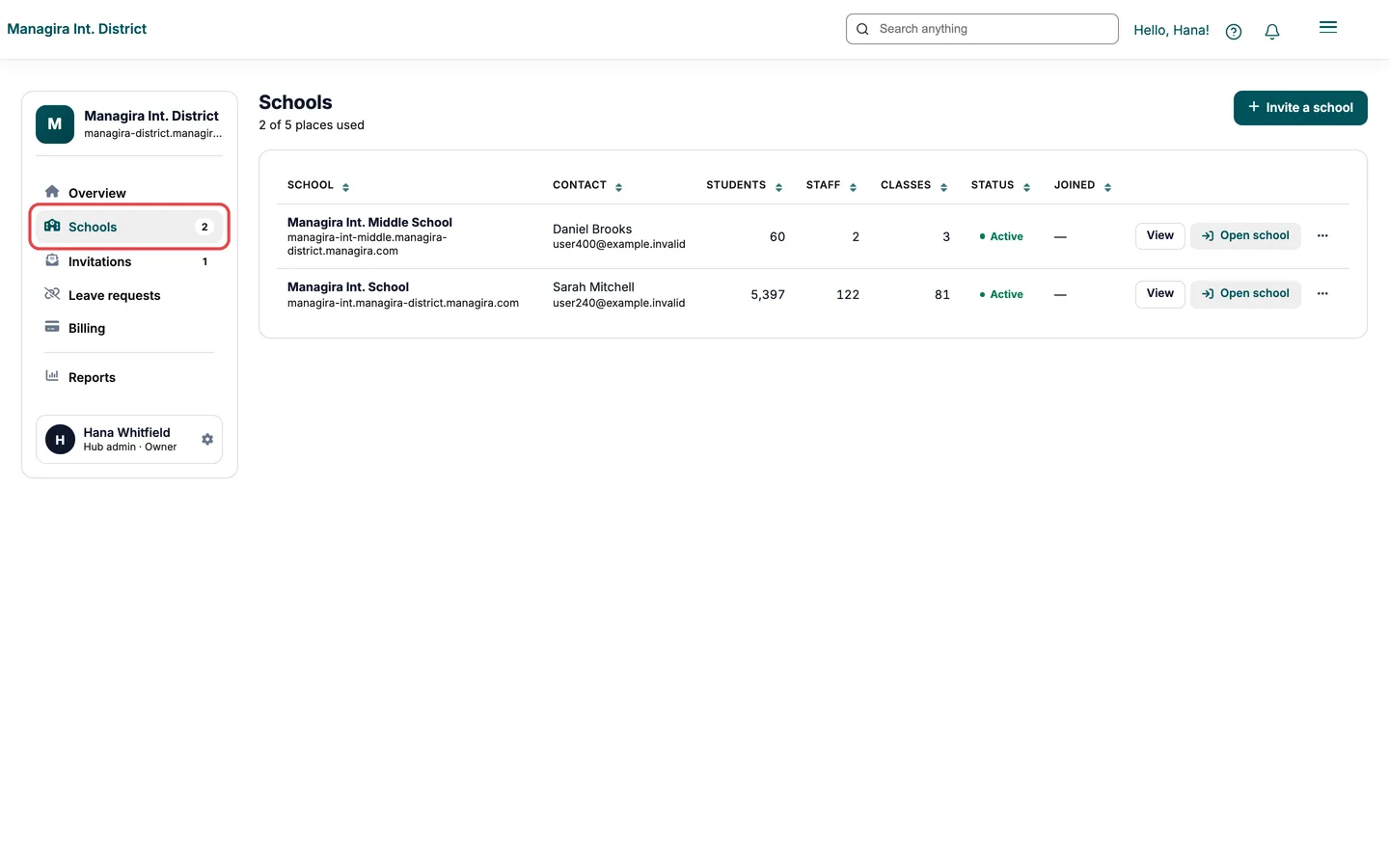
Schools: every member school with its contact, numbers and status. Each row shows the school's name and web address, its contact, how many Students, Staff and Classes it has, its Status and when it Joined. Select a heading to sort.
Active means the school is working normally. On hold means its access is paused.
Look at one school
Select View on a school's row.
The page opens on School stats: enrolled students, average score, pass rate, attendance rate, score entry, students needing support, active classes and staff. Use the term list to look at another term. Download PDF and Print give you the report.
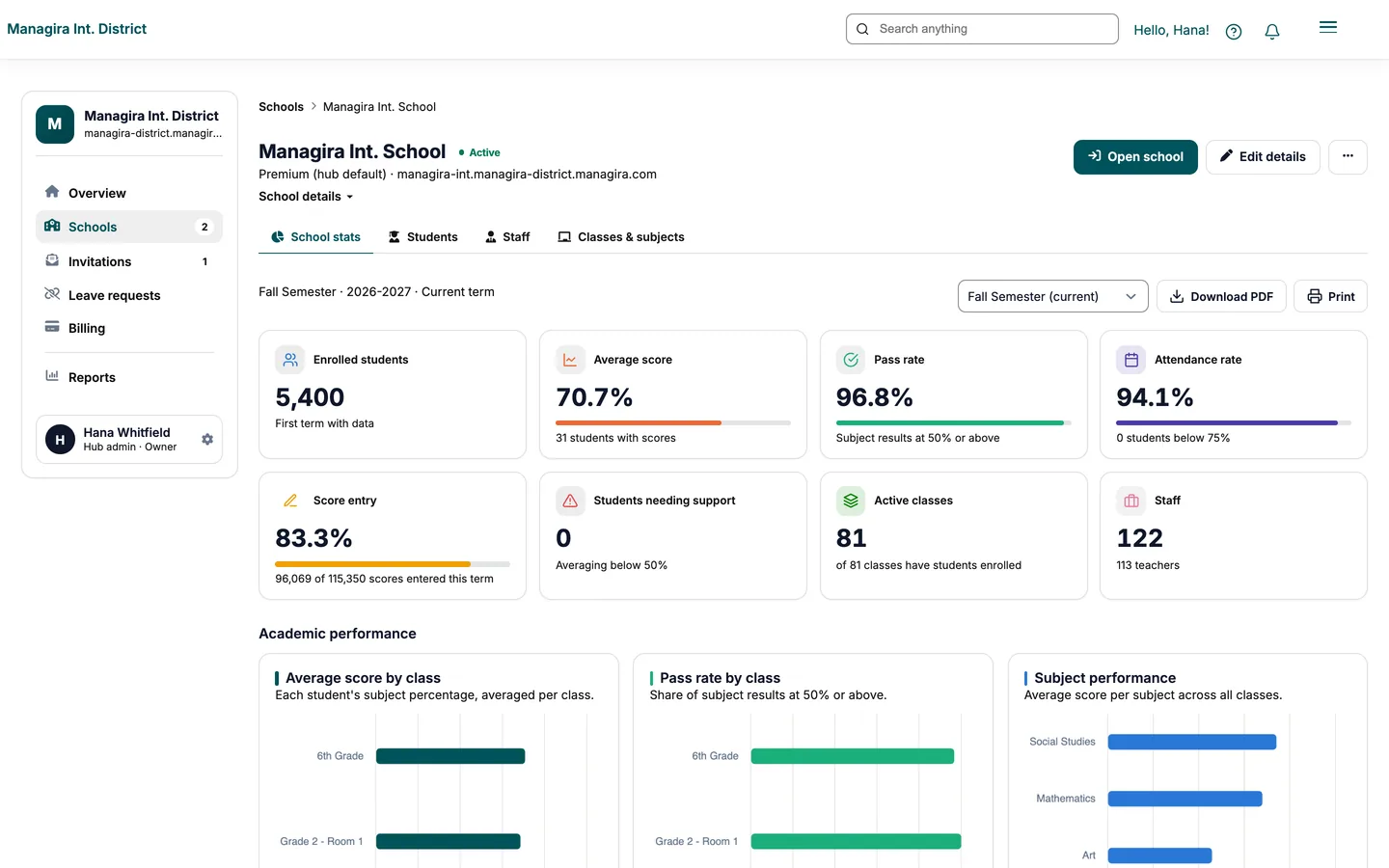
One school's page. The tabs Students, Staff and Classes & subjects list people and classes. Search, then pick a name to see their details on the right.
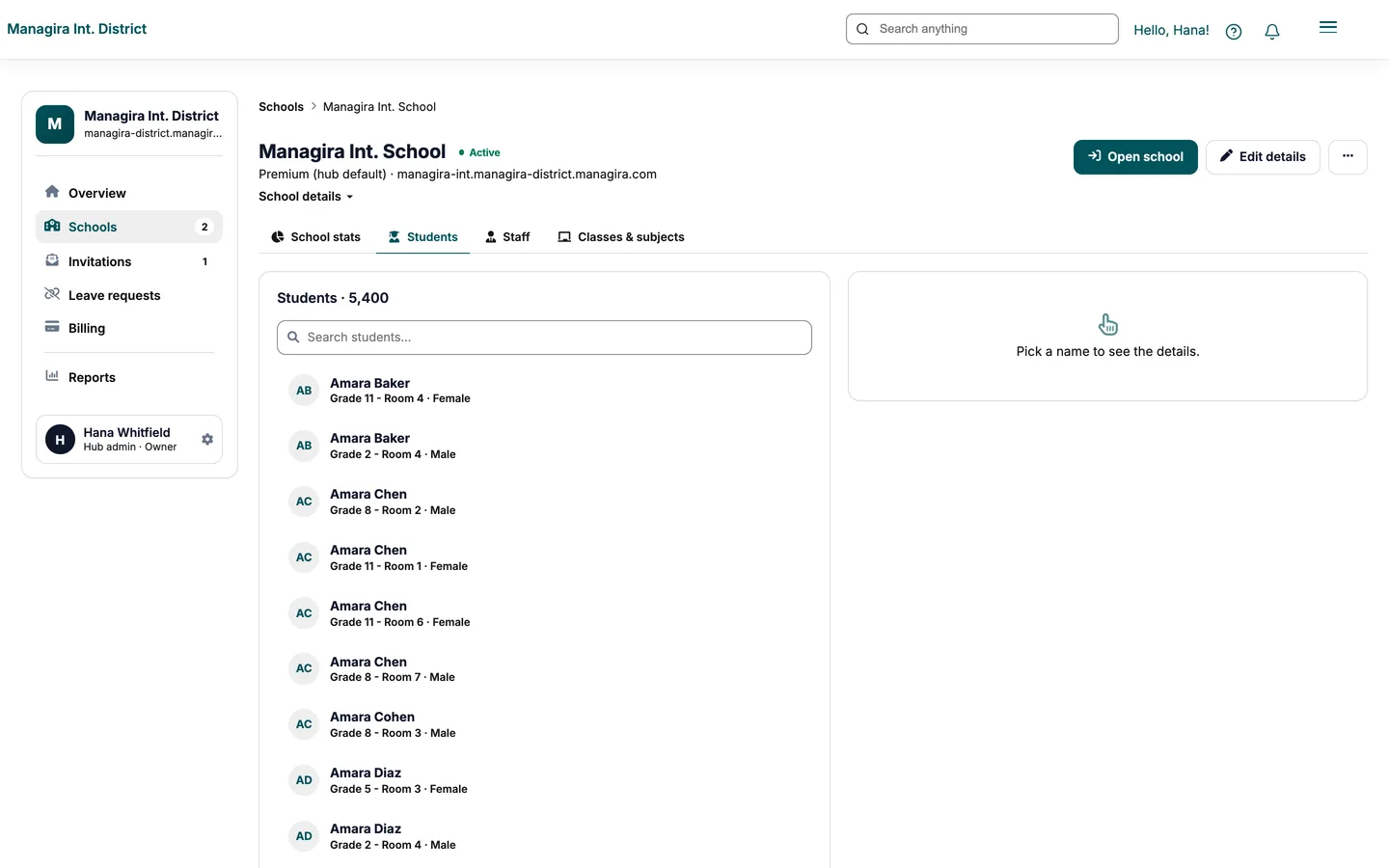
The Students tab.
Good to know: The Students, Staff and Classes tabs show only if you have View students and staff.
Open a school
Open school takes you into the school's own Managira, with what its owner sees.
Select Open school on the school's row, or at the top of its page.
Read the question, then select Open school. Select Cancel to stay in the hub.
When you're done, use Back to hub at the top left to return to your hub.
Important: Every visit is logged with your name. A school that is on hold can't be opened until you resume it.
Edit a school's details
Select the ⋯ menu on the row, then Edit details. On a school's own page, select Edit details.
Change the School name, Phone, Address, Country or Region / state, and choose a Hub contact for the school. The web address and email are shown but can't be changed here.
Select Save.
Tip: If your hub has more than one plan, a Plan choice appears here too. Leave it on the hub default unless a school needs another.
Put a school on hold, or take it out
Open the ⋯ menu on the school's row.
Put on hold pauses the school's access. Choose Resume to let it work again.
Remove from hub takes the school out of your hub. Delete permanently deletes it. Both ask you to confirm.
Important: Deleting a school can't be undone. Use Remove from hub if you only want it out of your hub.
Answer a leave request
A school's manager can ask to leave your hub and become independent. The request shows under Leave requests, with the reason they gave.
Select Leave requests in the menu.
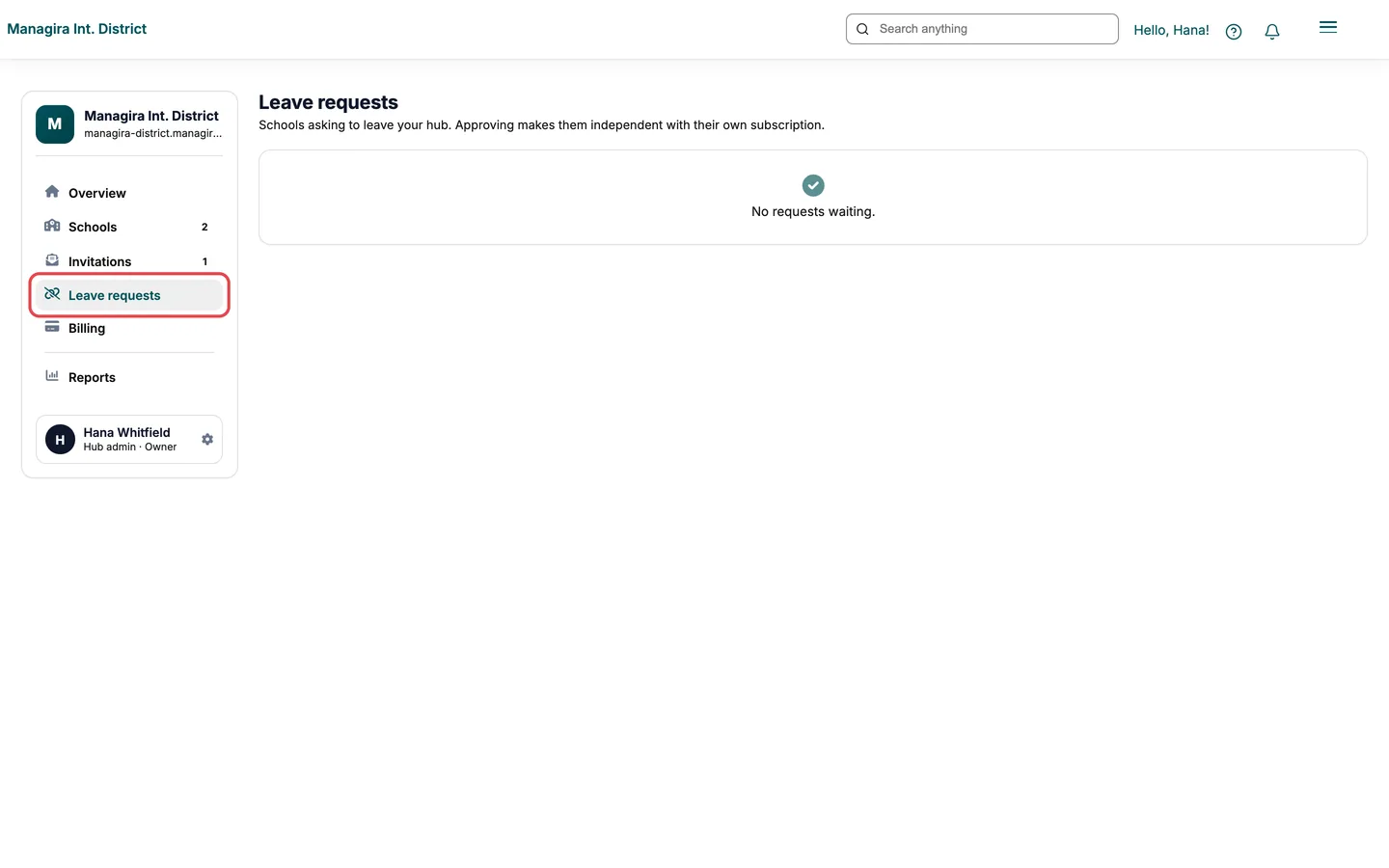
Leave requests. This hub has none waiting. Select Approve to let the school go. It becomes independent, gets its own web address and needs its own plan. Its students, staff, classes and records stay with it.
Select Reject to keep it, and write a short note so the school knows why.
Good to know: Approving can't be undone.
Frequently asked questions
Why can't I open a school?
It may be on hold (resume it first), or you may not have Open schools. Ask a hub admin.
Does opening a school change anything?
No. You see what its owner sees, and any change you make there is yours to answer for. The visit is logged.
What happens to a school's data if it leaves?
Nothing is deleted. Its students, staff, classes and records stay with the school.
Was this guide helpful?