
Settings and alerts
Change how Managira looks and choose which news you get, by email or in your weekly briefing.
Settings is just for you.
Who can do this: Students.
Appearance
Tap Settings on your home page. Choose Light, Classic or Dark.
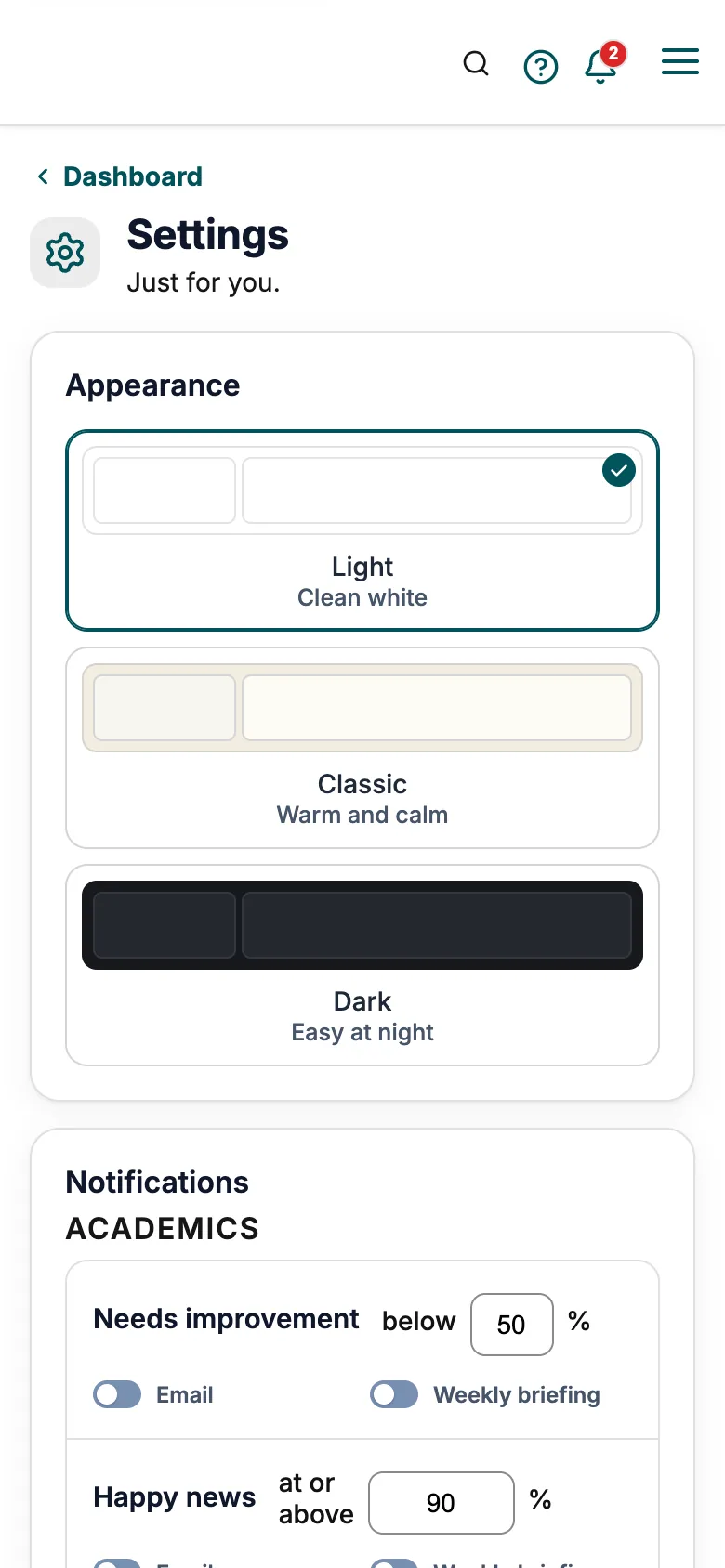
Three looks, then Notifications.
Notifications
Under Notifications, each alert has switches for Email and Weekly briefing.
Needs improvement and Happy news use a percentage. Type the number you want.
Bus is about to arrive and Bus has arrived show only if you ride the bus. They start off.
Tap Save notifications.
Good to know: Your school decides what you can set up. A row marked Set by your school is locked. See Your notifications and alerts.
The bell
The bell at the top shows tests you can take now or in the next two weeks, new grades, the start or end of the term that week, and your birthday.
Was this guide helpful?