
Children at several schools: one sign-in
If your children go to different Managira schools, see them all with one sign-in. Accept the invitation, switch schools and hide one that isn't yours.
When another Managira school has you as a parent with the same sign-in email, it can show up on your My Children page. You choose to accept it first.
Who can do this: Parents and guardians whose children are at more than one Managira school and whose schools have your same email.
Accept the invitation
On My Children, look for a box that says a school added you as a parent. It shows the school's logo and the child's name.
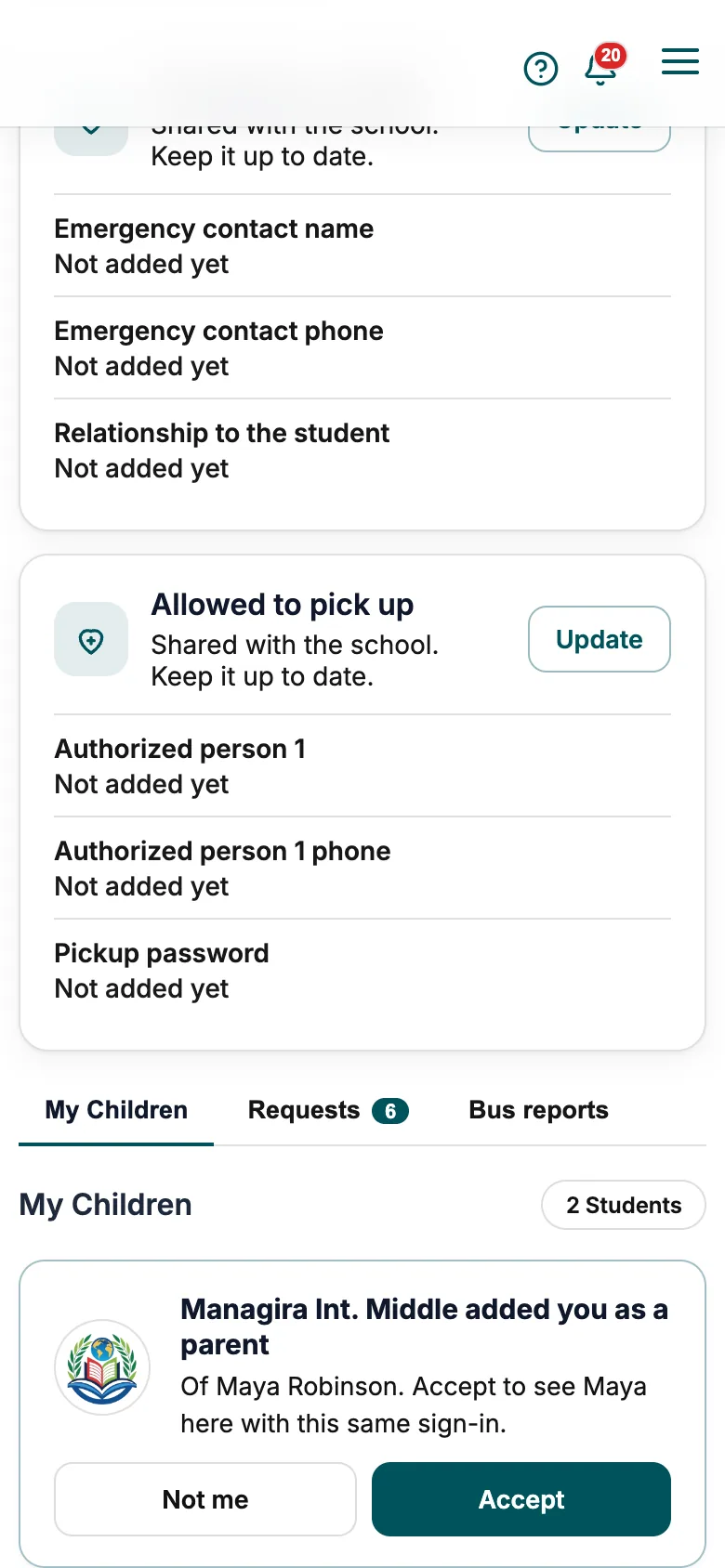
Managira Int. Middle added Michelle as the parent of Maya. Tap Accept if the child is yours.
Tap Not me if it isn't yours. It hides the invitation.
Good to know: Another school's children show only after you have proven your email. Sign in with the emailed code, or use the box on the home page that asks you to confirm your email. A phone number never links anyone.
After you accept
Every child now shows a small school logo on their picture. Your header shows each school's logo, with the one you are looking at in front.
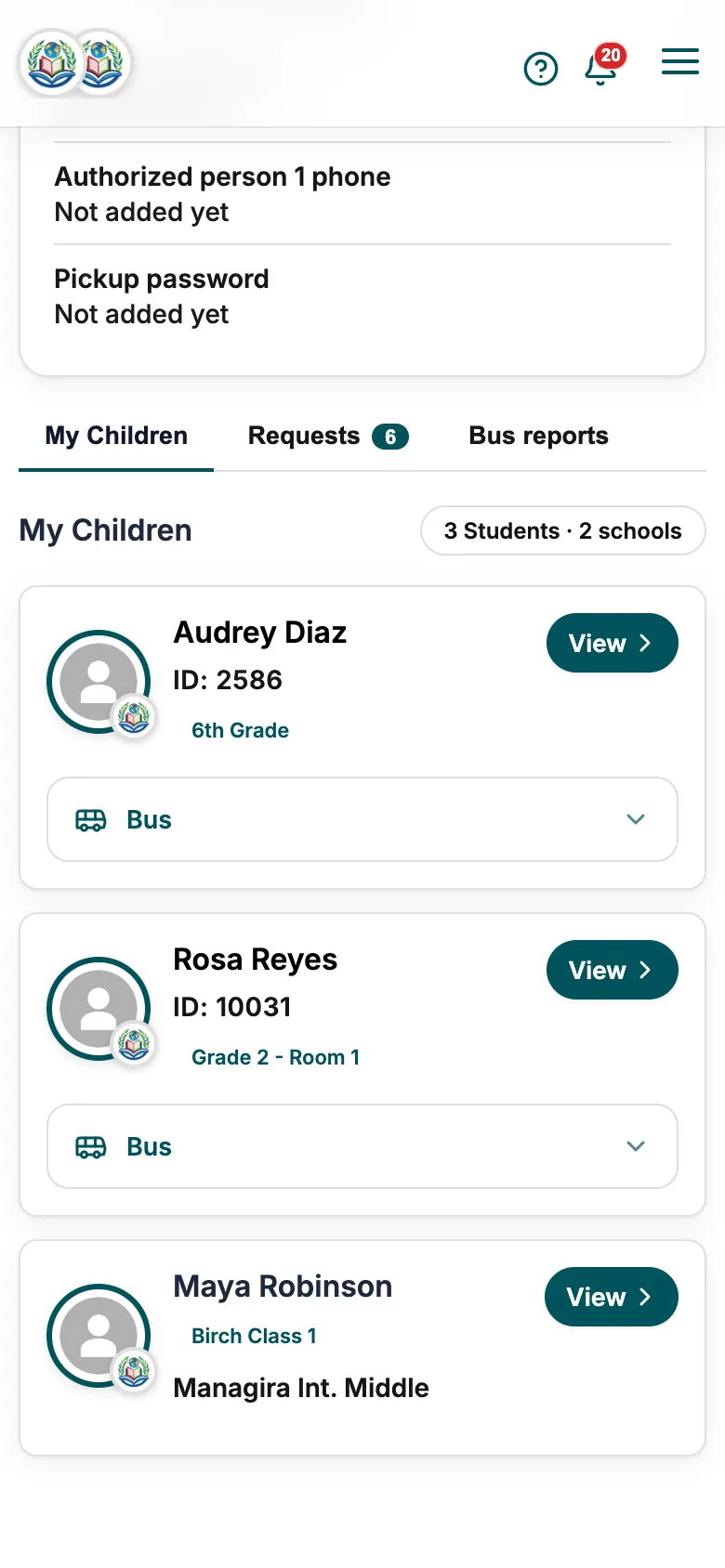
Three children at two schools. The logos in the header are the schools linked to you.
Tap View on the other school's child. Managira opens that child's page in their school, with that school's rules, logo and what it shares.
To go back, open your Dashboard. It brings you home to the school you signed in with.
Tip: Each school keeps its own forms, bills, messages and bus. Forms from every school show in Requests, labeled For [child] at [school].
Frequently asked questions
I don't see the invitation.
The other school needs your same sign-in email, and you need to have signed in with the emailed code once. Ask that school which email it has.
Can the other school see my first school?
No. Each school sees only its own children.
Was this guide helpful?