
Send report cards to families and see what was sent
Post a class's report cards to the parent and student portals, tell families by email, text or WhatsApp, and check the history.
Sending does two things: it posts the report cards to the portals, and it tells families they are ready. Both happen from one window.
Who can do this: Staff given Terminal Reports. You confirm with your own password.
Send report cards
Open the class's report cards (Generate report cards), check the students, and open Quick Actions. Choose Send Report.
The window Send report opens and counts the guardians of the students you checked.
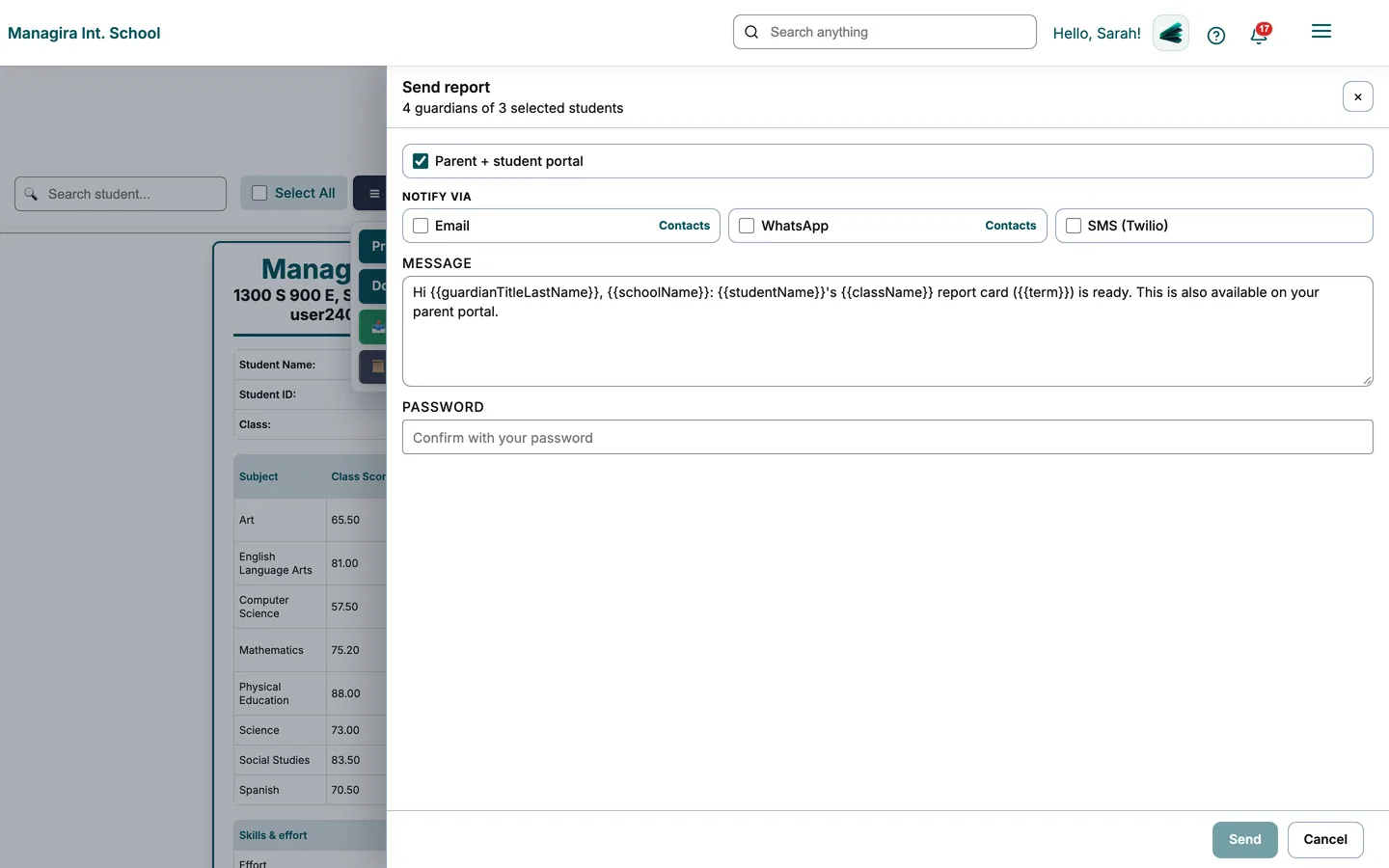
Send report, on the right. Leave Parent + student portal checked to post the cards, so families open them in their portal. Uncheck it if you only want to send a message.
Under Notify via choose at least one way: Email, WhatsApp or SMS. WhatsApp and SMS are offered where your school has them set up.
Read the Message and change it if you like. The words in double braces, such as the student's name and class, are filled in for each family.
Type your password under Password, then select Send. Confirm the question that follows.
Good to know: Send stays gray until you choose a way to notify and a family has a contact for it. Report cards go out from reports@managira.com with your school's name.
Check or change who gets it
Check Email, then select Contacts beside it. A list of the students and their parents' addresses opens.
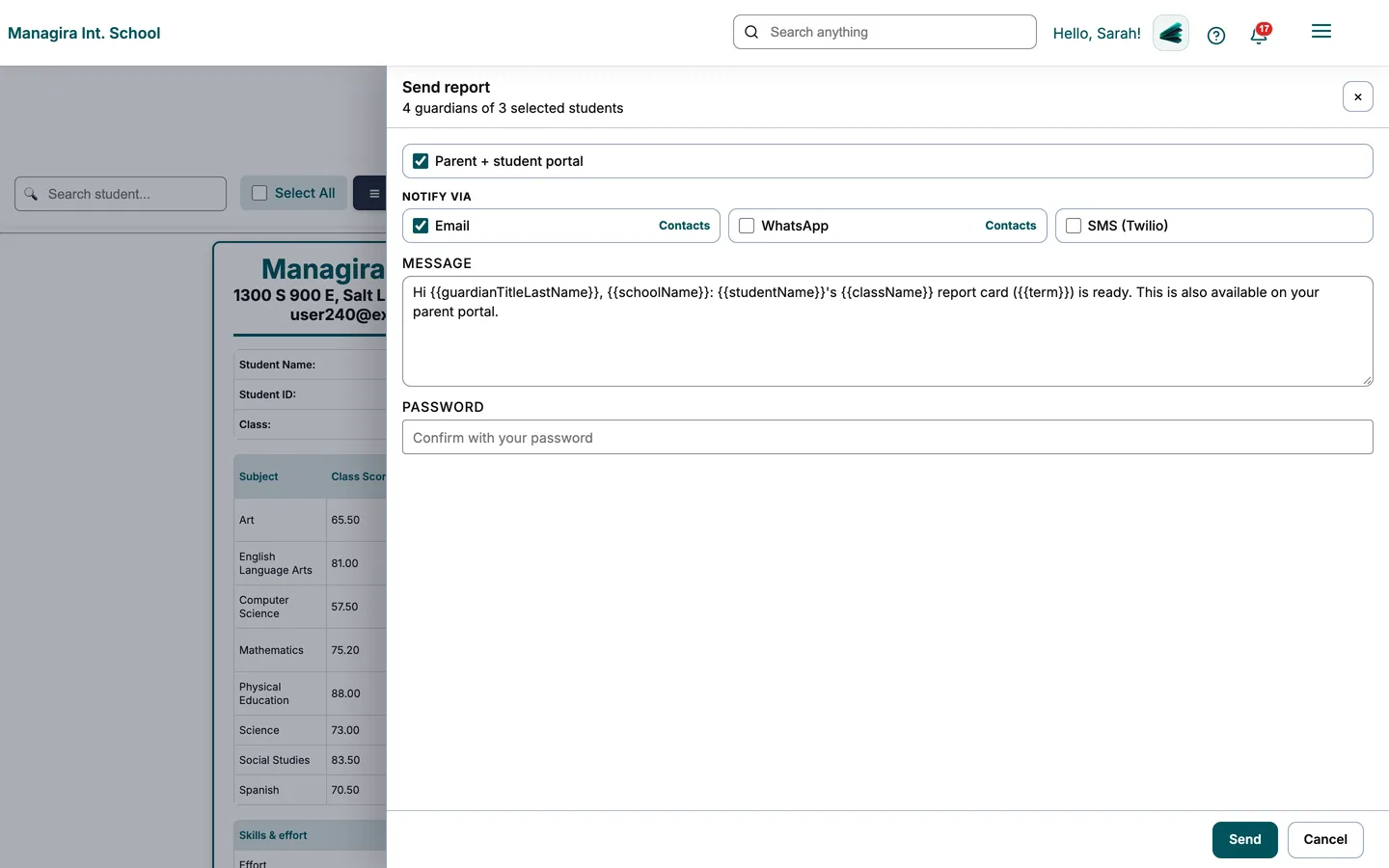
Contacts, beside Email. Edit an address, add one with the + button, or uncheck a person to skip them. A parent already sent this card shows Already sent and is unchecked. Select Done.
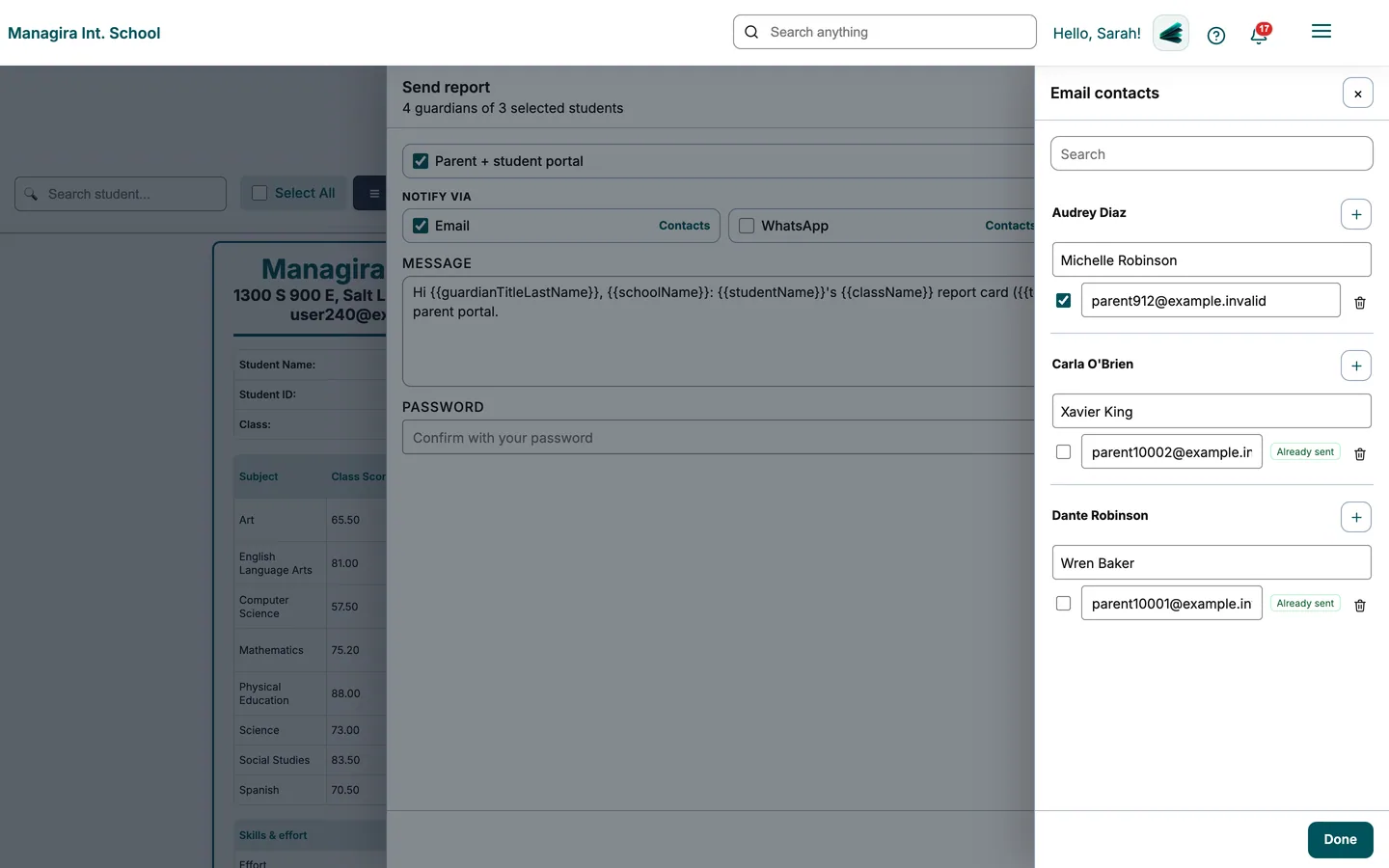
Email contacts for the students you checked.
Tip: WhatsApp and SMS have a Contacts list too. A text longer than one segment shows its length under the message.
See what was sent
From the report cards, choose Quick Actions then History.
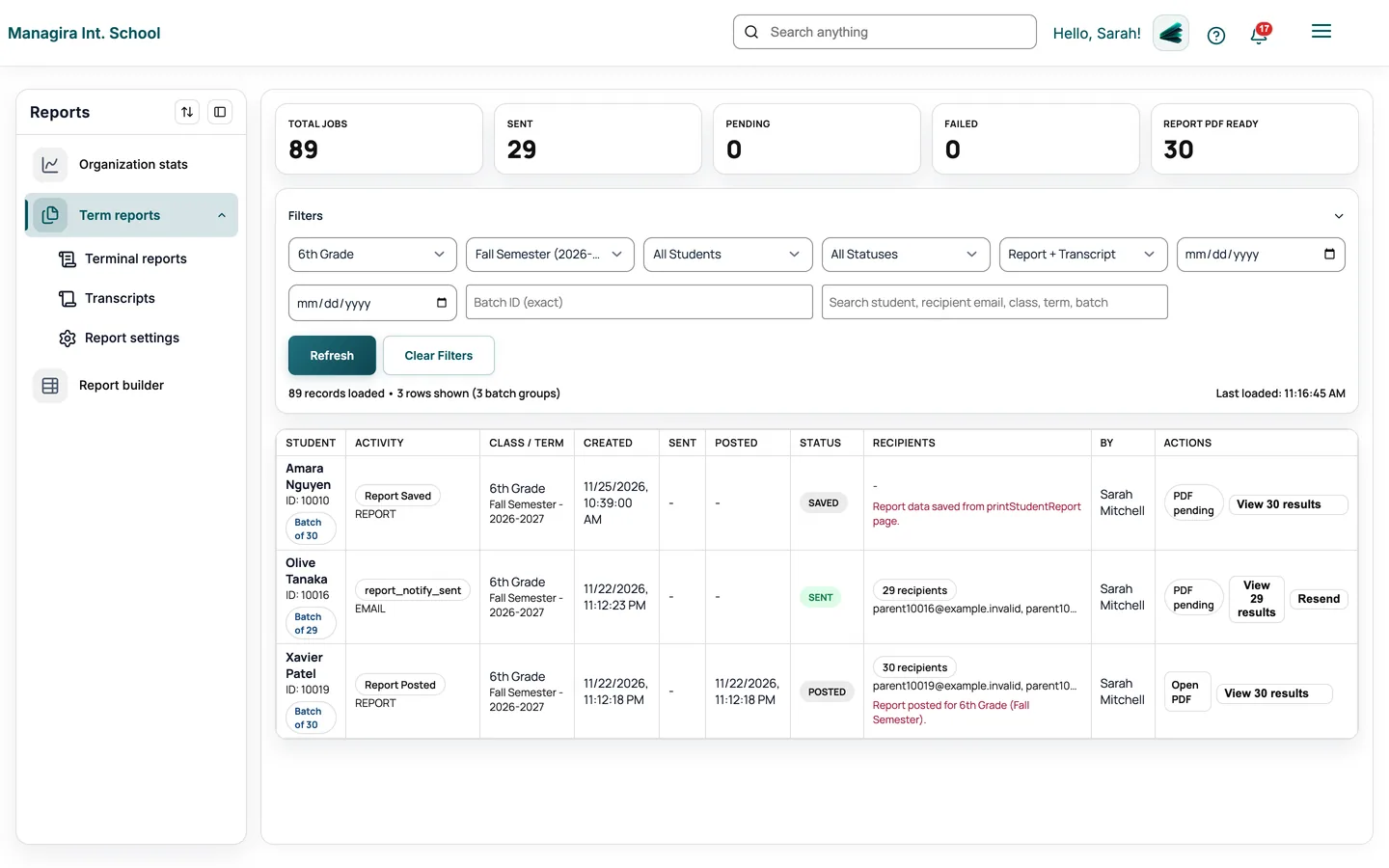
History for 6th Grade, Fall Semester. The tiles on top count Total Jobs, Sent, Pending, Failed and Report PDF Ready.
Open Filters to narrow by class, term, student, status, report or transcript, dates, batch or a word, then select Refresh. Clear Filters starts again.
- A batch of messages is one row. View shows each recipient's result.
- Open PDF opens the report card that was sent. PDF pending means it is still being made.
- Resend sends a batch again.
- A teacher sees the history of their own classes only.
Frequently asked questions
Families didn't get the email.
Open History and check the status. Check the address under Contacts, and ask the parent to look in spam.
Send is gray.
Check at least one way under Notify via, and make sure a family has an address or number for it.
Can I send a message without posting?
Yes. Uncheck Parent + student portal, choose how to notify, and send.
Was this guide helpful?