
Hub reports: compare your schools
Build a report across your schools in three steps, save it for everyone with report access, and download or print it.
Reports puts the numbers of all your schools side by side. Saved reports are shared with everyone in the hub who can view reports.
Who can do this: Hub admins, and hub users with View reports. Build and save reports and Download and print reports are separate permissions.
Open Reports
Select Reports in the menu. Saved reports are listed; open one to see it again.
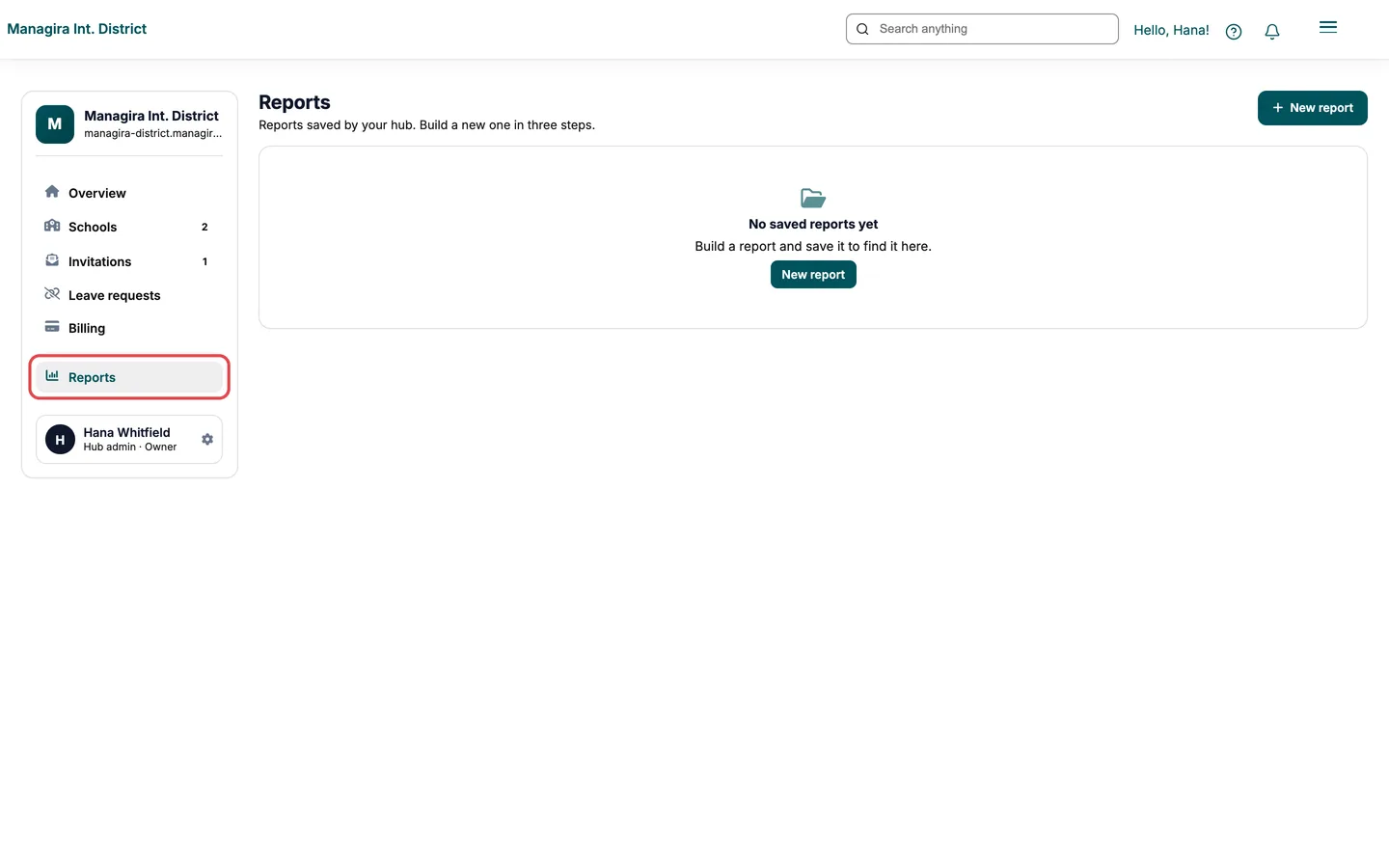
Reports saved by your hub. Select New report to build another.
Build a report in three steps
Report: choose what to compare. The choices are Attendance, Academic performance, Gender, Marks entry, Students needing support, Enrollment & staffing and School comparison. Select Continue.
Columns: check the columns you want, then Continue.
Schools and term: choose which schools and which term. Leave Leave out schools with no data for the term checked to skip empty ones.
Select Generate report.
Save, download and print
- Save this report, then Save, to keep it in the list for everyone who can view reports.
- CSV downloads the table as a file. Print or PDF prints it or saves it as a PDF. You need Download and print reports for these.
- Each school's own page also has a report you can download as a PDF or print. See Manage your schools.
Frequently asked questions
Why is a school missing from my report?
It may have no data for that term and you left Leave out schools with no data for the term on. Uncheck it, or pick another term.
Can I change a saved report?
Build a new one with the changes you need. A saved report stays as it was saved.
Was this guide helpful?