
Pay staff and vendors
Send school money to a member of staff or a vendor from the school's card, once or on a schedule.
Pay staff & vendors is for money your school sends out. It is separate from where parents' payments land.
Who can do this: Managers, and staff given PayGira › Pay Staff & Vendors.
Open the page
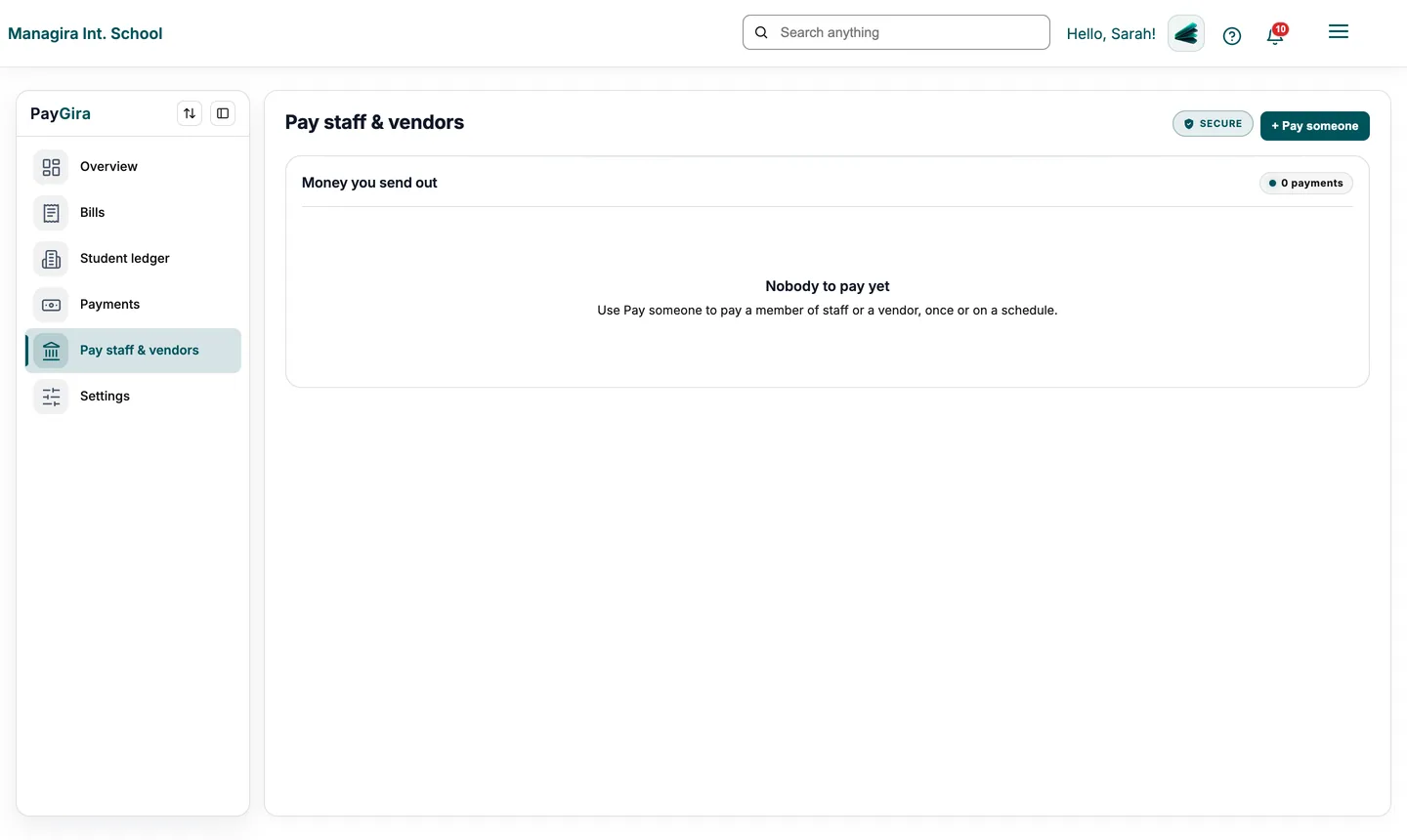
Go to Management › PayGira and select Pay staff & vendors.
Select + Pay someone.
Set up a payment
Type a Title, for example Salary, Jordan Lee.
Under Who gets it? choose Someone at the school and search by name or email, or Someone else and enter their full name and email address.
Enter the Amount, the Currency and the card to Pay from this card.
Choose How often: Once, Every week, Every 2 weeks or Every month. Set Pay on (and an end date for a schedule), then select Save.
Good to know: If there is no saved card yet, the window says so and links to Settings › Billing & plan where you add one.
Manage payments you set up
- Pay now sends a payment immediately.
- Pause and Resume stop and restart a schedule.
- History lists what was sent.
- Remove deletes it.
Frequently asked questions
Is this where parent payments are received?
No. That is Settings › Billing & plan › Where parent payments go. See PayGira: get started.
Was this guide helpful?