
The lead driver: reports, drivers and Management
A lead driver reads and shares driver reports, adds and manages other drivers, and sees Management in their menu.
Your school makes a driver a lead by checking Lead Driver. It turns on Transportation with Manage Drivers and Driver Reports, and adds Management to the menu.
Who can do this: Drivers given Lead Driver on the staff form by a manager.
What changes in the menu
Your menu now has Management between Calendar and Settings.
Management has Users / Employees and Transportation. In Transportation, select ≡ to see Overview, Reports (with a badge for new ones), Drivers and Settings.
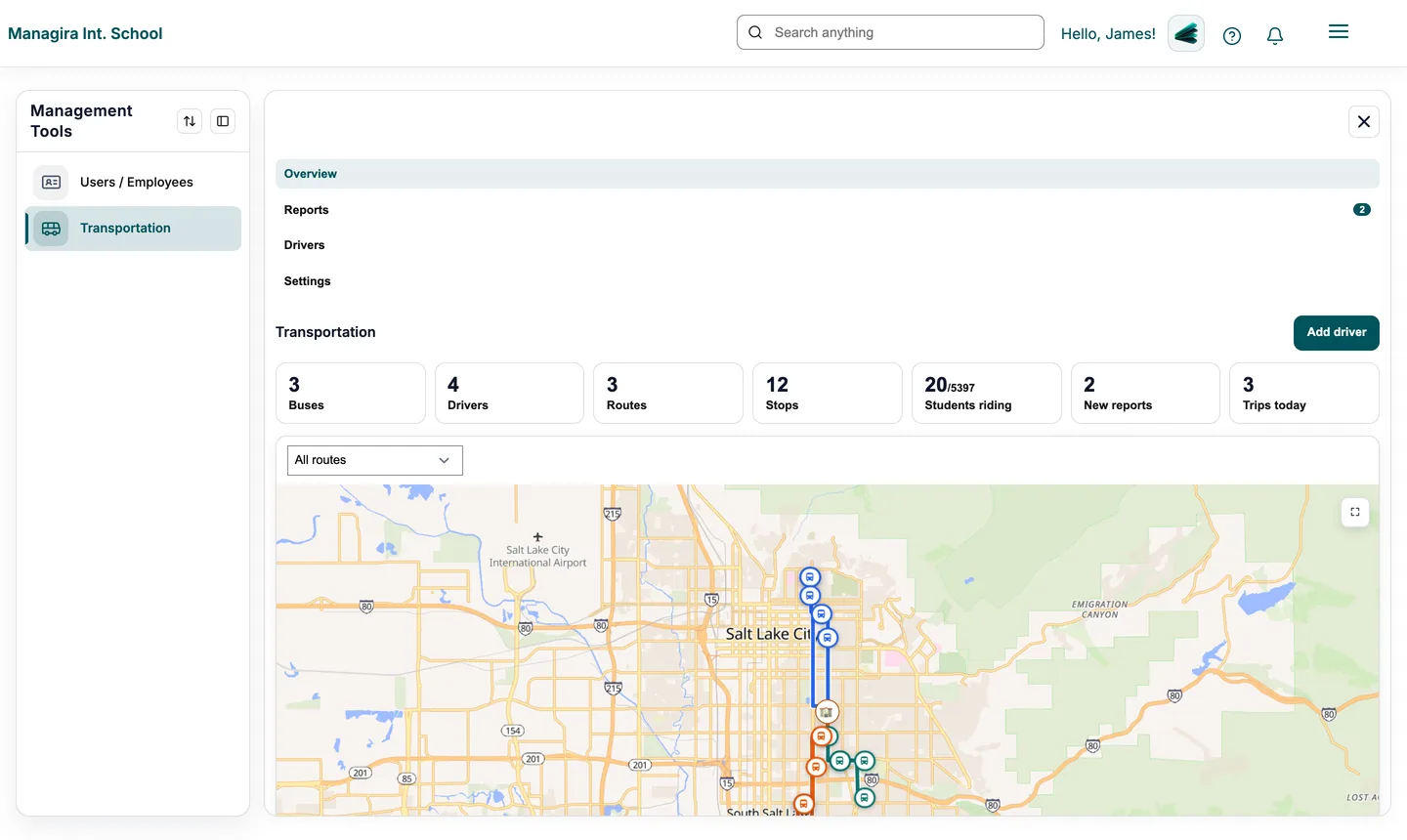
Transportation as a lead driver sees it.
- Reports: read reports from drivers and share them. See Driver reports and transportation reports.
- Drivers: add drivers and change their bus, route and days. See Drivers and schedules.
- Overview: the live map of every bus.
Add and manage other drivers
In Users / Employees, add a driver with the role Driver, or edit one. You can only work on drivers.
You can give a driver only permissions you hold yourself. What you can't give stays as it was.
Only a manager can change a manager, and you change your own account only through your own settings.
Important: A lead sees reports about students. Share a report with a family only when the family should know.
Still a driver
Your Today's trip dashboard works as before. You can drive, board and end trips like any driver. See The driver app.
Frequently asked questions
Why don't I see Management?
A manager needs to check Lead Driver for you. The change shows after you reload.
Can I make another lead driver?
Only if you hold the permission yourself. Ask a manager to promote drivers.
Was this guide helpful?