
Use Google Classroom with Managira
Switch on Google Classroom, connect a Google account, and choose how courses, assignments, grades and parent invitations work.
Managira makes a Google Classroom course for each class (or each subject) of the current term, adds teachers and students, and keeps grades the same in both places.
Who can do this: Managers, and staff given the Integrations permission.
Connect Google Classroom
Go to Management › Integrations, open Google Classroom and select ⋮. Choose Activate and confirm with your password.
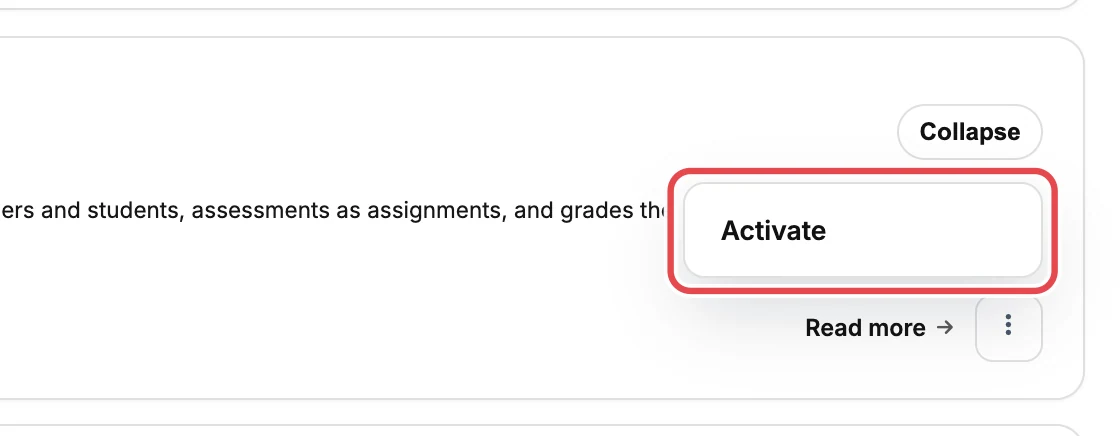
An inactive Google Classroom card offers Activate. The badge now says Connection Required. Open ⋮ again and choose Connect.
Sign in with the Google account that should own the courses and allow what Google asks for. Managira asks only for the Classroom permissions it uses.
Back on the card, the badge says Active & Connected. The card shows the Connected account, the sync state and when it last ran.
Tip: Connect with a school administrator's Google account rather than one teacher's, so the courses stay with the school when staff change.
Choose how courses, grades and parents work
On the card, open How your school uses Google Classroom.
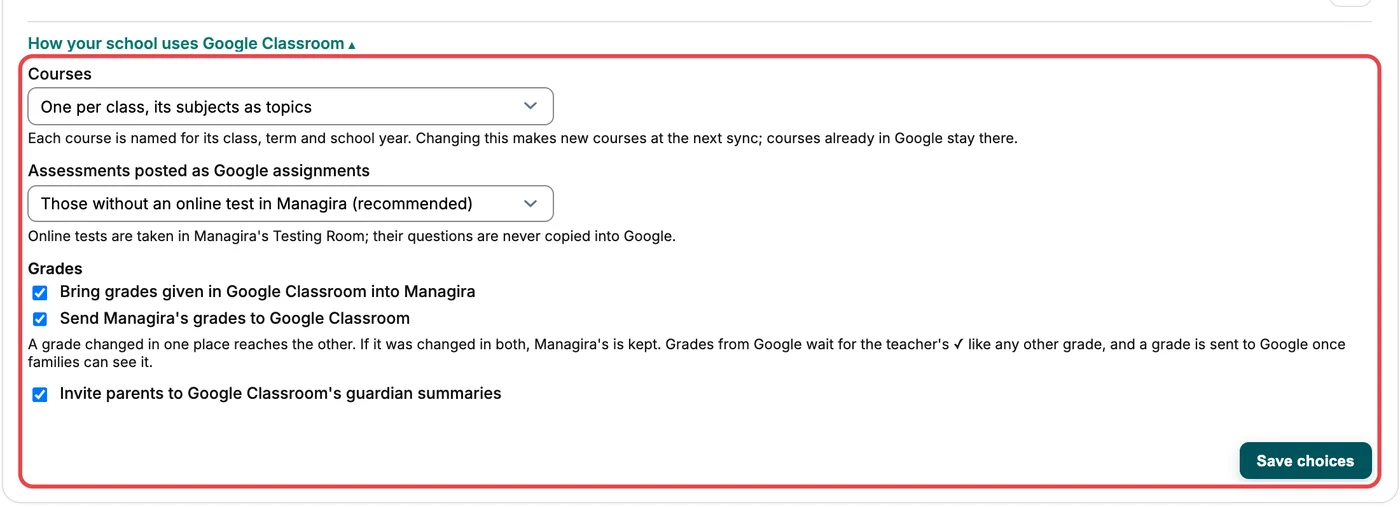
The school's choices. Under Courses, choose One per class, its subjects as topics or One per subject in each class. Each course is named for its class, term and school year.
Under Assessments posted as Google assignments, choose Those without an online test in Managira (recommended), All of them or None. Questions of an online test are never copied into Google. They stay in the Testing Room, and with All of them the assignment links to the test.
Under Grades, check Bring grades given in Google Classroom into Managira, Send Managira's grades to Google Classroom, or both.
Check Invite parents to Google Classroom's guardian summaries if you want parents invited.
Select Save choices. The next sync uses them.
Good to know: Changing Courses makes new courses at the next sync. Courses already in Google stay there.
How grades travel
- A grade changed only in Google comes into Managira and waits for the teacher's check, like any other grade.
- A grade changed in Managira goes to Google once families can see it.
- If the same grade changed in both places, Managira's is kept and sent.
- A locked assessment takes nothing from Google.
Sync, reconnect or disconnect
The sync state reads Up to date, Syncing now, Syncs in a few minutes, Needs attention, Not synced yet or Turned off.
| Menu choice | What it does |
|---|---|
| Sync | Runs a sync now. Managira also syncs in the background by itself. |
| Reconnect | Signs in to Google again, for example after a password change at Google. |
| Disconnect | Stops the connection. Courses already made stay in Google. |
| Deactivate | Switches the add-on off. Asks for your password. |
Frequently asked questions
Why isn't a student in the course?
A student needs an email address in Managira to be added to Google Classroom. Add one on the student's record.
Can students take online tests there?
No. Online tests are taken in Managira's Testing Room. Google gets an assignment that links to it, or nothing, depending on your choice.
The card says Needs attention.
Try Reconnect from the three dots, then Sync. If it stays the same, contact support.
Was this guide helpful?