
Review and mark online tests
See who took an online test, mark written answers one question at a time, fix a wrong answer key, and let a student try again.
After students take an online test, you can check each attempt, mark essays and other written answers, and correct a question if the answer key was wrong. Everything marked here goes to the gradebook, where you approve it.
Who can do this: Managers, and staff given Manage Assessments & Scores and Set Assessment Questions. A teacher reviews only the tests of the subjects they teach.
Preview a test
Nothing is saved when you preview.
Open Management › Assessment questions, select the ⋮ on the set and choose Preview.
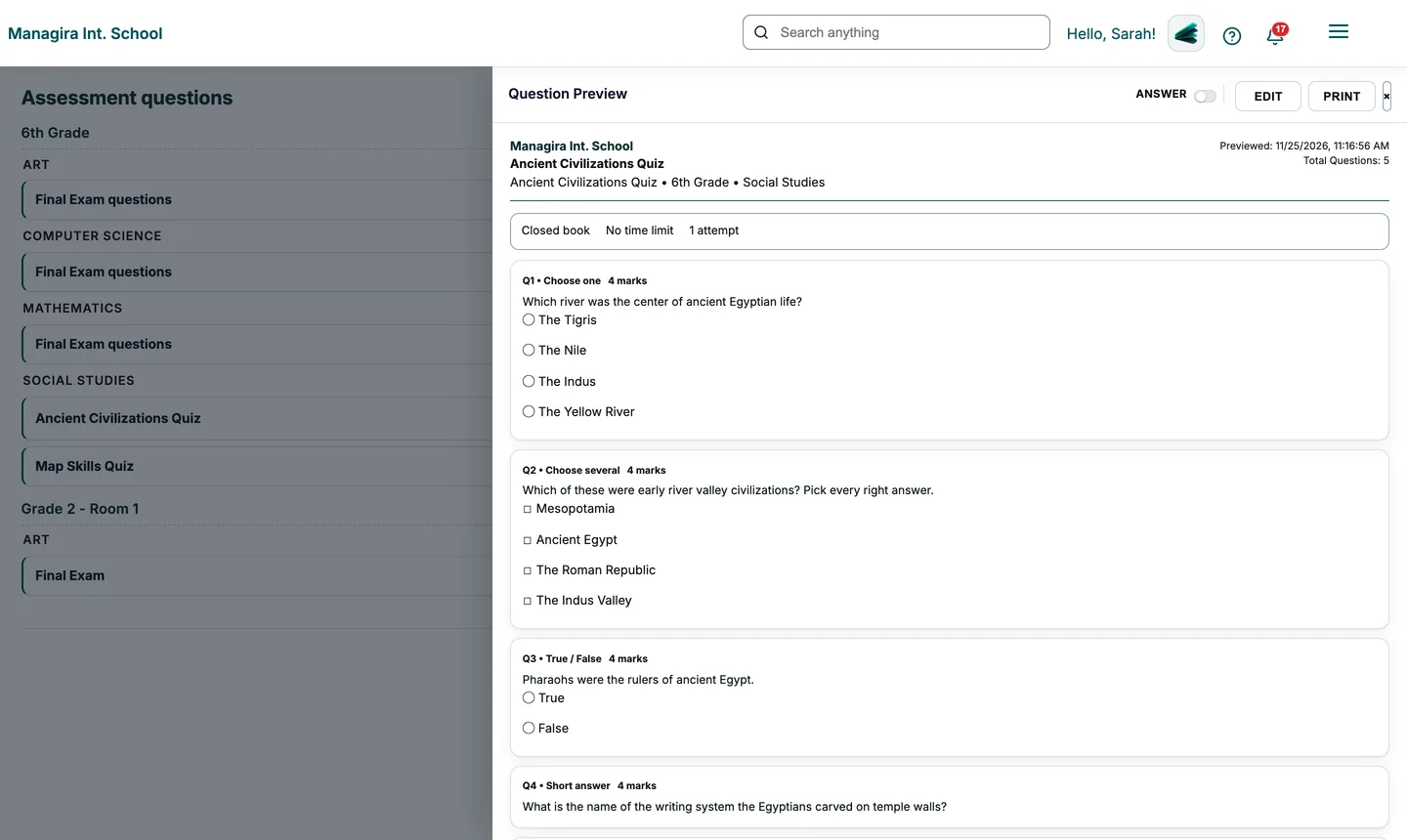
Preview shows the test as a student sees it.
See who took it
In the set's ⋮ menu, choose Review. The line under the title counts the class, for example 30 students · 1 finished or locked · 29 open. Each student shows Not started, in progress, or Completed, and their score.
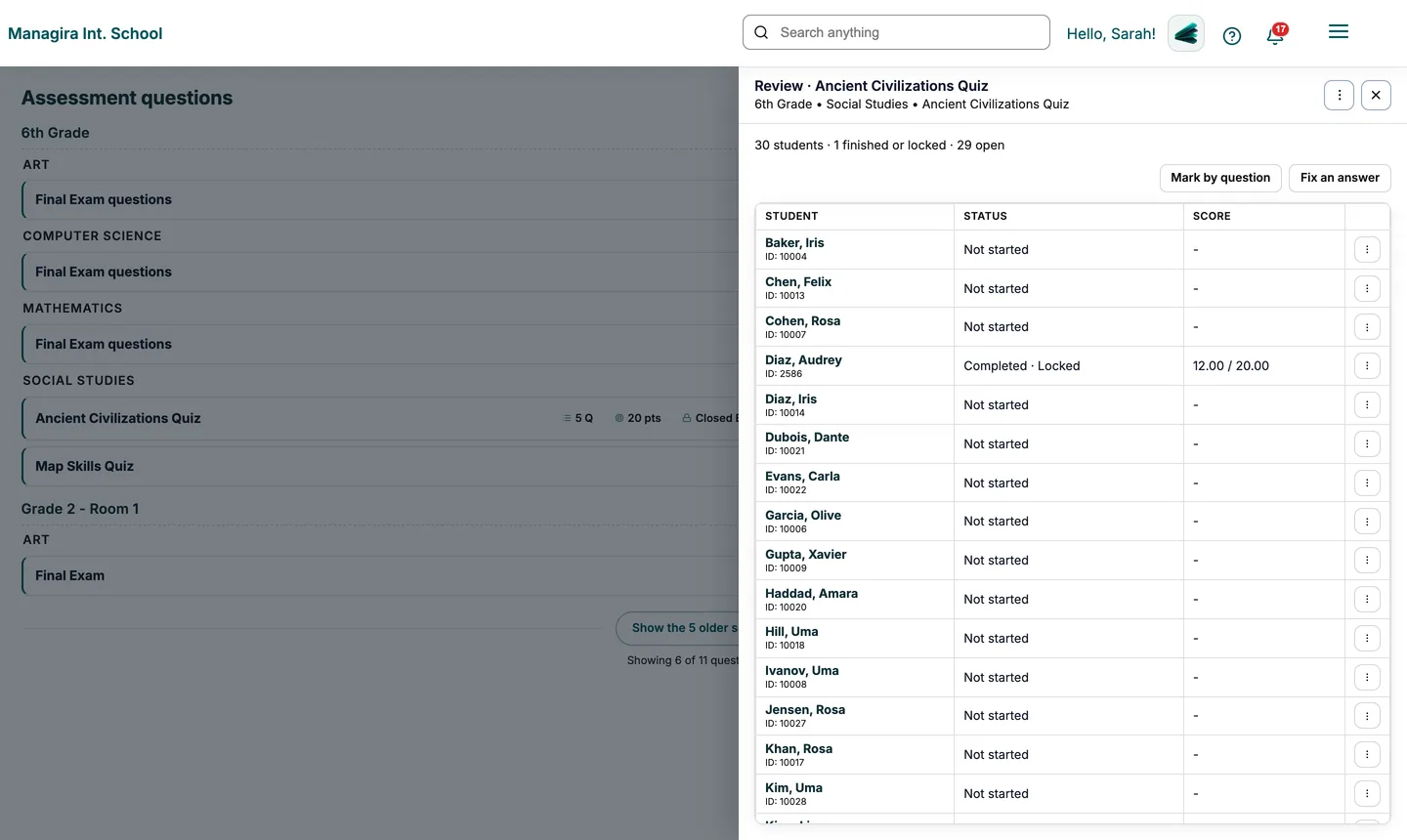
Review: every student, their status and score. Select the ⋮ at the end of a student's row. Review answers opens their test. Unlock lets them take the test again.
Mark by question and Fix an answer are the two buttons under the count.
- Unlock deletes that student's answers and their mark for this test, including a grade already posted, and gives them a new try. Managira asks you to confirm and asks whether to shuffle the questions for the new try.
- A student who left a closed-book test shows as locked. They stay locked out until you unlock them.
- The ⋮ at the top right of the panel has Unlock all, which gives every student who has finished a new try. Use it with care. It deletes all their answers and marks for this test.
Review one student's answers
From a student's ⋮, choose Review answers. The student's choices are marked Student and the right ones Correct. Under each question, Award marks shows what they earned. Change it where you disagree.
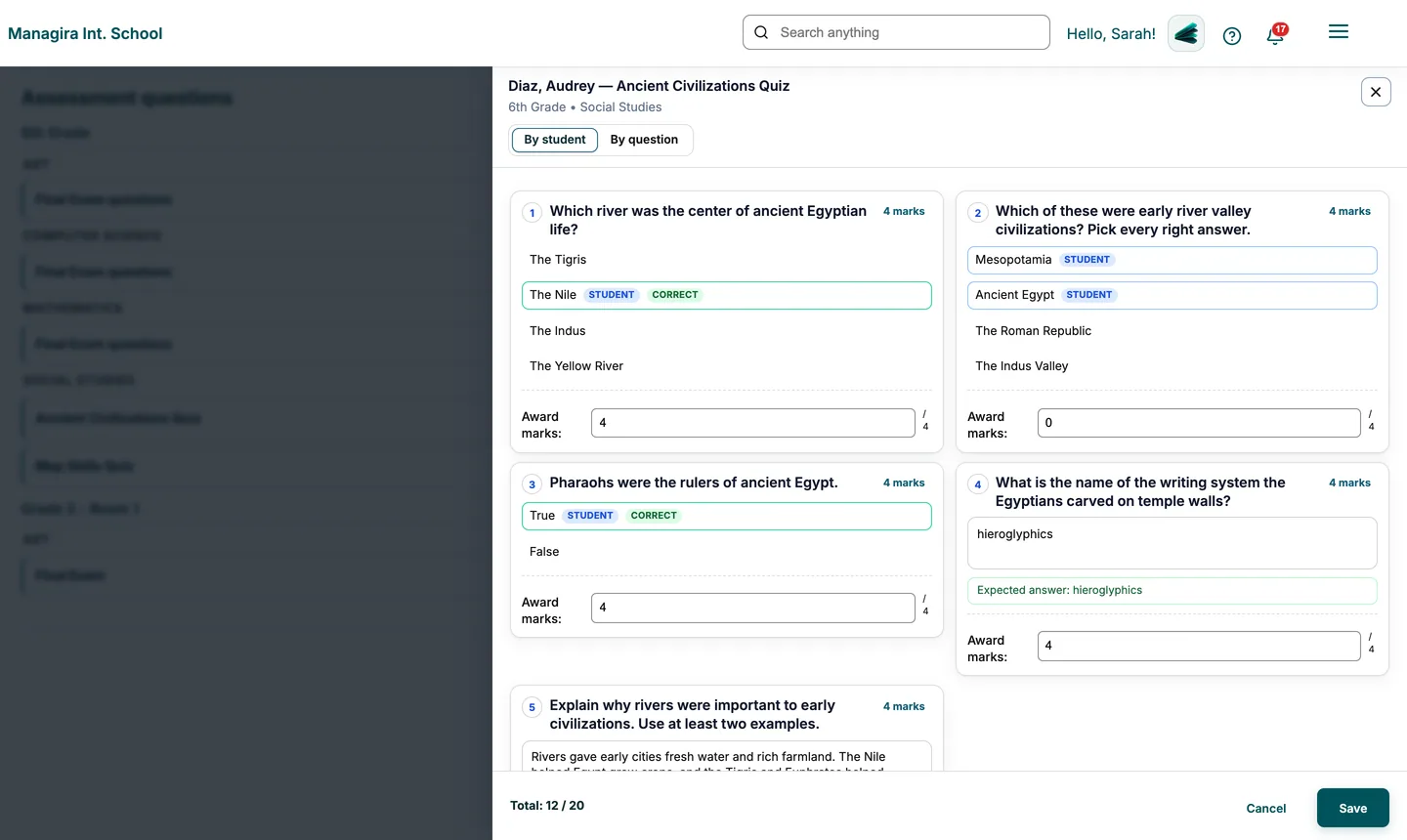
One student's test: their answers, the right ones and the marks. The total at the bottom updates as you change marks. Select Save. The new score goes to the gradebook.
Tip: By student and By question, at the top, switch between this view and the one below.
Mark written answers, one question at a time
Select Mark by question. You see one question and every student's answer to it, one student at a time. Type the mark, then select Save & next. Back and Next move between answers, and the small chip at the top (Question 1 · 1 to review) shows how many are left.
The class gradebook has the same list. In the subject's gradebook, Review shows the tests with written answers waiting and a count of how many.
Good to know: Review on the gradebook appears only for people who hold Set Assessment Questions.
Fix a wrong answer key
You found out after students started that an answer key was wrong. You can't edit the questions now, but you can mark that one question again.
In Review, select Fix an answer. Choose the question, type the right answer, and select Mark again for everyone.
Only that question is marked again. A mark you changed yourself on a student's test stays. Grades that change go back to waiting, so you approve them again.
Then post the grade
A marked online test lands on the gradebook as a new grade (a blue dot). It waits for your ✓. See Enter scores and post grades. The set's line in Assessment questions can also say Posted or Not posted, with Post grades or Take back beside it. A test taken online counts as posted there because its result went straight to the gradebook, and families still see nothing until the grade is approved.
Frequently asked questions
A student left the test by accident.
In a closed-book test, leaving the page locks it. Open Review, select the student's ⋮ and choose Unlock. They start again, and their old answers are deleted.
Can I change a mark after I saved it?
Yes. Open the student's answers again and change the marks. If the grade was already posted, it waits for your ✓ again, and families keep seeing the last posted grade.
Where do essay marks go?
Into the same score as the rest of the test, then on to the gradebook. Until you've marked every written answer the total is not complete.
Was this guide helpful?