
Choose a transcript design
Pick the look of every transcript from five designs, preview each one with a sample student, and compare designs on a real transcript.
The school picks one design. Every transcript, including the emailed official copy, uses it.
Who can do this: Managers, and staff given Report Settings.
Pick the design
Open Reports, Term reports, Report settings, then Transcript Design.
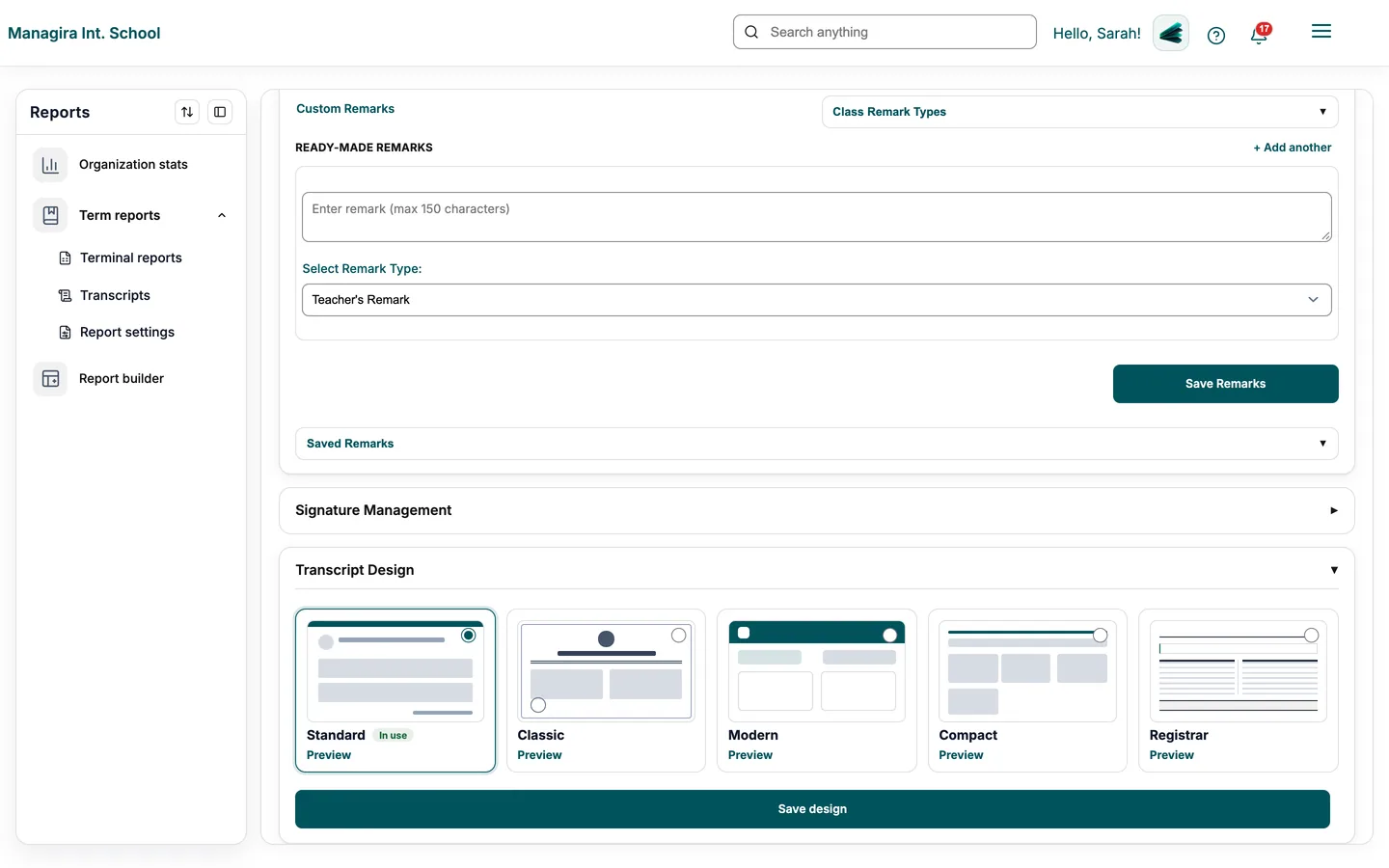
Five designs, with the one in use marked. Select Preview under a design to see it with a sample student. No real record is shown.
Select the design, then Save design.
Important: Saving changes the look of every transcript the school sends from then on.
The five designs
| Design | What it looks like |
|---|---|
| Standard (the default) | The original Managira transcript, with a table for each term. |
| Classic | A traditional record: serif type, the school's crest, each school year's terms, a seal and the signature. |
| Modern | A header in the school's color, a summary with the GPA at a glance, and each term in its own card. |
| Compact | The whole record on as few pages as possible, with terms in a grid. |
| Registrar | A college registrar's record: terms in two columns, each course's credits and quality points, term and cumulative totals, and transcript statistics. |
See a real transcript in another design
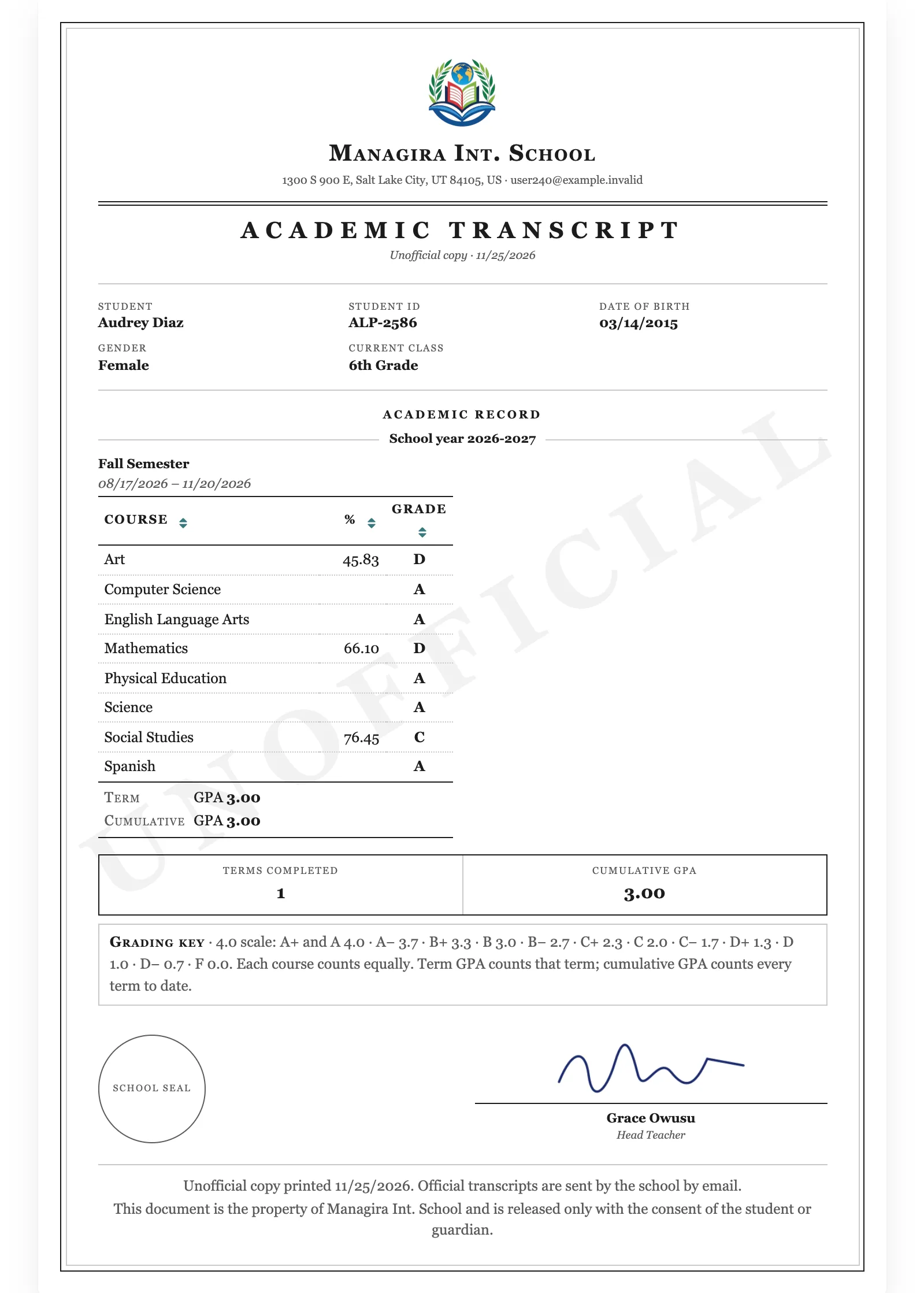
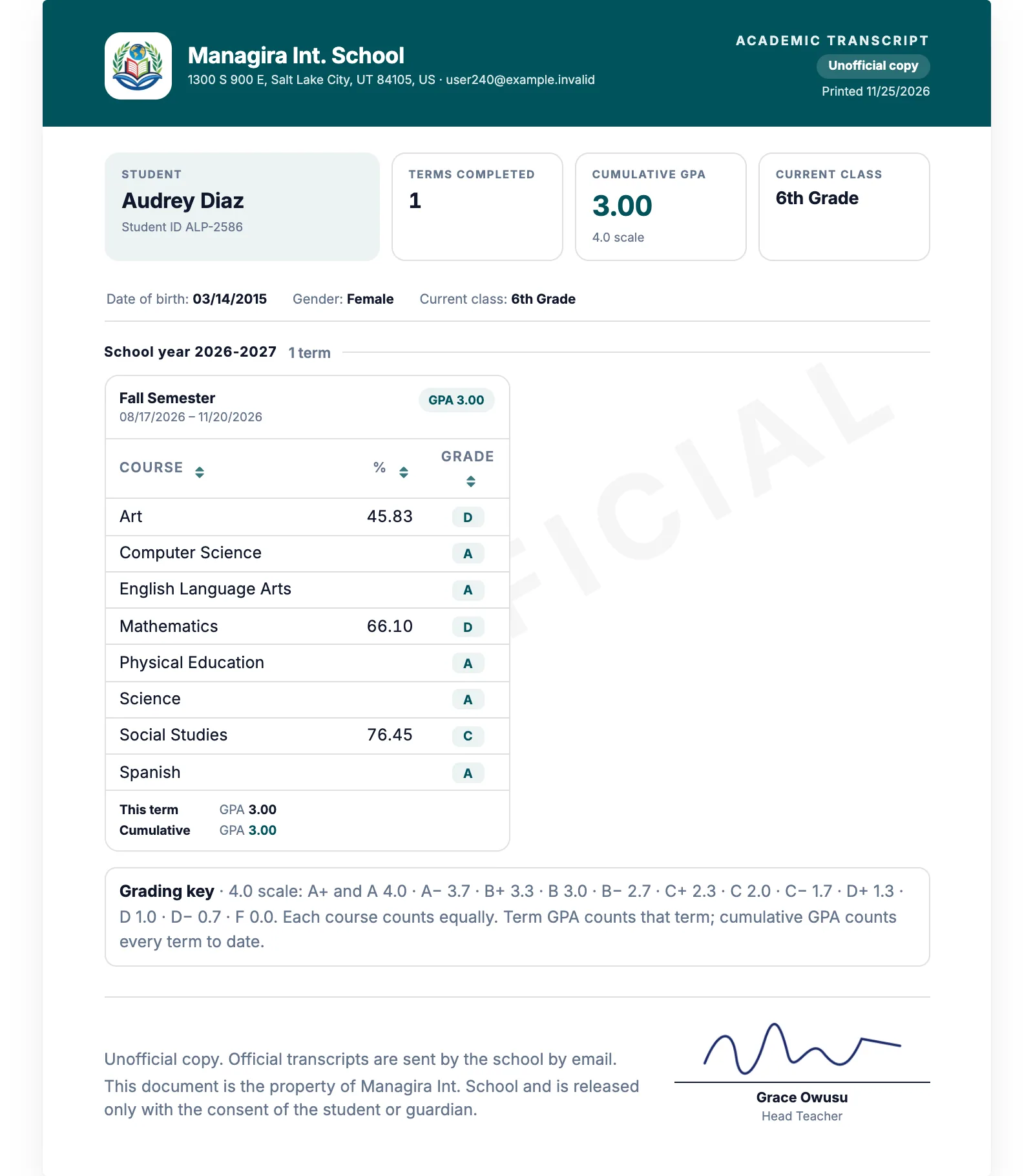
Open a transcript (Open, print and email a transcript). Under Design on the right, select another design.
- The page changes only for you. The note under the list says the emailed copy uses the school default.
Frequently asked questions
Why does the emailed transcript look different from what I'm viewing?
The official copy always uses the school's saved design. Viewing another design is a comparison only.
Do all designs show GPA?
Yes. Every design shows each term's GPA and the cumulative GPA to date.
Was this guide helpful?