
Send a report to your lead
Tell your lead drivers about a student, bus or road problem. Reports stay private until a lead shares them.
Use a report for anything your lead should know: a student's behavior, a bus problem, a closed road.
Who can do this: Drivers. Reports go to lead drivers and staff with Driver Reports.
Send a report
Select Report on the dashboard. During a trip, it's also in the stops list.
Under What is it about?, choose a Type and then an Issue. Select Add another issue to report more than one thing.
For a Student report, choose the students it is about. Each student gets a report of their own, so a lead can share one family's report without the others.
Choose a Priority (Normal or Urgent) and write the Details. Select Send. The sheet says Sent to your lead.
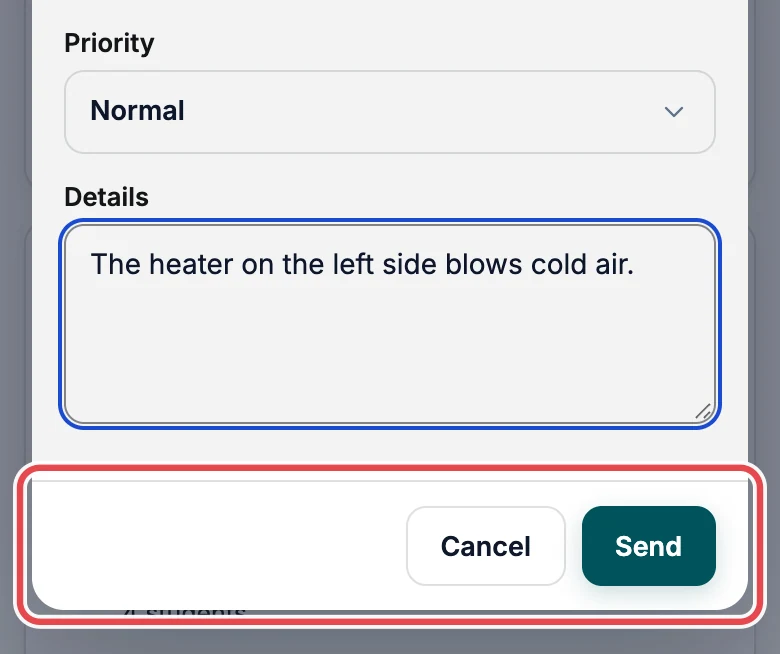
Priority, Details and Send.
| Type | Issues |
|---|---|
| Student | Fighting, Bullying, Sick or injured, Bad behavior, Not at the stop, Late to the stop, Left something on the bus, Other |
| Bus | Breakdown, Accident, Flat tire, Low fuel, Needs service, Heating or AC, Door or seat problem, Other |
| Route or road | Road closed, Heavy traffic, Unsafe stop, Wrong address, Bad weather, Other |
| Complaint | From a parent, From a student, From staff, About another driver, Other |
| Other | Other |
Good to know: Other needs details. Details can be up to 2,000 characters.
What happens next
Your lead drivers read the report in Management › Transportation › Reports. See Driver reports and transportation reports.
Until a lead shares it, only you and the leads see it. A lead can share a report about a student with that student's parents or teachers.
Frequently asked questions
Can I see my reports afterward?
The driver screen only sends reports. Your lead reviews them, and a driver who holds Reports can list their own in Report Builder.
Is the report tied to my trip?
Yes. During a trip, the report records the bus and route. Outside a trip, it records your bus.
Was this guide helpful?