
PayGira settings: invoice note, payment methods, service fee
Add a note to every invoice, choose how parents can pay online and decide who covers the service fee.
Three things control how parents pay: the note on every invoice, the online payment methods you accept and who covers the service fee.
Who can do this: Managers, and staff given PayGira › PayGira Settings. The service fee and the receiving account are in Settings, which needs Settings access.
Open PayGira Settings
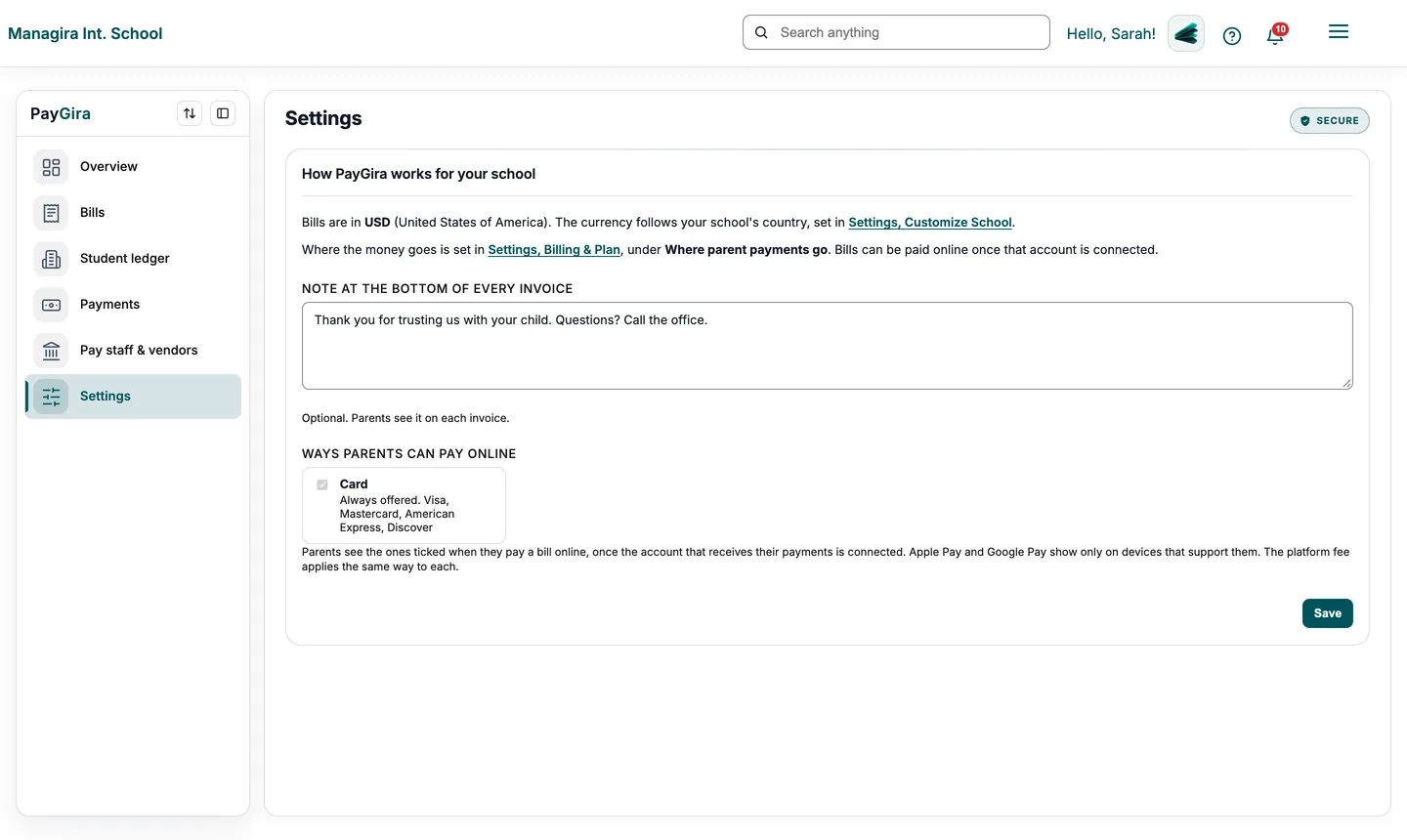
Go to Management › PayGira and select Settings.
The top of the page tells you where the money goes (Settings › Billing & plan › Where parent payments go) and that online payment opens once that account is connected.
Write the note on every invoice
Type your message in Note at the bottom of every invoice, for example Thank you for trusting us with your child. Questions? Call the office.
Select Save. The note is optional.
Choose how parents can pay online
Under Ways parents can pay online, check the methods to offer. Card is always on. Other methods, such as Apple Pay, Google Pay, Link and Cash App Pay, appear here when Managira's payment processor has them switched on.
Select Save. Parents see the checked ways the next time they pay.
Good to know: Apple Pay and Google Pay show only on devices that support them. Until you save a choice, parents see every available method.
Decide who covers the service fee
A service fee applies to each payment parents make online. Payments you record at school have no fee.
Go to Settings › Billing & plan and open Platform Service Fee.
Choose The parent paying (the fee is added to the bill and shown before they pay, and the school receives the full amount) or The school (the parent pays the bill amount and the fee comes out of what the school receives).
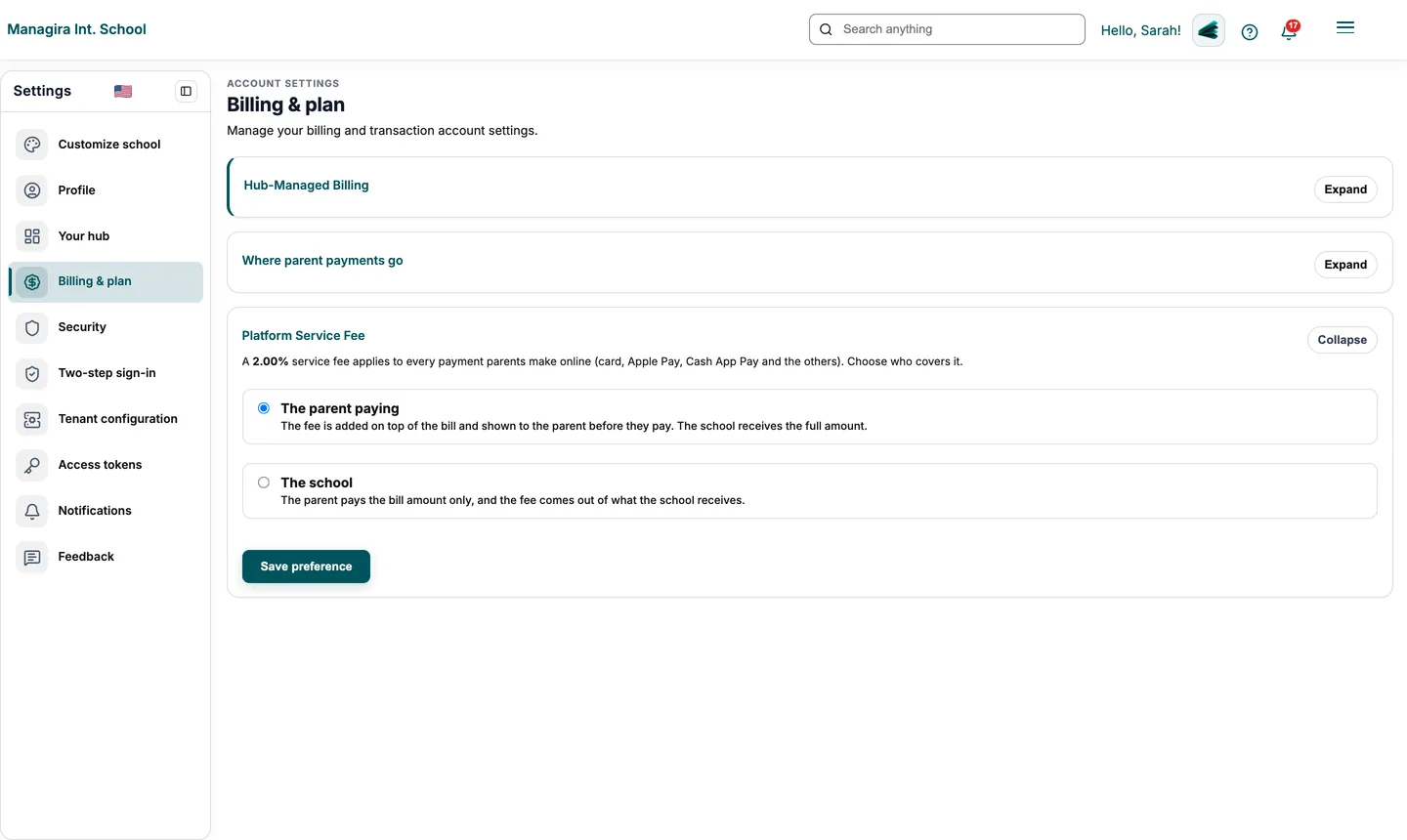
Platform Service Fee, with the two choices and Save preference. Select Save preference.
Frequently asked questions
Why don't I see Apple Pay or Google Pay?
They appear only when Managira's payment processor has them on for your school's account. Parents also need a device that supports them.
Can I switch off card?
No. Card is always offered.
Was this guide helpful?