
Hub users and roles: add people and choose what they can do
Add district staff to your hub as hub admins or hub users, choose their permissions, and resend, hold or remove them.
Anyone at your district who needs the hub gets their own account. A hub admin sees and does everything. A hub user sees and does only what you check for them.
Who can do this: Hub admins, and hub users with Manage hub users.
Open Users & roles
Select your name at the bottom of the menu, then the Users & roles tab.
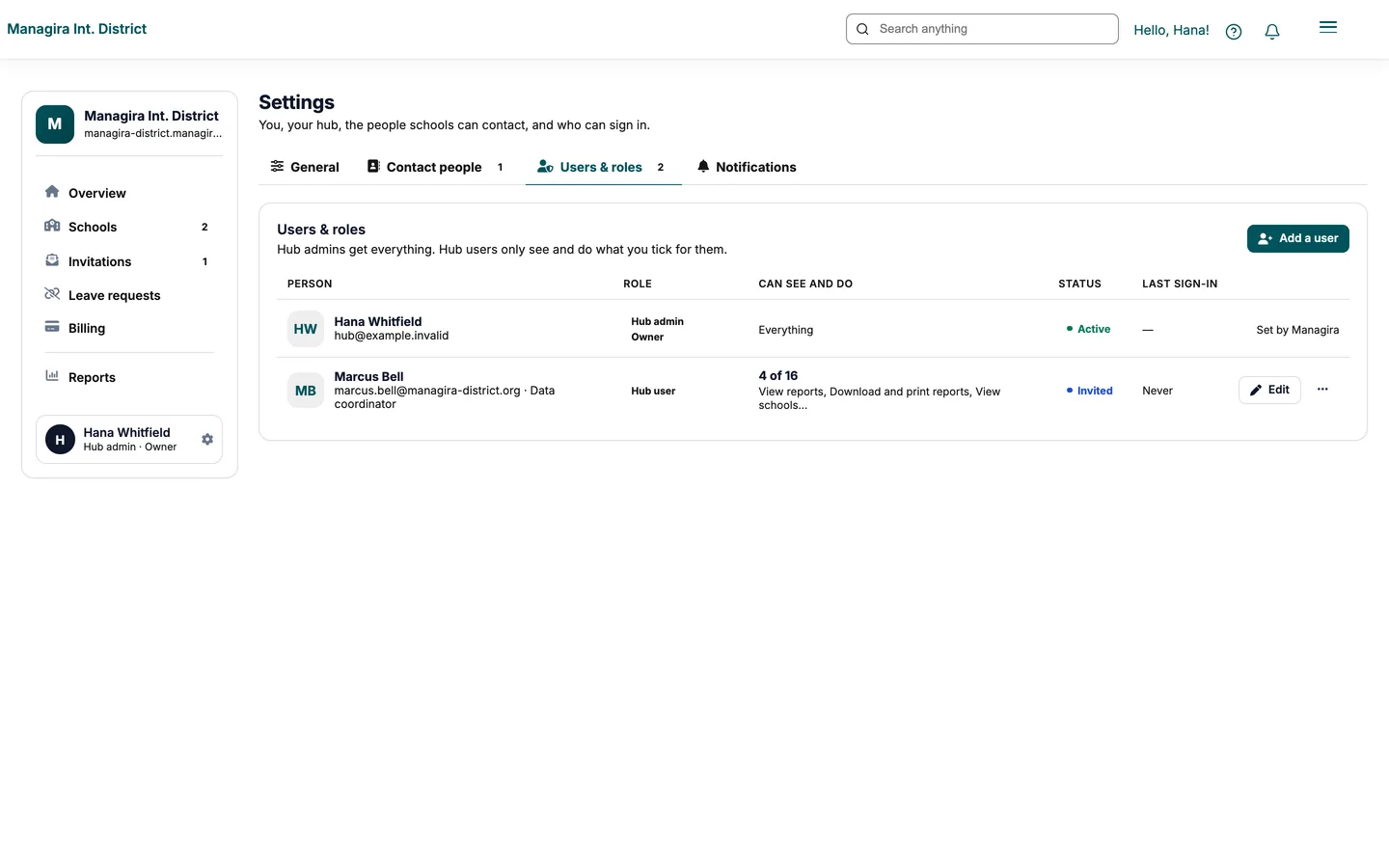
Users & roles. The owner is always listed first. The table shows each Person, their Role, what they Can see and do, their Status and their Last sign-in.
- Active: they have set a password and can sign in.
- Invited: the email went out but they haven't set a password yet.
- On hold: they can't sign in until you resume them.
Good to know: The owner of the hub is set by Managira and can't be changed here. If your plan limits users, the page says how many user licenses are used.
Add a user
Select Add a user.
Enter their First name, Last name and Email. Phone and Job title are optional. Turn on Contact person to list them as someone schools can reach, and Share with schools to show them on the schools' Settings page.
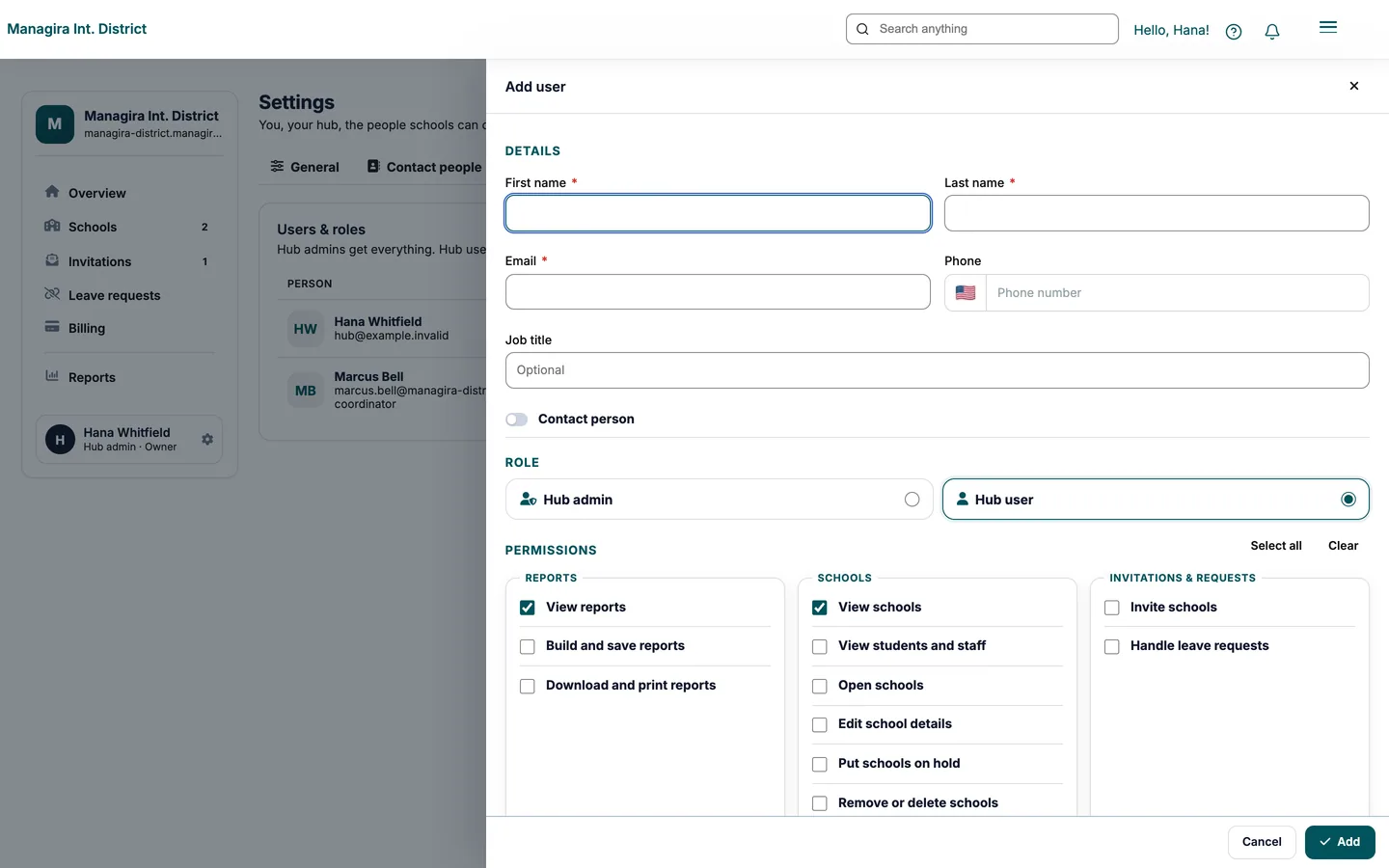
Add user opens at the right. Choose a Role: Hub admin or Hub user.
For a hub user, check their permissions. Select all and Clear help. A hub admin gets everything.
Under Sign-in, choose Email invitation (they set their own password) or Set password (you type one, or select Generate, and give it to them).
Select Add.
What each permission allows
| Group | Permission | Lets them |
|---|---|---|
| Reports | View reports | Open Reports and the saved reports. |
| Reports | Build and save reports | Make new reports across your schools and save them. |
| Reports | Download and print reports | Download CSV files, print or save as PDF. |
| Schools | View schools | Open each school and see its report. |
| Schools | View students and staff | See student, staff and class lists and their details. |
| Schools | Open schools | Go into a school's own account, like its owner. Every visit is logged. |
| Schools | Edit school details | Change a school's name, address, country and phone. |
| Schools | Put schools on hold | Pause and resume a school's access. |
| Schools | Remove or delete schools | Take a school out of the hub or delete it. |
| Invitations & requests | Invite schools | Send, resend and cancel invitations. |
| Invitations & requests | Handle leave requests | Approve or decline schools asking to leave. |
| Hub settings | Edit hub details | Change the hub's address, phone and logo. |
| Hub settings | Manage contact people | Add and edit the people schools can contact. |
| Hub settings | Manage hub users | Add users and choose their role and permissions. |
| Billing | See billing | See the plan, charges, bills and payments. |
| Billing | Manage billing | Approve or decline charges, add paid extras and change the card. |
Tip: Start new hub users with View reports and View schools. Add more only when they need it.
Change, hold or remove someone
On their row, select Edit to change their details, role or permissions.
Open the ⋯ menu on their row for the rest: Email a password reset link (or Resend invitation if they haven't signed in yet), Put on hold (then Resume access), or remove them from the hub.
Removing someone ends their access at once, after you confirm.
Good to know: You can't change your own role or permissions, or put yourself on hold.
Frequently asked questions
A hub user can't see something they need.
Open their row, select Edit and check the permission. The menu changes the next time they load a page.
Does a hub user see student details?
Only with View students and staff. Without it they see totals and reports only.
They never got the invitation email.
Open the ⋯ menu on their row and select Resend invitation. Ask them to check their spam folder.
Can a hub user also be a school's staff member?
Yes, but they sign in to each separately. A hub account is for the hub only.
Was this guide helpful?