
Add routes and stops, and pause a route
Create a route, add its stops in order, show it on the map, and pause it when it isn't running.
A route is a list of stops in order that ends at the school. Families and drivers follow the real roads between the stops.
Who can do this: Managers, and staff with Transportation and Routes & Stops.
Add a stop
Open Management › Transportation, then the Buses tab. Select + Add Stop (or Add stop on the overview).
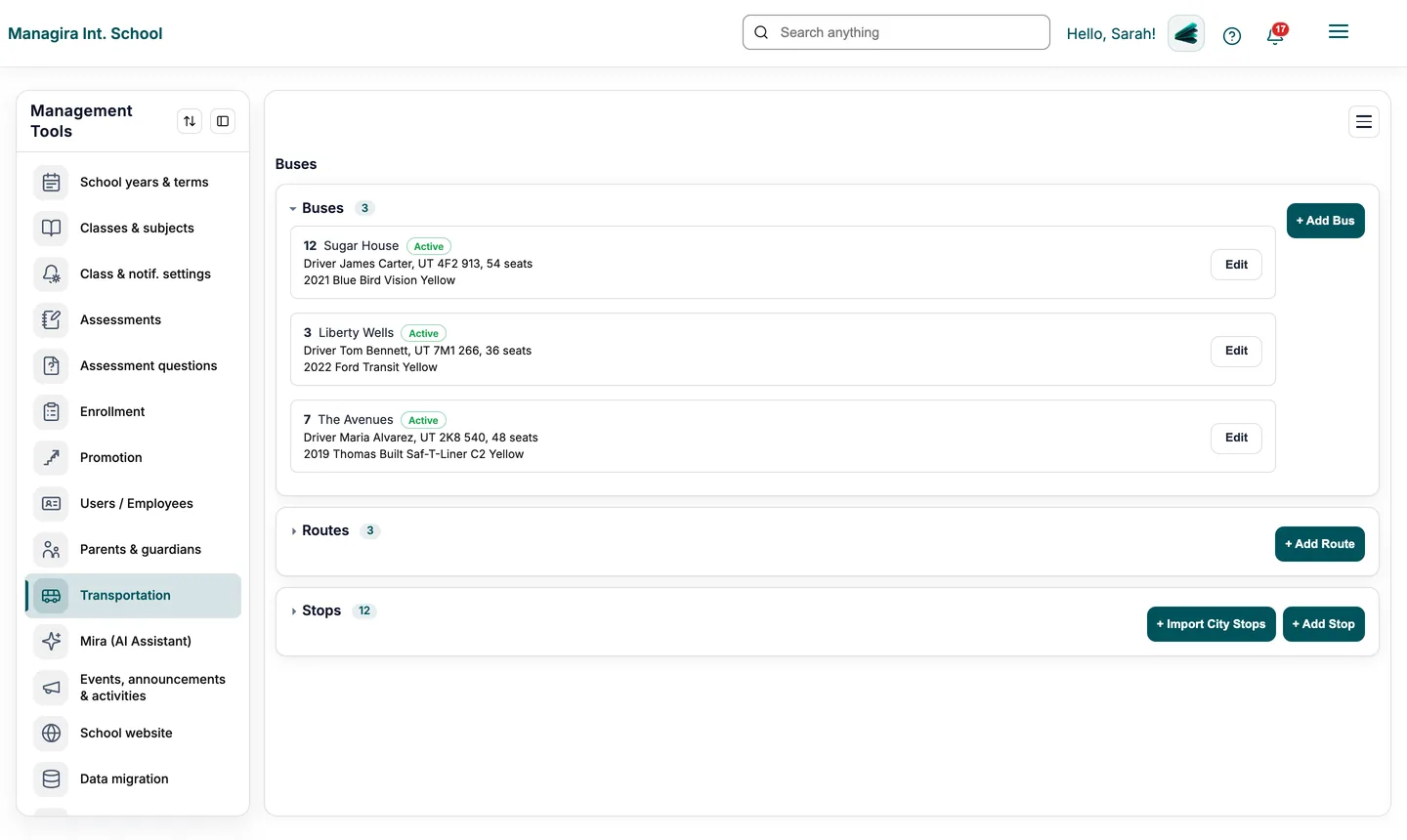
The Buses tab, where routes and stops live. Type the Stop Name and Stop Address. Choose a Route now, or leave No route yet — attach later.
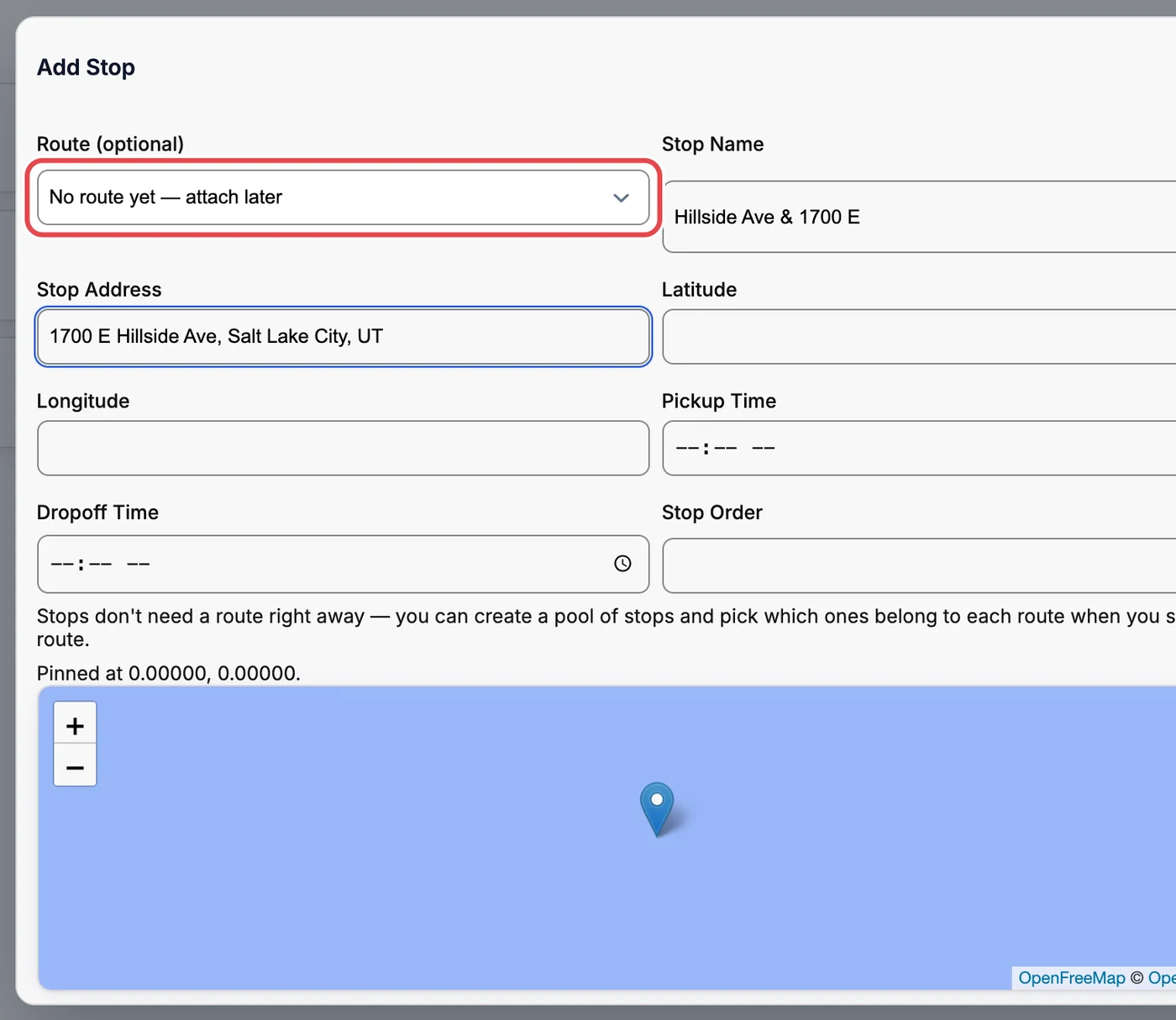
The Add Stop window. Set the stop's place on the map: type the Latitude and Longitude, or click the map to drop the pin.
Add the Pickup Time, Dropoff Time and Stop Order (1 is the first stop), then select Save Stop.
Good to know: A stop without a place on the map still saves, but families can't see it on a map, and the overview says how many stops are not on the map.
Import many stops at once
Open the Stops card on the Buses tab and select + Import City Stops.
Choose the Route, type the City and the Max Stops, then select Import Stops. Managira pulls bus stop candidates from map data. Check them and edit or delete the ones you don't need.
Add a route
On the Buses tab, select + Add Route.
Type the Route Name (for example Route 1 - Sugar House) and a short Route Code.
Leave Use School Destination checked so the route ends at your school. Uncheck it to type a different Destination Address.
Under Stops on this Route, check the stops that belong to it. Then select Save Route.
Tip: Changing the school's address in Settings › School location moves every school-linked route's destination. See Transportation settings.
Check a route
Open the Routes card and select a route's name. It opens to its destination, its stops in order, and its bus, driver and weekly days.
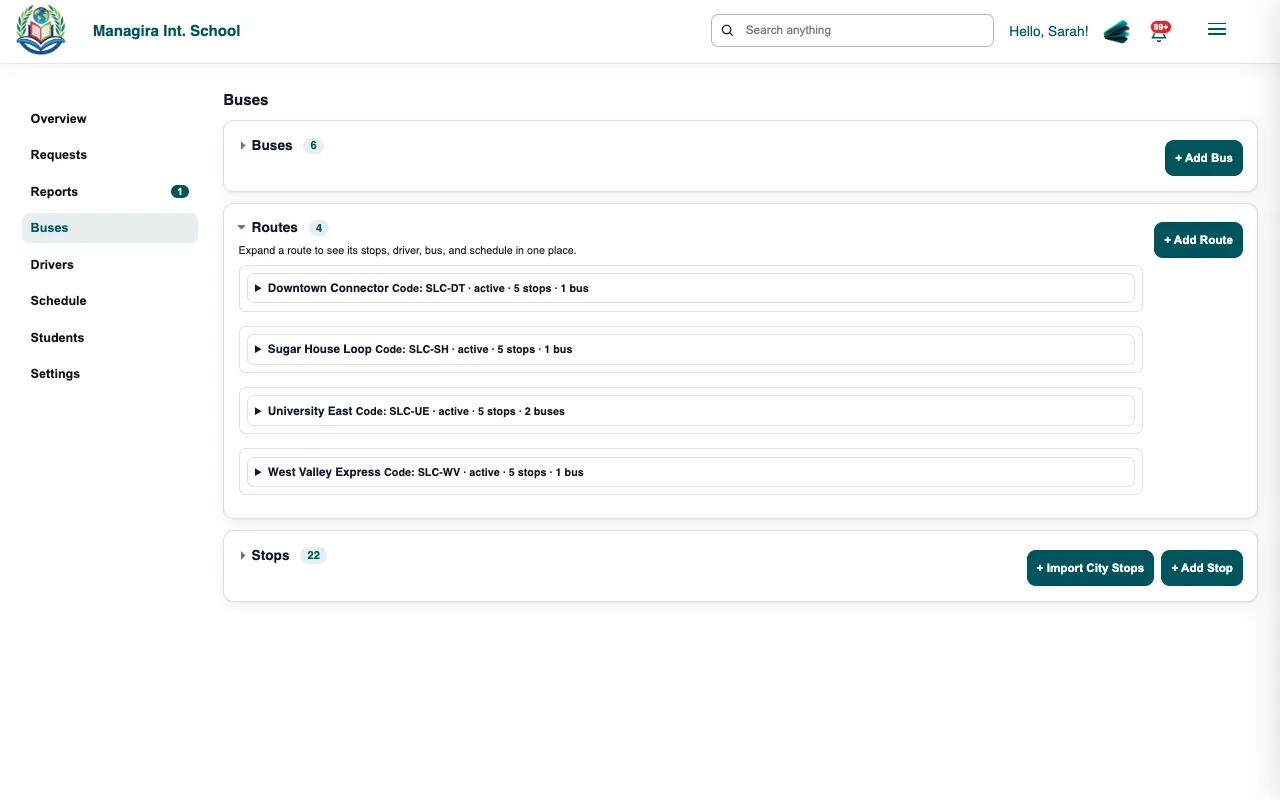
A route opened on the Buses tab. Select Show on map to see the route's road through its stops.
Select Edit to change the name, code, stops or destination.
Pause a route
Select Edit on the route and set Status to inactive.
Select Save Changes. A driver can't start a trip on a paused route: the app says the route is paused. Set it back to active to run it again.
Good to know: Delete route removes only the route. Its stops stay in the stop list, so you can attach them to another route.
Frequently asked questions
How do I change the order of the stops?
Edit each stop and change its Stop Order. Stops are served in that order, and families' arrival times follow it.
Why are my stops missing from the map?
They have no latitude and longitude. Edit the stop and click the map to pin it.
Was this guide helpful?