
Report remarks, ready-made remarks and signatures
Add remark types, write ready-made remarks teachers can pick, and add signatures for report cards and transcripts.
Remarks are the short comments on a report card. Signatures print at the bottom of report cards and transcripts.
Who can do this: Managers, and staff given Report Settings. Adding a remark type also needs the Custom editor.
Report remarks
Open Reports, Term reports, Report settings. The Report remarks card lists the types teachers write each term.
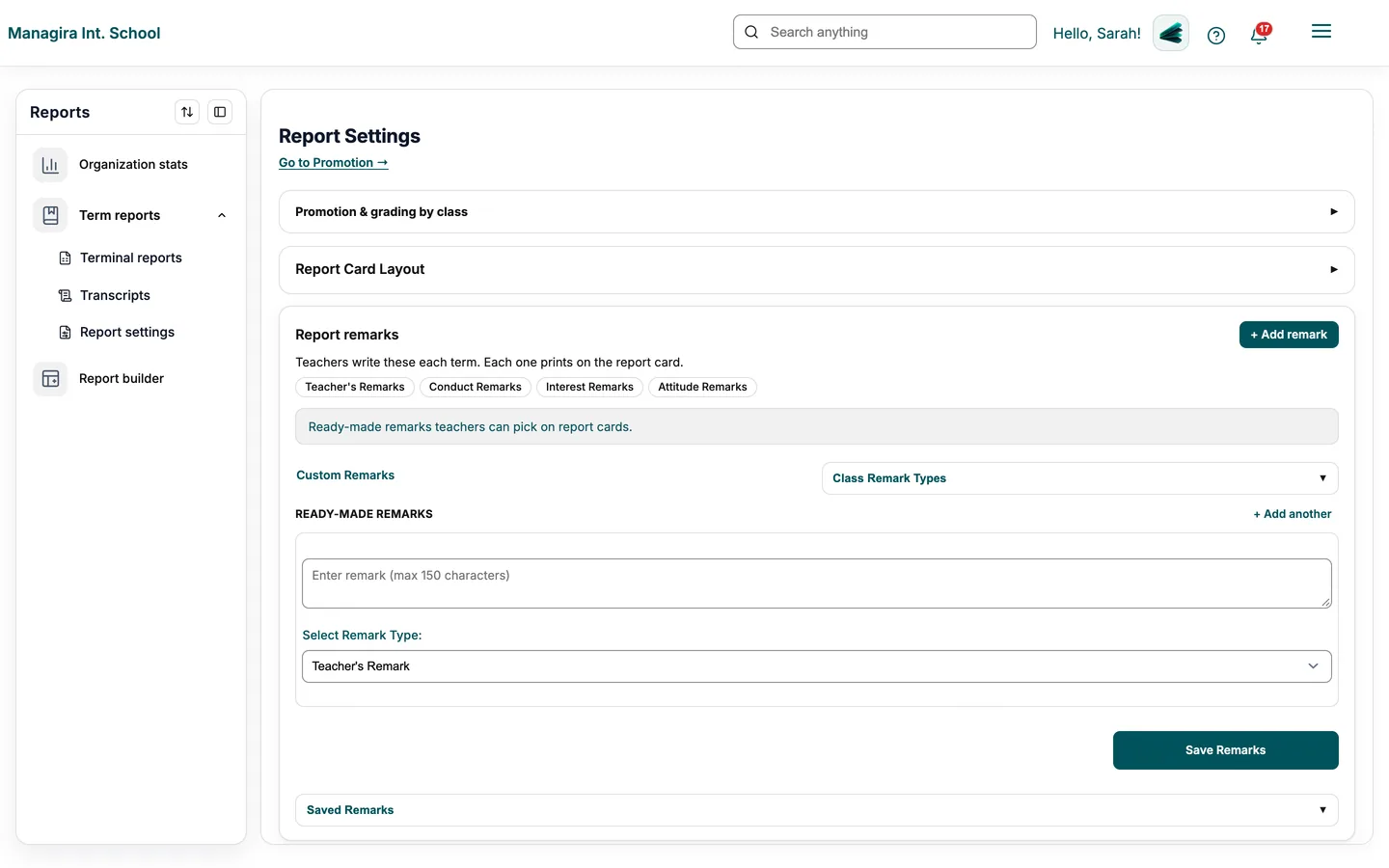
Teacher's, Conduct, Interest and Attitude remarks. To add a type such as a Head Teacher's remark, select + Add remark. It opens the Custom editor, where each remark is a field of the Report remarks form.
Custom Remarks adds a remark type of your own by name. Class Remark Types chooses which types teachers can fill in from the classroom.
Write ready-made remarks
Under Ready-made remarks, type a remark (up to 150 characters) and choose its Select Remark Type.
Select + Add another for more, then Save Remarks.
Open Saved Remarks to read, edit or delete them.
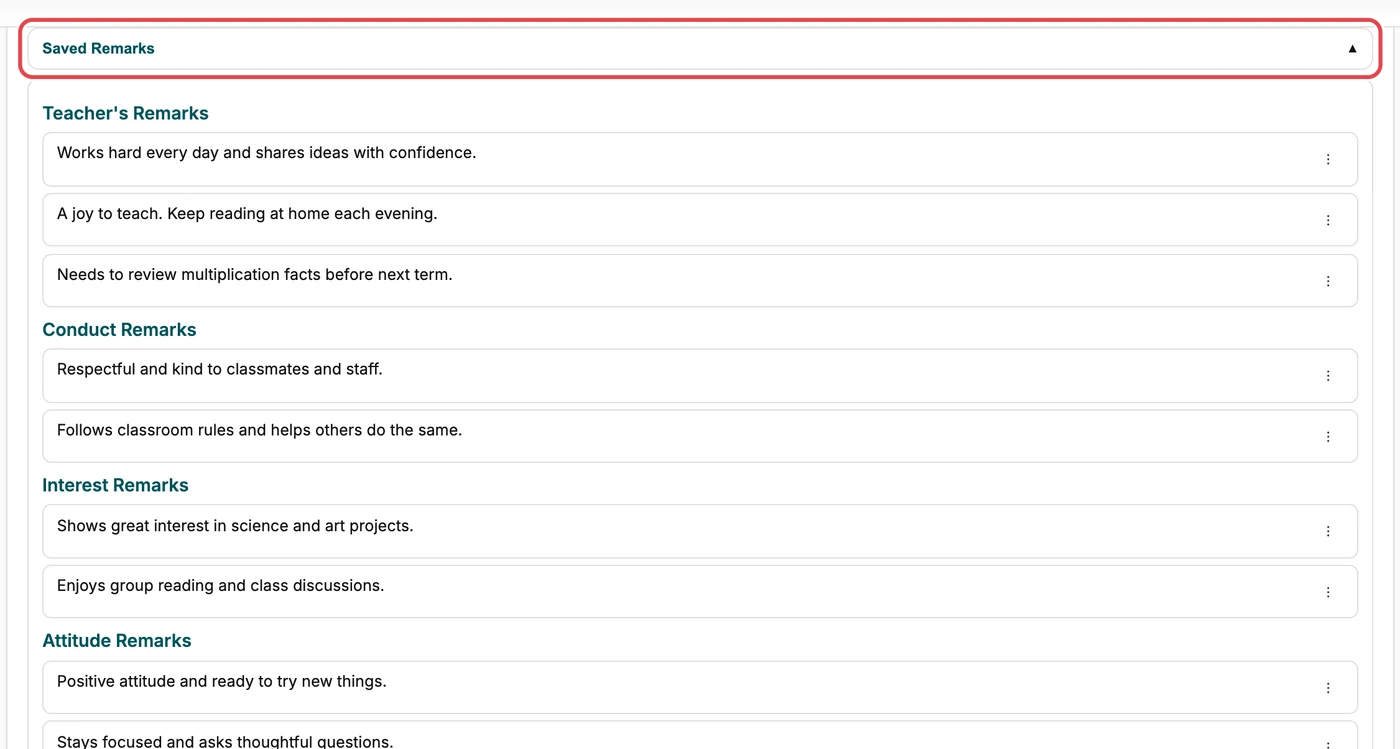
Saved remarks, listed by type.
Good to know: Teachers then pick these from the arrow beside each remark on the report card, as in Generate, check and print report cards.
Add a custom remark type
Select Custom Remarks. Type a Name, such as Head Teacher's remark.
Select Save. The type appears when you write ready-made remarks. A type you stop using can be made obsolete or deleted.
Add a signature
Open Signature Management. Report cards lists the signatures in use and the classes each applies to; Transcripts has its own.
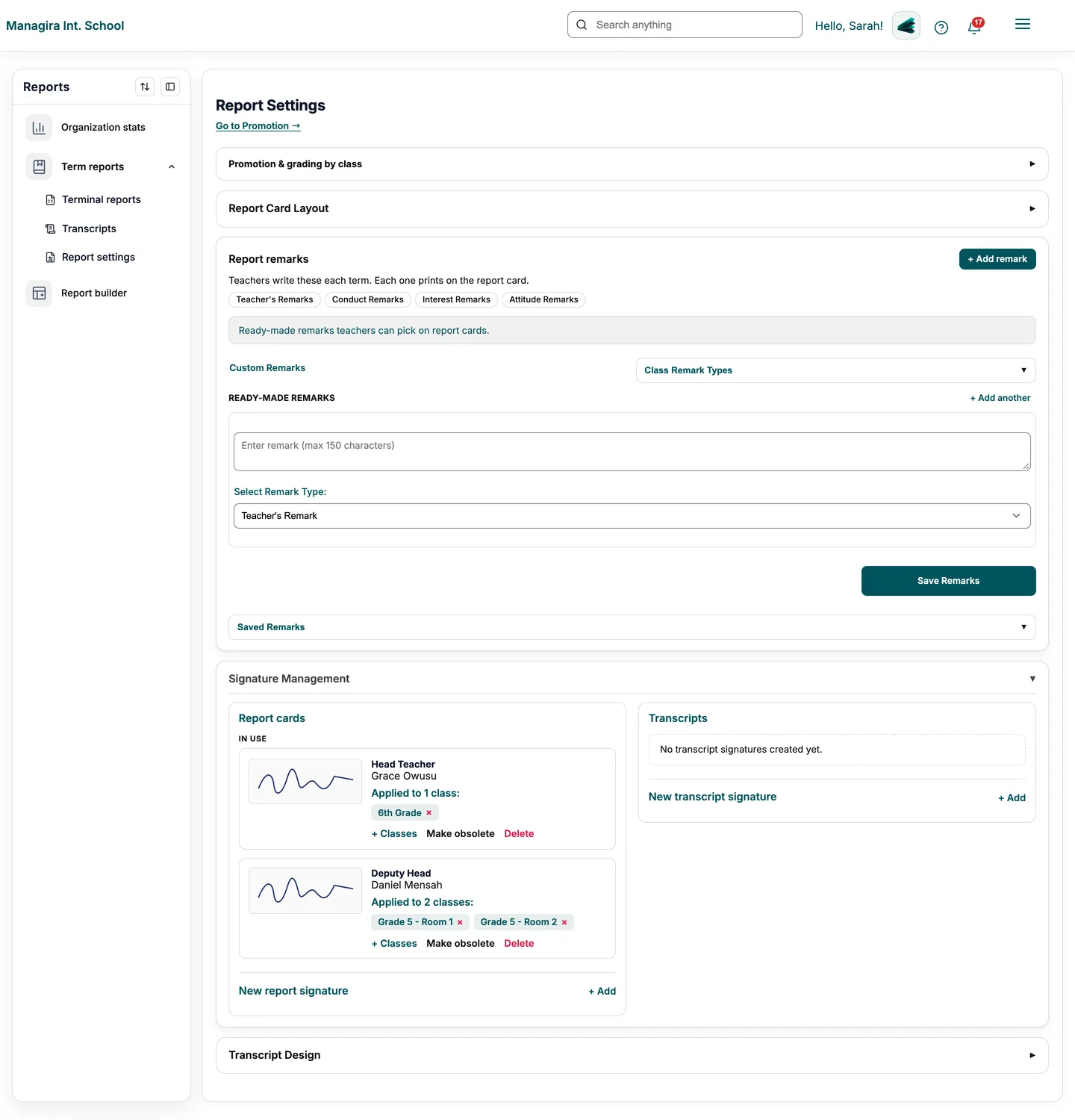
Signatures for report cards and transcripts. Select + Add beside New report signature (or New transcript signature).
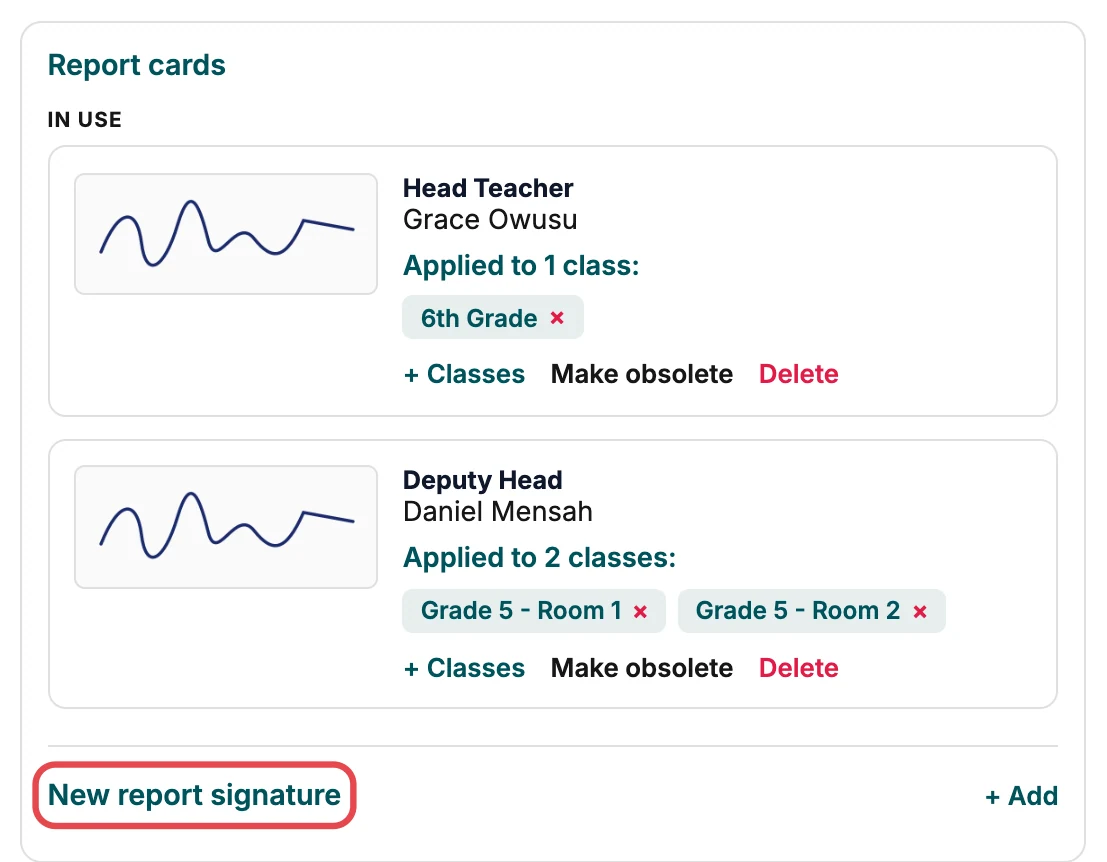
Signatures in use, and the add button. Draw the signature in the box, or select Clear to start again. Type the Signer Title and Signer Name.
Check the classes under Apply Signature To, then select Save Signature.
- + Classes adds more classes to a signature. A class holds one signature: choosing it again replaces the old one.
- Make obsolete keeps the signature but stops using it. Delete removes it.
- A transcript with no signature for the class shows a note asking you to add one.
Frequently asked questions
The ready-made remarks don't show on the report card.
Select Save Remarks first, then reopen the report cards. The remark types must also be checked under What prints on report cards.
Where are the remark forms?
The Report remarks form is part of the Custom editor.
Was this guide helpful?