
The bus: track it, say not coming, bus requests and reports
Watch your child's bus on a map, tell the driver your child isn't coming today, ask for a bus and read bus reports.
If your child rides the bus, you can see where it is, tell the driver when your child won't ride, and read notes from the driver.
Who can do this: Parents and guardians, where your school uses the bus.
Open the Bus menu
On My Children, tap Bus on your child's card.
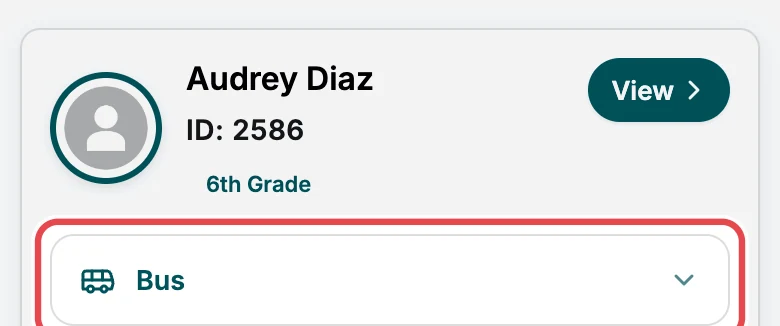
The Bus button on a child's card. Two choices open: Track the bus and Not coming today.
Track the bus
Tap Track the bus. A map opens with the bus, your child's stop and the route.
The top left says Stopped, Moving or Estimated position. The time shows how long until the bus gets to your stop.
Tap the arrows to make the map bigger, and the round target to find the bus. Tap X to close.
Good to know: If the bus has not sent its place for a little while, the map says Estimated position and the time is a guess. It never says the bus passed you. See Live bus tracking.
Not coming today
Tap Bus, then Not coming today. The driver and the teacher see it.
Changed your mind? Tap Bus again, then Riding today after all.
Tip: To stop using the bus for good, open the tracker from your child's Transportation tile and tap Stop using the bus at the bottom. It asks first.
Ask for a bus
If your child doesn't ride yet, their card has a Request a bus button. Fill it in and the school answers in Requests. See Bus requests.
Bus reports
Tap the Bus reports tab on the home page.
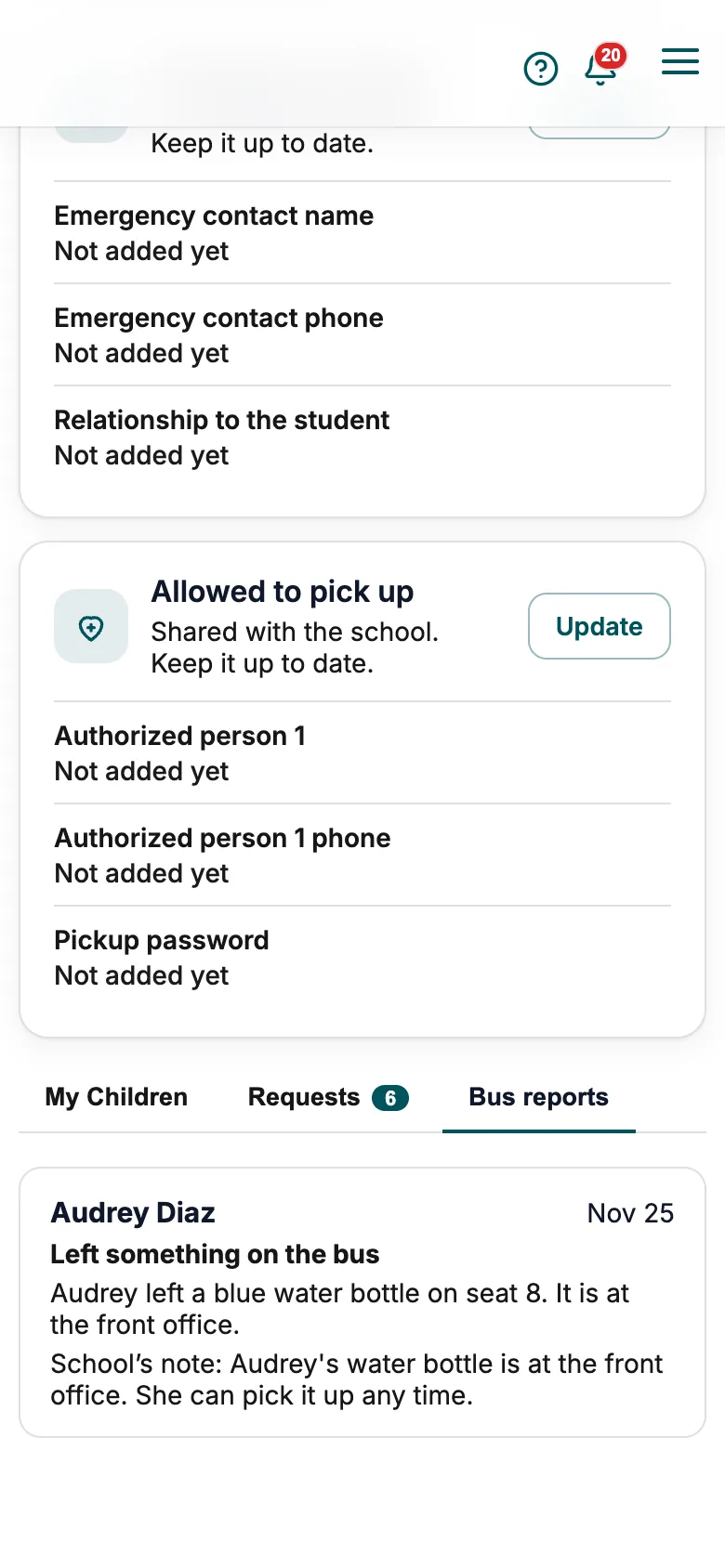
A report the school shared, with its date and the school's note. Each report names your child. It shows only when the school shared it with you.
Frequently asked questions
The tracker has no bus.
The driver hasn't started the trip yet, or your child's class doesn't share the bus with parents.
Do I get a message when the bus is close?
Yes, if you turn on the Bus is about to arrive alert. See Alerts.
Was this guide helpful?