
Bills: create, choose who pays, edit and repeat
Create a one-time or repeating bill for every student, some classes or chosen students, add late fees, edit it and ask families to pay.
A bill is something your school charges: tuition, a field trip, a uniform. You decide who pays, how much and when.
Who can do this: Managers, and staff given PayGira › Bills. Removing a bill needs Cancel & Delete Bills, and Repeating needs Repeating Bills.
The Bills page
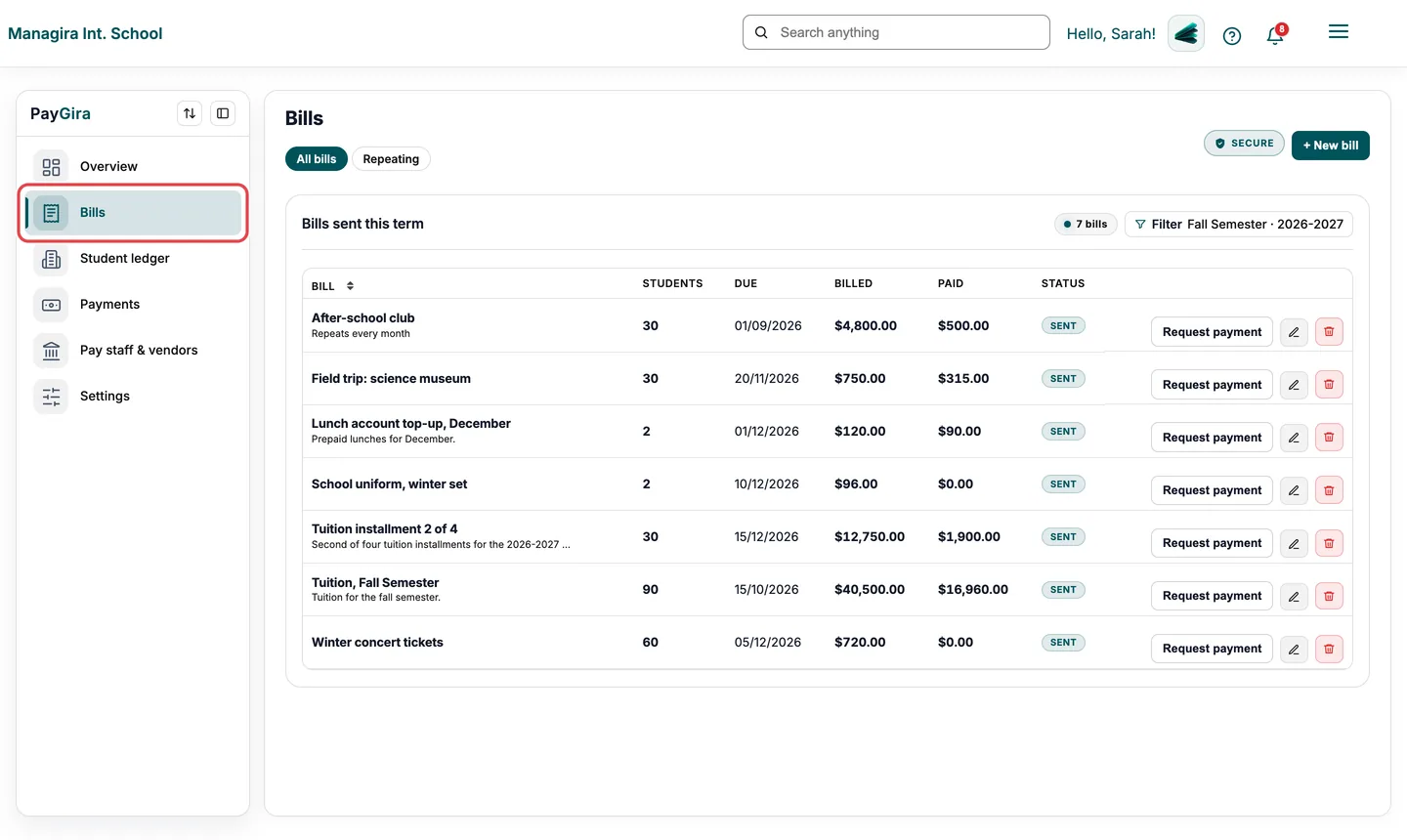
Go to Management › PayGira and select Bills. All bills is the first tab.
Each row shows the bill, how many students it covers, its due date, the amount Billed and Paid, and its status: Sent, Draft, Cancelled or Paid.

At the right of a row: Request payment, edit and delete. Use Filter to look at another school year or term.
Create a bill
Select + New bill.
Fill in Title, Amount each (USD), Who pays? and Due date.
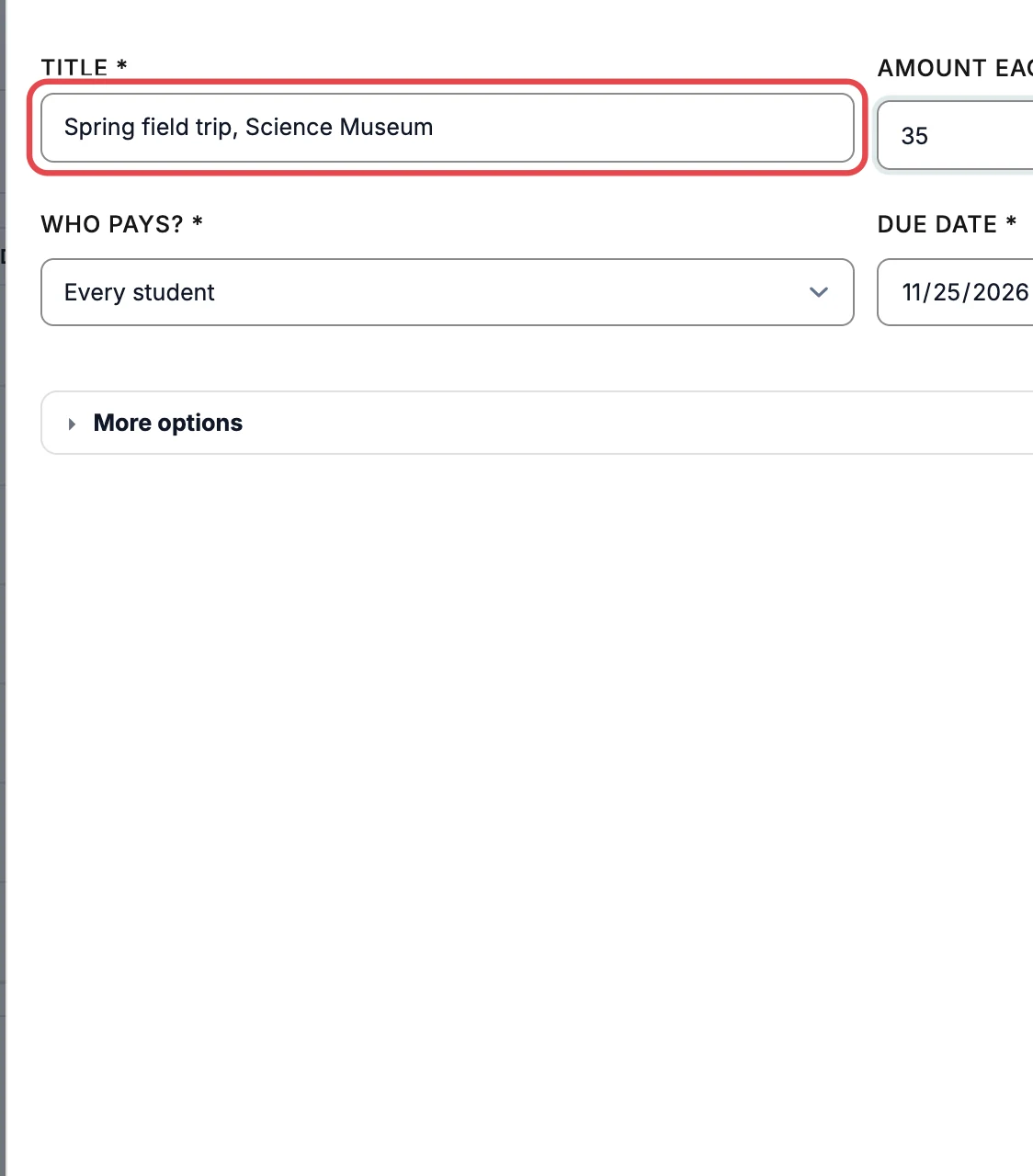
The amount is per student. Select Create and send to email each parent their invoice, or Save as draft to keep it for later.
Example: Winter concert tickets, $12 each, due December 5 for 6th Grade and Grade 2 - Room 1, or Lunch account top-up, December, $60 for two chosen students.
Choose who pays
Who pays? has three choices. Classes and students are chosen with checkboxes, never by holding a key.
Choose Some classes and check 6th Grade.
Or choose Chosen students, search for a name and check the student.
- Every student: the whole school.
- Some classes: check the classes. Use the search box to find one, Tick all shown to check everything the search shows, and Clear to start over.
- Chosen students: search by name or class and check each student. The counter beside the box says how many are chosen.
More options
Open More options when you need more than the basics.
Add a Late fee and the number of days after the due date it applies (After (days late)).
- Note: shown on the invoice.
- How often: Once, Repeating or In installments. A repeating bill uses Repeats (every day, week, month, term or year), a Last date and Skip weekends and holidays.
- School year and Term: the period the bill belongs to. They start on the current ones.
- Staff who collect it: teachers or staff who take the money in class. They see the bill in My PayGira. Leave empty when the office collects. See Collect fees in your class.
- Where the money goes and How parents can pay: All methods, or check the ones you accept for this bill (card, cash and others your school has set up).
- Tell parents: Email each parent their invoice.
Edit, ask for payment or delete
Select a bill's row, or the pencil, to open Edit bill. Change the title, amount, due date, who pays and the options, then select Save changes.
In Edit bill, Cancel closes the window without changes.
Select Request payment on a Sent bill to email every parent who still owes it a link to pay.
The red bin deletes the bill and everything assigned under it. It shows only for staff with Cancel & Delete Bills, and it asks you to confirm first.
Important: Deleting a bill removes it from every student's ledger. Record corrections to payments on the Payments page instead.
Repeating bills
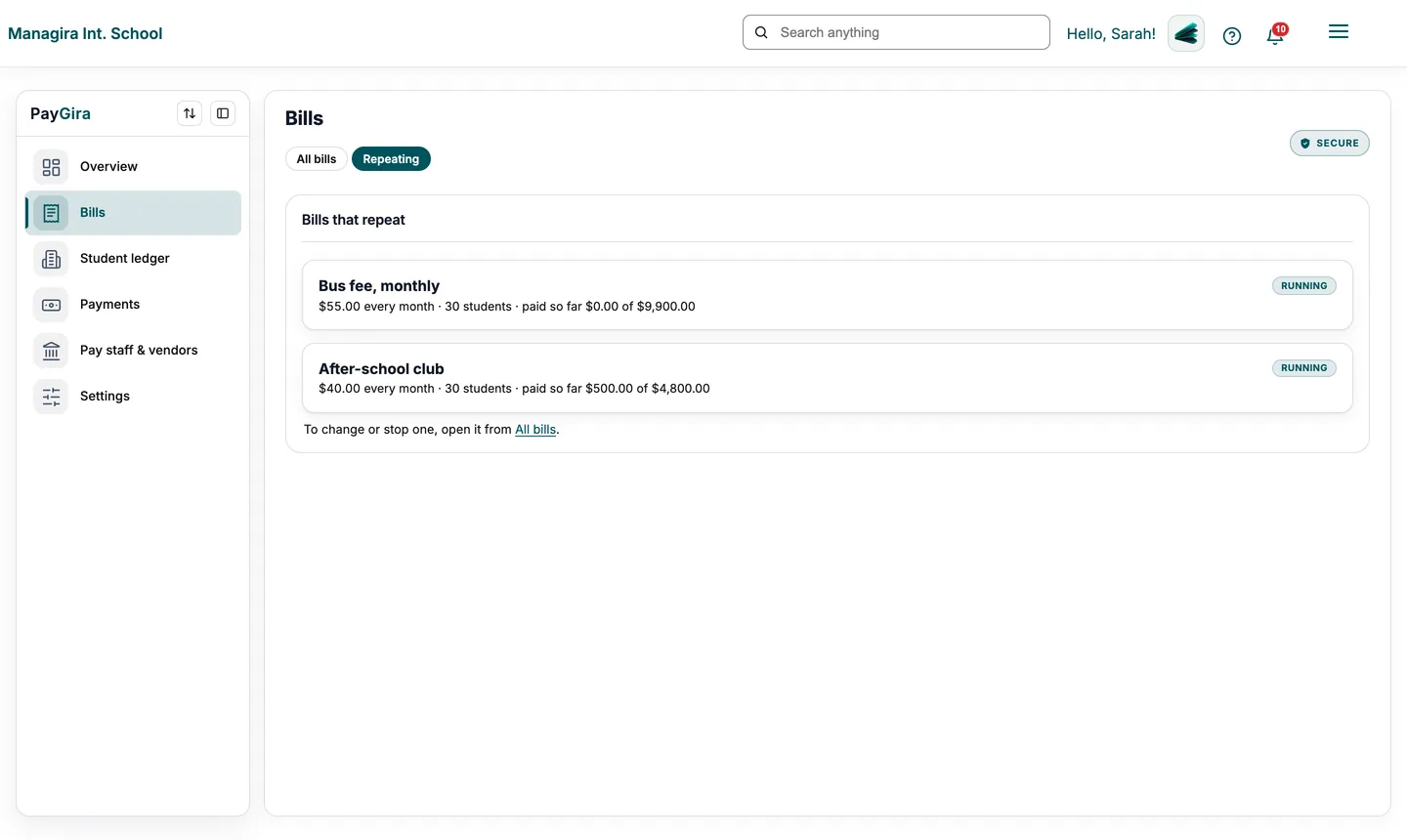
Open Bills and select the Repeating tab.
Each card says how much it repeats for, how often, how many students and how much was paid so far, for example $55.00 every month · 30 students.
To change or stop a repeating bill, open it from All bills.
Frequently asked questions
Why is the student I want not in the list?
The student list follows the school year and term you chose in More options. A student not enrolled in that term does not appear. Check School year and Term.
What does Draft mean?
A draft is saved but not sent. Parents see nothing and nobody is emailed until you send it.
Can I bill one student only?
Yes. Choose Chosen students and check the student.
Was this guide helpful?