
Home: the staff dashboard
Your classes, the school year, today's numbers, events, tasks and recent activity, and how to choose what Home shows.
Home is what you see after you sign in. It answers "what needs me today?" and takes you to the page that does the work.
Who can do this: Staff. A teacher sees only their own classes; managers and supervisors see every class.
What's on Home
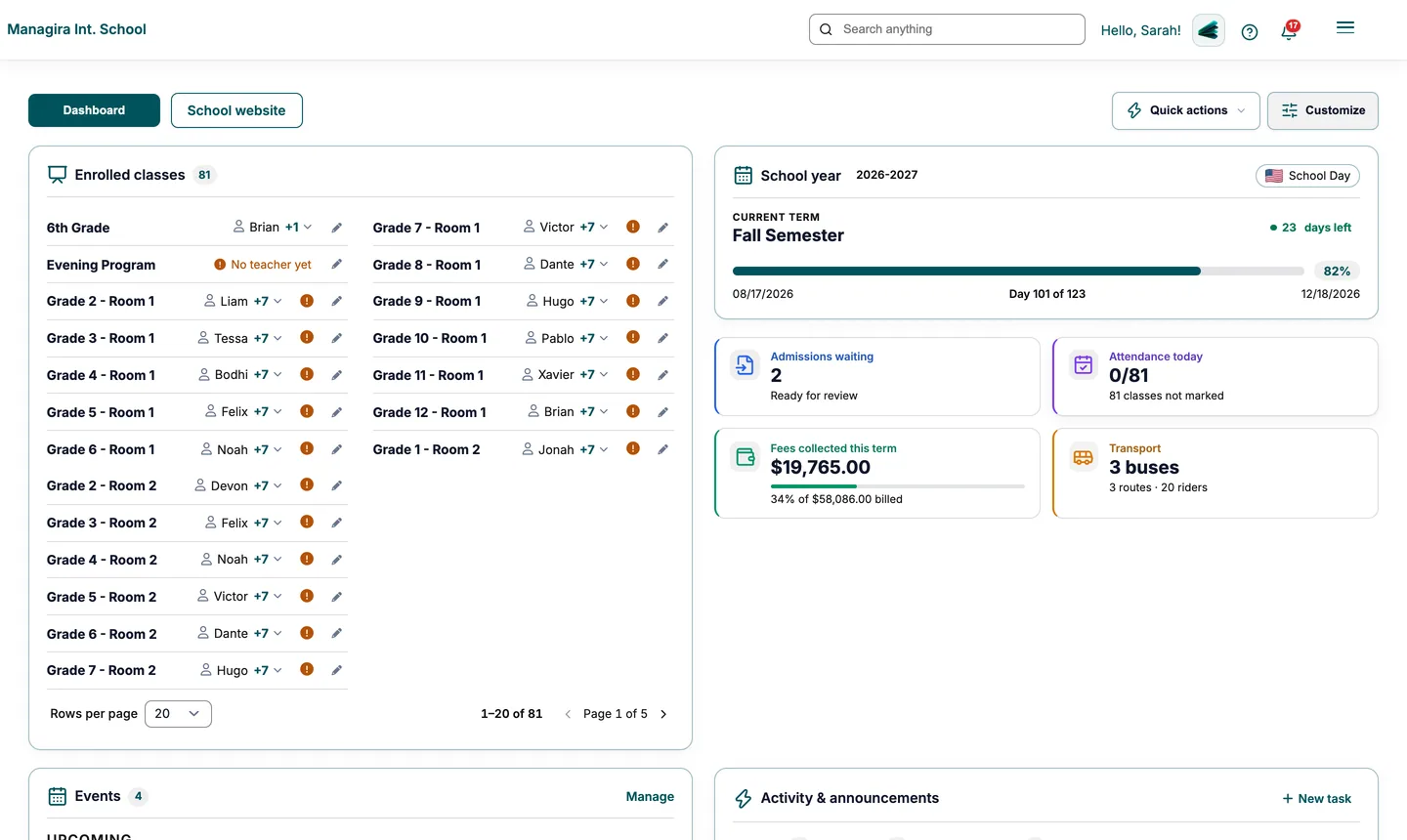
- Dashboard and School website tabs at the top. The second shows your public website.
- Enrolled classes: each class with its teacher. A warning mark means the class has no main teacher yet. Use the pencil to edit the class.
- School Year: the current term, days left and how far through it you are.
- Number tiles: Admissions waiting, Attendance today, Fees collected this term and Transport. Each opens the page behind it. Tiles appear only for what you can use.
- Events shows what is coming up. Manage opens events, announcements and activities.
- Activity & Announcements has For you (tasks and things you are tagged in), Activities and Announcements. New task adds a task.
- Needs attention and Recent activity lower down.
Quick actions
Select Quick actions above the cards.
Select an item to go there. The list follows what you use most.
Choose what Home shows
Select Customize.
Check or uncheck the cards: Enrolled classes, Current school year, Admissions waiting, Attendance today, Fees collected this term, Transport, Events and more. Your choice is saved for you only.
Your classes
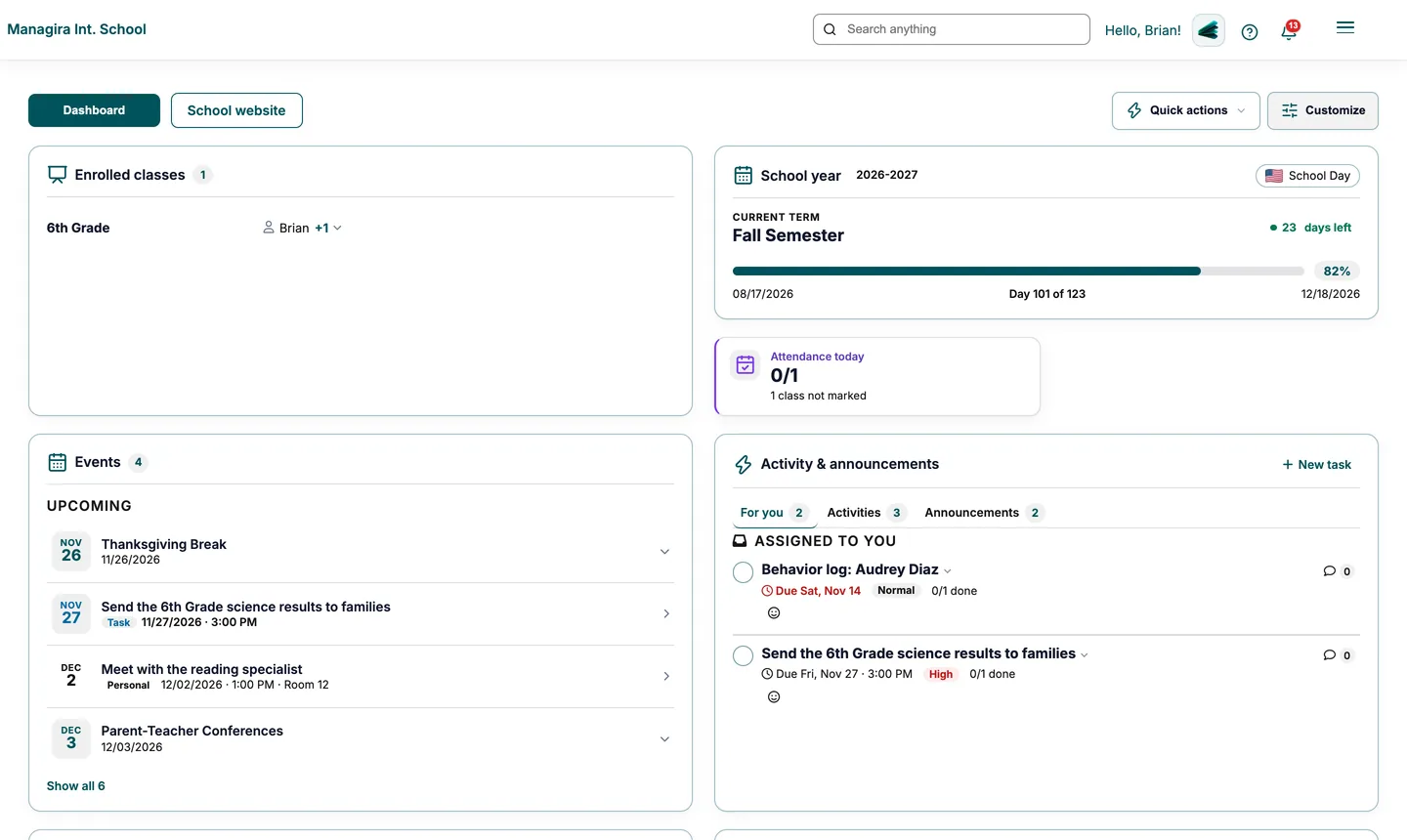
Select a class name to open its classroom. Under the list, use Rows per page to show more. A teacher sees only their own classes here; their Home looks like this:
The setup steps tab
While a new school is still setting up, a slim tab sits on the left edge of every page, showing how many steps are done. Hover over it, or select it, to open the list.
- Required steps can't be skipped. Recommended steps can: select Skip.
- A step is crossed out once it is done. Select a step to go to its page. Select × to close the list.
- The tab goes away when every step is done or skipped.
Good to know: First-time setup is in Register a school and complete first-time setup.
Frequently asked questions
Why does my Home show fewer cards than my manager's?
Cards appear only for what your role can open, and you can hide cards with Customize.
What does the warning mark beside a class mean?
The class has no main teacher yet. Choose one on a staff member's form in Users / Employees.
Where did my class go?
Teachers see only classes they are assigned to. Ask a manager to check your classes.
Was this guide helpful?