
Set the grade scale and promotion rules for a class
Set each class's promoted and repeated class, cut-off and reopen date, and the grade scale with letters, numbers or both.
These settings are kept for each class, in Report settings, Promotion & grading by class. They decide the grade and remark printed for a score and whether a student is promoted.
Who can do this: Managers, and staff given Report Settings.
Set promotion for classes
Open Reports, Term reports, Report settings, then Promotion & grading by class. Select a class. The Promotion card shows Promoted Class, Repeated Class, Cut Off Point and School Reopen Date.
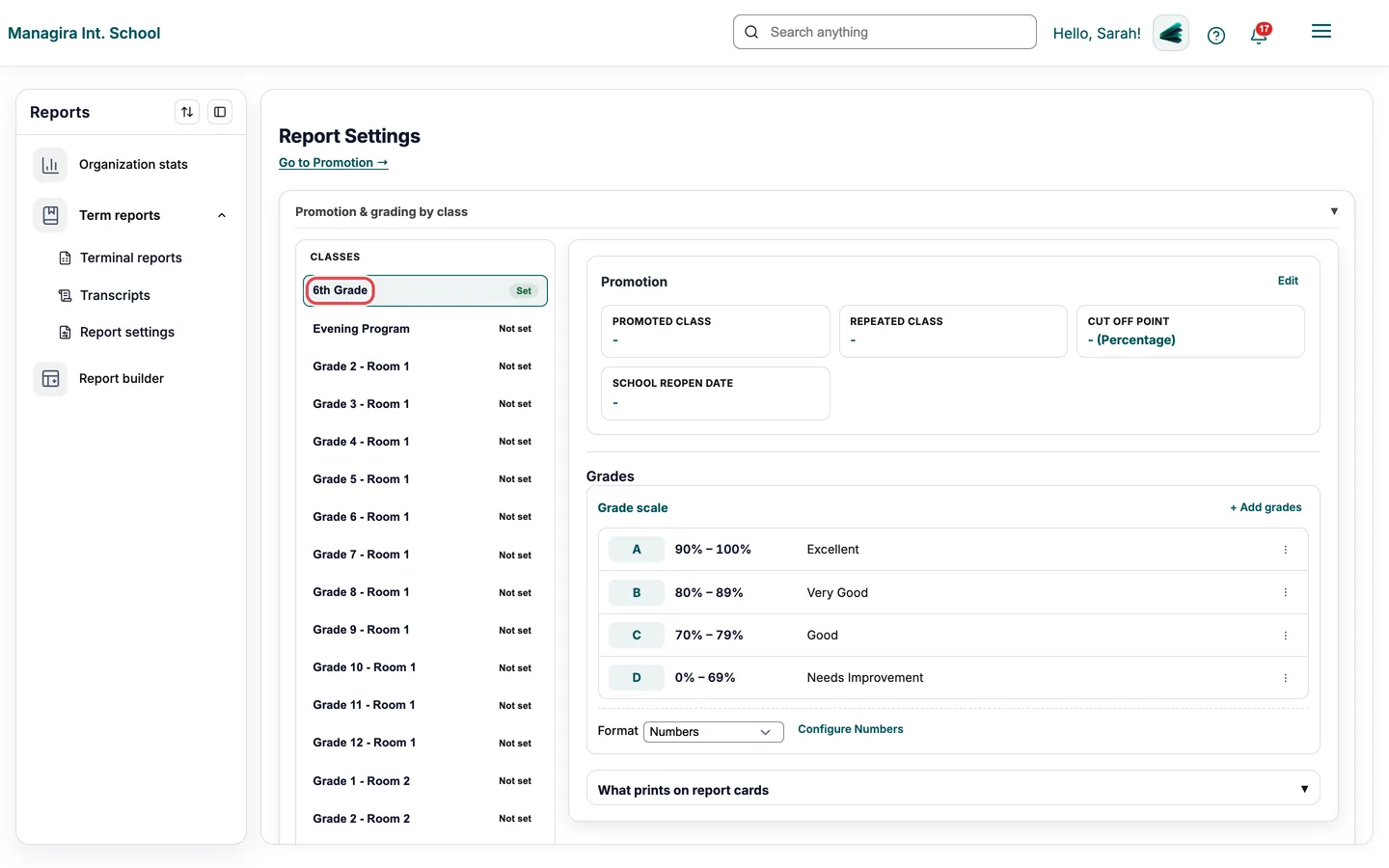
A class with no promotion settings yet. Select Edit on the card.
For each class choose Promoted to and Repeated To, type the Cut off as a percentage or overall score, and pick the Reopen Date.
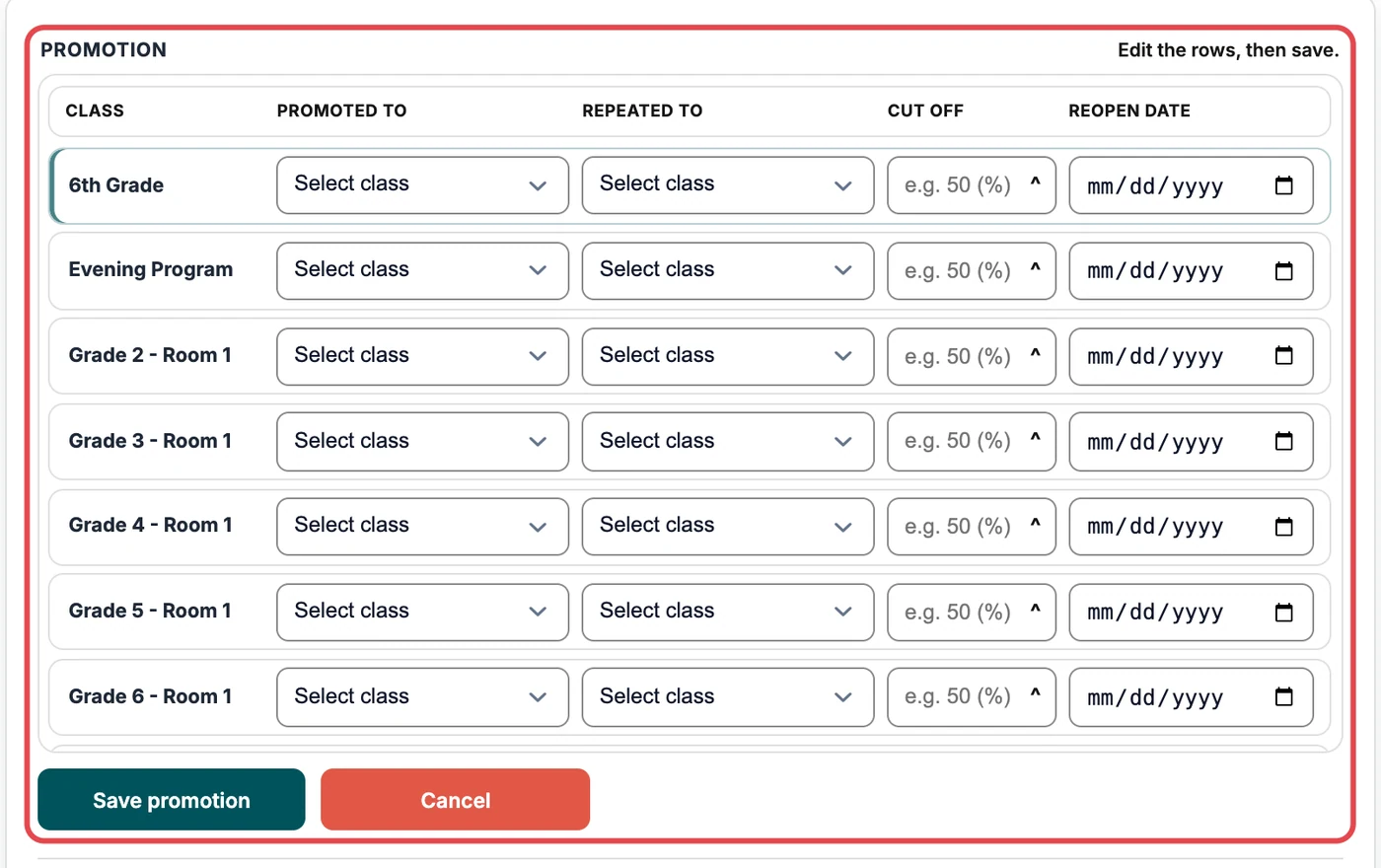
One row per class. Select Save promotion. Cancel leaves the old values.
- Choosing a cut-off or reopen date offers Apply to all classes, Apply to classes with no date (or no cut off) and Select classes, so you don't type it for every class.
- The cut-off can be a Percentage (%) or Overall Score. Choose which, then who it applies to.
- A new term starts with the promotion settings of the class's last term, so you rarely retype them.
- The decision itself is printed when Promotion is checked under What prints. The move happens in Promotion.
Set the grade scale
Under Grades, the Grade scale lists each letter, its percentage range and its remark.
Select + Add grades. Fill a rule row: Grade Label, Score Remark, From % and To %, and choose Apply To Classes. Use the + to add more rows, then Save Rules.
Use the ⋮ menu on a row to edit it or remove it.
Good to know: A school with no scale of its own uses the US scale: A 90 and up, B 80, C 70, D 60 to 69, F below 60.
Show grades as letters, numbers or both
Beside Format, choose Letters, Numbers or Letters + Numbers.
With numbers, select Configure Numbers. Choose Show total (Yes or No), and how the total is worked out: All subjects, or Core + additional subjects (pick the core subjects, how many additional ones count, and whether they are picked at random or from the top). Choose the classes under Assigned Classes and select Done.
Important: A grade that is a number, not a letter, does not count toward GPA.
Frequently asked questions
The Promotion card shows dashes.
The class has no promotion settings yet. Select Edit and fill them in.
Does a grade scale change old report cards?
Report cards are worked out from the scale when they open, so reopening one uses the scale as it is now.
Was this guide helpful?